
Build on check-in
One switch on the hosting page makes every submitted changelist start a build in Build Stream. There is nothing to install and no URL to copy: the platform configures both the Perforce server and Build Stream. The part people miss is the second half, telling Build Stream which depot paths to build.
What the switch does
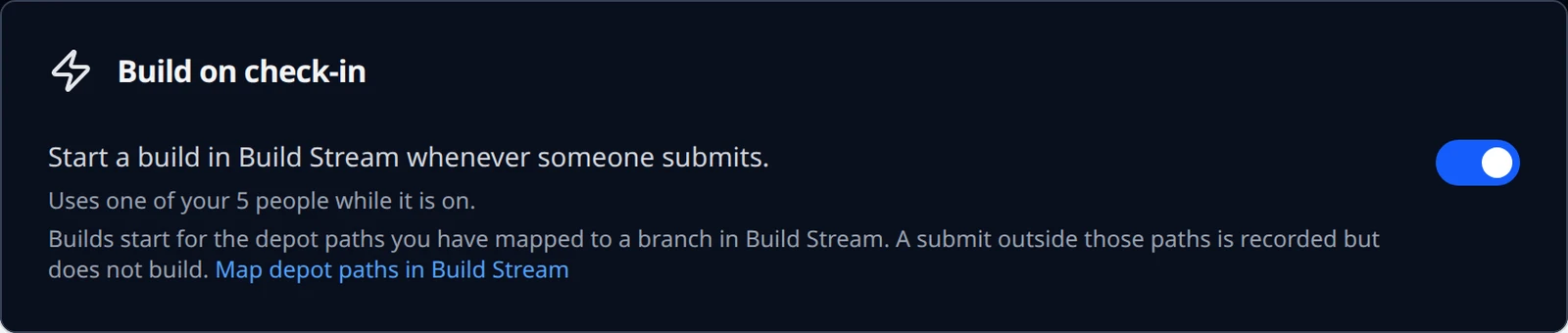
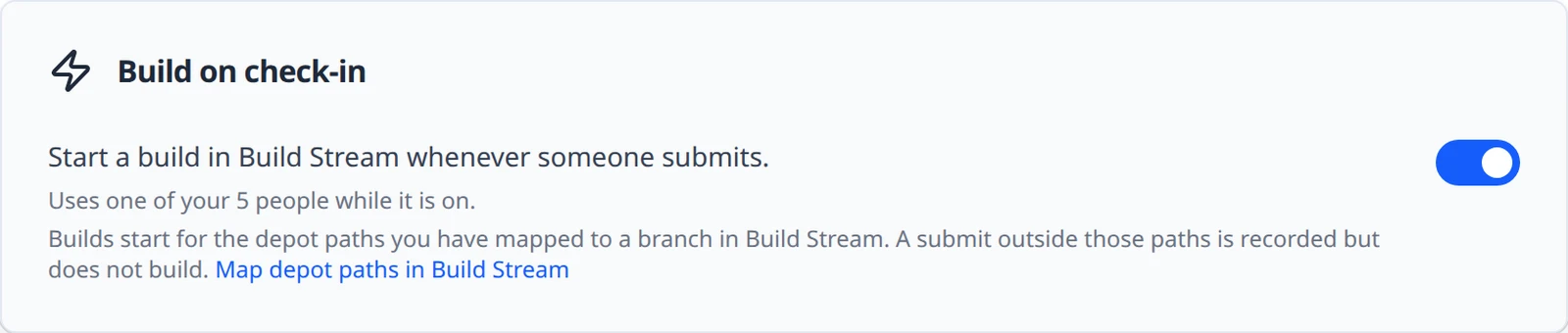
The Build on check-in card on Server Configuration reads Start a build in Build Stream whenever someone submits. When it is on, the platform installs a change-commit trigger on your live server. Each submit is posted, signed, to your project's Build Stream, the Perforce equivalent of a GitHub push webhook. The trigger only records and forwards; a submit never waits on Build Stream and cannot fail because of it.


The card needs two things to exist: a live Perforce server, and a Build Stream service on the same project.
On the Free plan the card adds Uses one of your 5 people while it is on. The build machines and code review share one standard account, dsl_bot, which exists only while a feature needs it; on the Free plan that account is one of your 5 people. On the Team plan it is not charged. See How people are counted.
The whole path, in order
From an empty project to a build that started from a submit, this is the order that works. Each step links to the page that covers it.
Add Build Stream to the project and set the engine version
In the home app, press Edit Project on the project card (or Add Project for a new one), tick Build Stream, and set Toolchain to your engine and Toolchain Version to the exact version your game opens with. For Unity, also pick the License Type. Read the version off the engine rather than from memory: every editor shows it under Help → About, and the project records it too (Unity in
ProjectSettings/ProjectVersion.txt, Unreal in the.uprojectfile, Godot inproject.godot). A version that does not match the game stops the first build; the exact message is under Put your game in the depot. Field by field, see Choose the engine.Create the Perforce server and connect P4V
Create your Perforce server, then connect P4V as the administrator you named.
Put your game in the depot
Create a workspace, copy the game in under
main, and submit it. Below on this page.Turn Build on check-in on
One switch on the hosting page. Turn it on.
Map the depot path to a branch in Build Stream
Depot path
//depot, a row namedmain, and one build configuration to start with: Windows, Debug. Map a depot path to a branch.Submit a change
Any submit under
//depot/main/now starts a build. Submit a change.Watch it build
The change appears on Build Stream's Commits page and the build on Builds. See Your first build.
Put your game in the depot
A fresh hosted server has one depot, named depot, so every path on it starts with //depot. Build Stream builds from a prefix made of two parts you choose: a depot path and a row name. The simplest layout, and the one this guide uses, puts a folder named main directly under the depot and your game inside it.
| Where | Path | Why |
|---|---|---|
| The depot | //depot | Exists on every fresh server. This is the depot path you give Build Stream. |
| The branch folder | //depot/main | The row you add in Build Stream is named main; together they make the prefix //depot/main/ that builds. |
| Your game | //depot/main/Starfall | Anywhere under the prefix is fine. Build Stream finds the project file itself, so the game can sit in its own folder. |
Create a workspace in P4V
Connected as your administrator, choose Connection → New Workspace. P4V proposes a workspace name and a root folder on your machine, for example
~/Perforce/sam_starfall, and one mapping line that covers the whole depot. Accept them and press OK. The root folder is where the depot appears on your disk.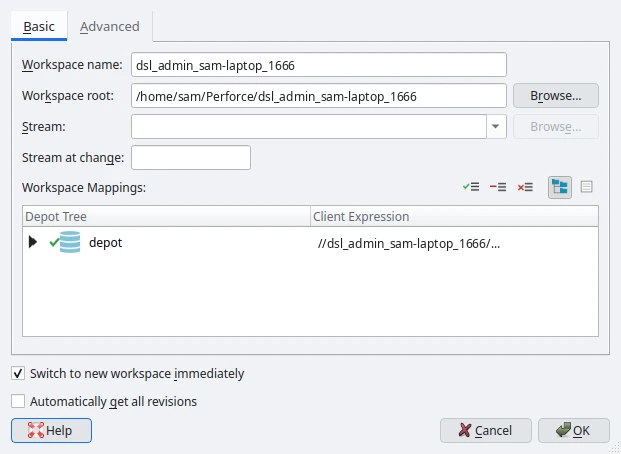
The New Workspace dialog. One mapping line for the whole depot is enough. Let the wizard add it, on an empty server
The first time you pick a workspace on a server with nothing in it, P4V opens its Add Files Wizard: The Perforce server you selected is empty. It is the quickest route. Press New Folder and name it
main, select that folder, press Browse and choose your game folder (or drag it in from a file browser), then Next. The wizard copies the game into the workspace, marks every file for add and offers to submit. If you cancelled the wizard, or the server is not empty, use the two steps below instead.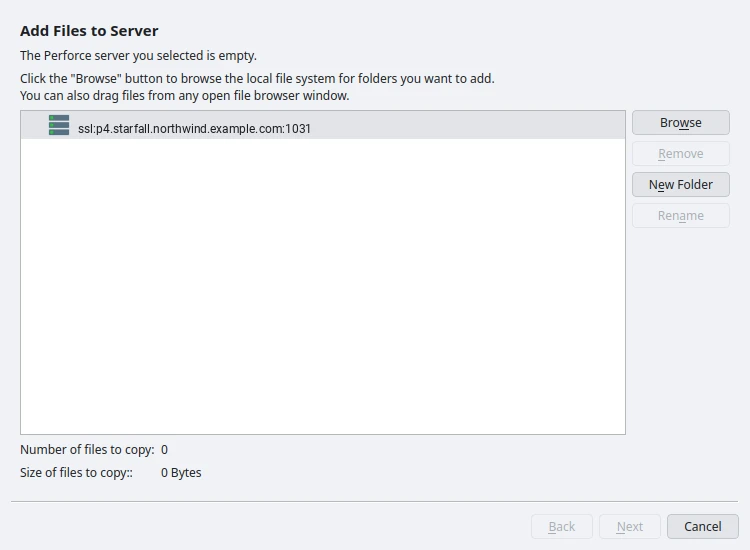
The Add Files Wizard, offered when the depot is empty. Or copy the game into the workspace yourself
In your file manager, create
maininside the workspace root and copy your game folder into it, so the project file ends up at something like<root>/main/Starfall/ProjectSettings/ProjectVersion.txtfor Unity,<root>/main/Starfall/Starfall.uprojectfor Unreal, or<root>/main/Starfall/project.godotfor Godot.Leave out the folders the engine regenerates. P4V has no ignore file by default and will add everything you point it at, and these folders are large, machine-specific and rebuilt by the build machine anyway:
Generated folders to keep out of the depot Engine Do not add Unity Library, Temp, Logs, obj, UserSettings Unreal Binaries, Intermediate, Saved, DerivedDataCache, .vs, and the generated .sln Godot .godot Mark the folder for add and submit
In P4V's Workspace tab, right-click the
mainfolder and choose Mark for Add…. P4V lists every file it will add and picks a file type for each (text or binary) on its own.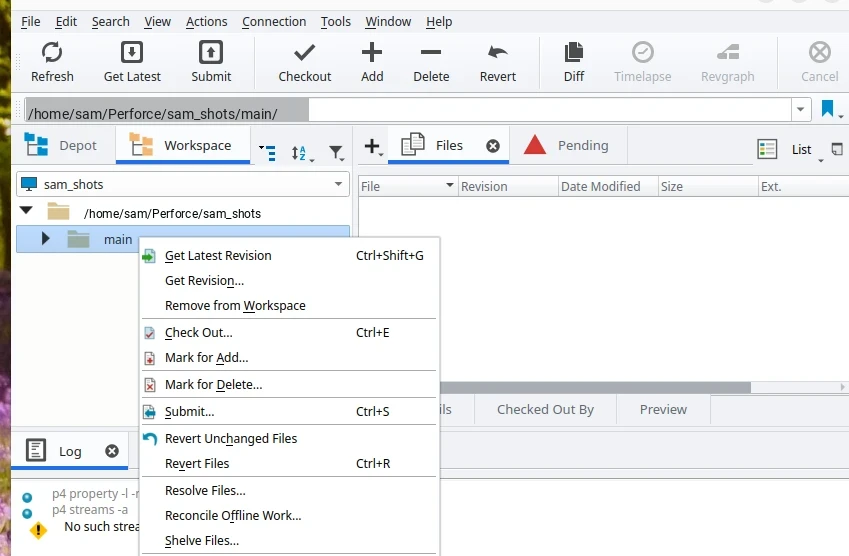
Right-click the main folder: Mark for Add… adds everything under it in one go. Open the Pending tab, right-click the default changelist and choose Submit…. The dialog lists every file with its size, type and the action add; type a description such as Add Starfall and press Submit. A first submit of a whole game can take a few minutes; P4V shows the progress.
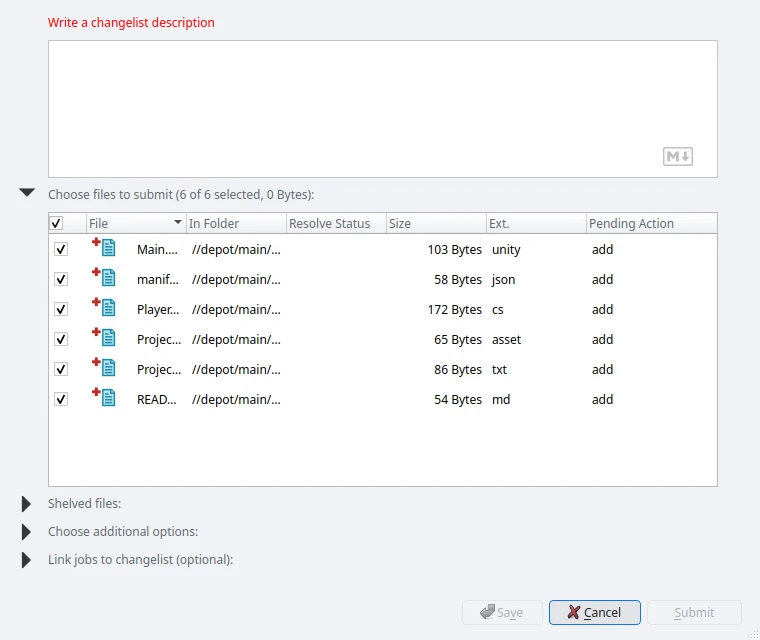
The Submit dialog with the whole project in the default changelist. It refuses until the description is filled in.
Turn it on
Open Server Configuration and find the Build on check-in card
The card sits below the connection details. It appears only once the server is live; during creation or a migration it is not shown.
Turn the switch on
The switch moves immediately and the sub-line reads Turning on… Perforce restarts for about a minute while this changes; a submit during that window fails and can simply be retried. This is the platform recording your request; a background pass then creates the build account and installs the trigger on the live server, which needs one short restart. Warn your team, or turn it on at a quiet moment. The switch stays clickable throughout, so you can change your mind.


Read the line that appears once it is on
When the live server has caught up, the pending text is replaced by the caveat that matters: Builds start for the depot paths you have mapped to a branch in Build Stream. A submit outside those paths is recorded but does not build. followed by a Map depot paths in Build Stream link. While the switch is off the card instead reads Builds also need a depot path mapped to a branch in Build Stream. with a Connect Perforce in Build Stream link; both open the connections page described below.


If it refuses
Turning the switch on can be refused. When it is, the switch shows off and cannot be moved, and the reason is written under the description in a sentence meant to be read as-is.
| Reason shown | What to do |
|---|---|
| this project has no Build Stream service to send check-ins to; create one first | The common one. Add Build Stream to the project; the card offers the link Add Build Stream to this project, which opens the project's settings in the home app. Come back once it is ready. |
| the project's Build Stream service does not have a URL yet; try again once it is ready | Build Stream is still provisioning. Wait a few minutes and try again. |
| build triggers are configured on the primary Perforce server, not the standby | You should not see this. If you do, email support@devstreamlabs.com. |


Turning the switch off is never refused.
Map a depot path to a branch
The switch decides whether submits are sent. Build Stream decides what gets built, and it needs a mapping from your depot to a branch with a build configuration. Until that mapping exists, submits arrive and are recorded, but nothing builds.
| In Build Stream | For Perforce it means | Example |
|---|---|---|
| Depot path | The depot root you build from. For the layout above, the depot itself. | //depot |
| Row (Depot path column) | The stream or folder under that root. | main |
| Together | Submits touching files under this prefix build. Your game lives inside it. | //depot/main/... |
| Build configuration | Which platforms build, and whether they build on every commit. See Branches and build configurations in the Build Stream guide. | win32-debug, on commit |
A depot path deeper than the depot works the same way, for example //depot/game with a row main building //depot/game/main/.... The longest matching prefix wins, so //depot/game and //depot/game/tools can be separate repositories. A submit that touches two mapped branches builds both. Files under no mapped prefix are ignored for that submit.
You create the mapping in Build Stream.
Open Source Control Connections
In the project sidebar open Build Stream and then the Connections page.
Add a Perforce connection
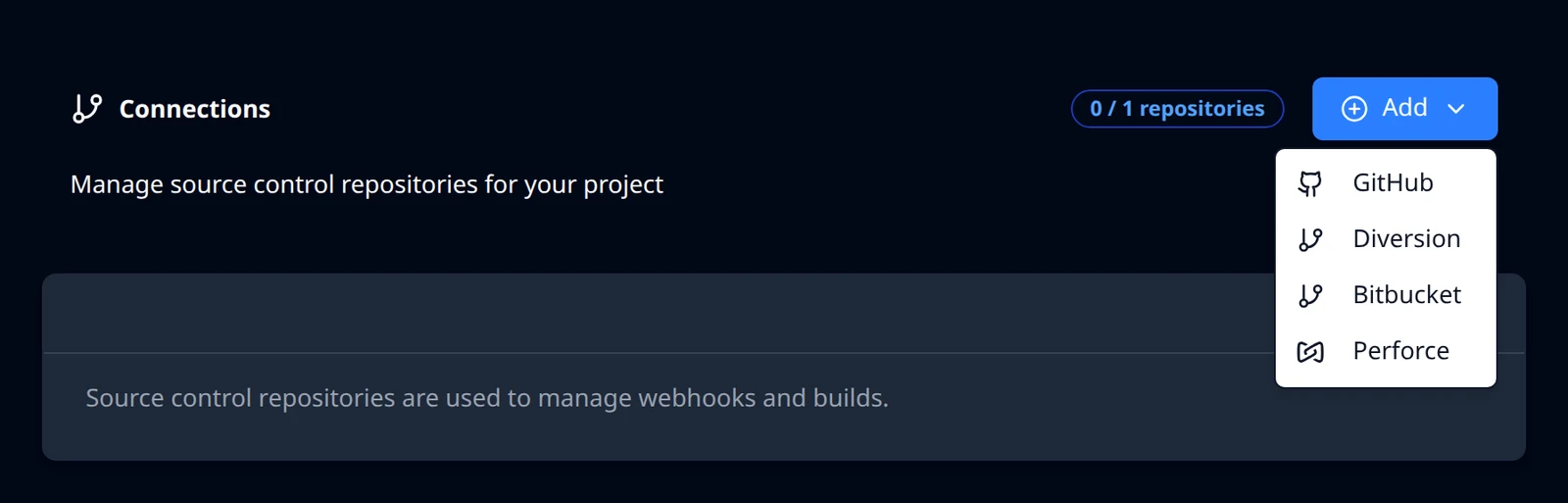
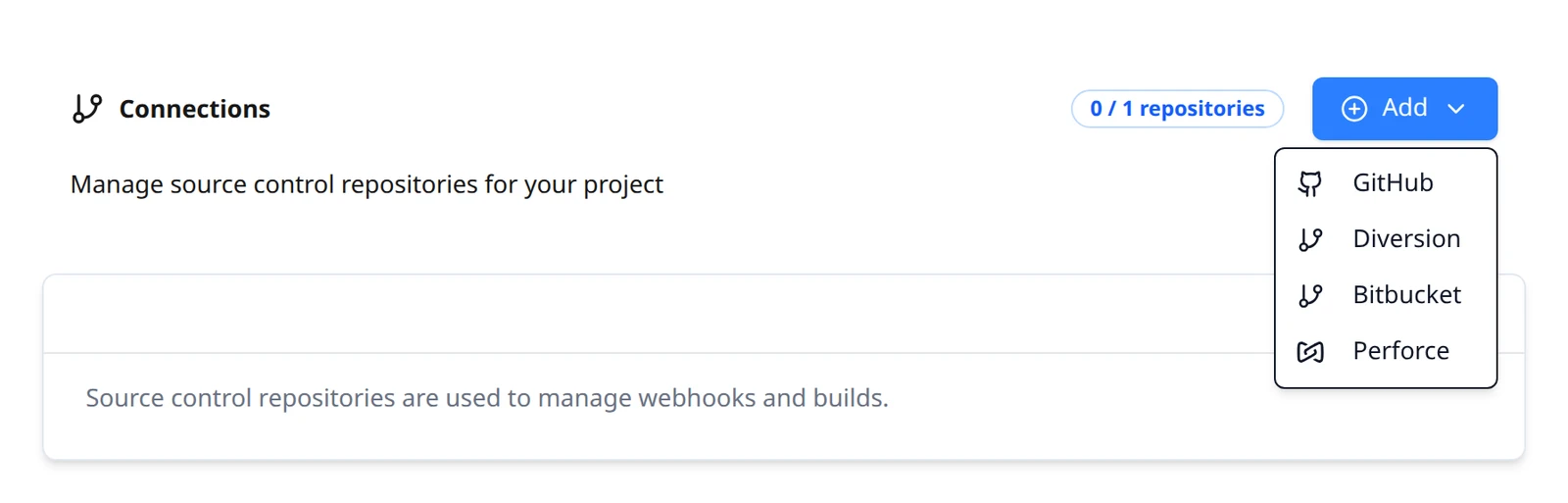
Click Add and choose Perforce. The Hosted Perforce server form shows your server and its build account read-only; there is nothing to paste. Its Status can read Not armed for up to a minute after you turn the switch on, because Build Stream refreshes the registration from Cloud Manager about once a minute; wait, or reload the page.
Enter the depot path and create
In Depot path enter the depot root you build from:
//depotfor the layout above, or a deeper root such as//depot/game. Start with two slashes and do not end with one. Then click Create.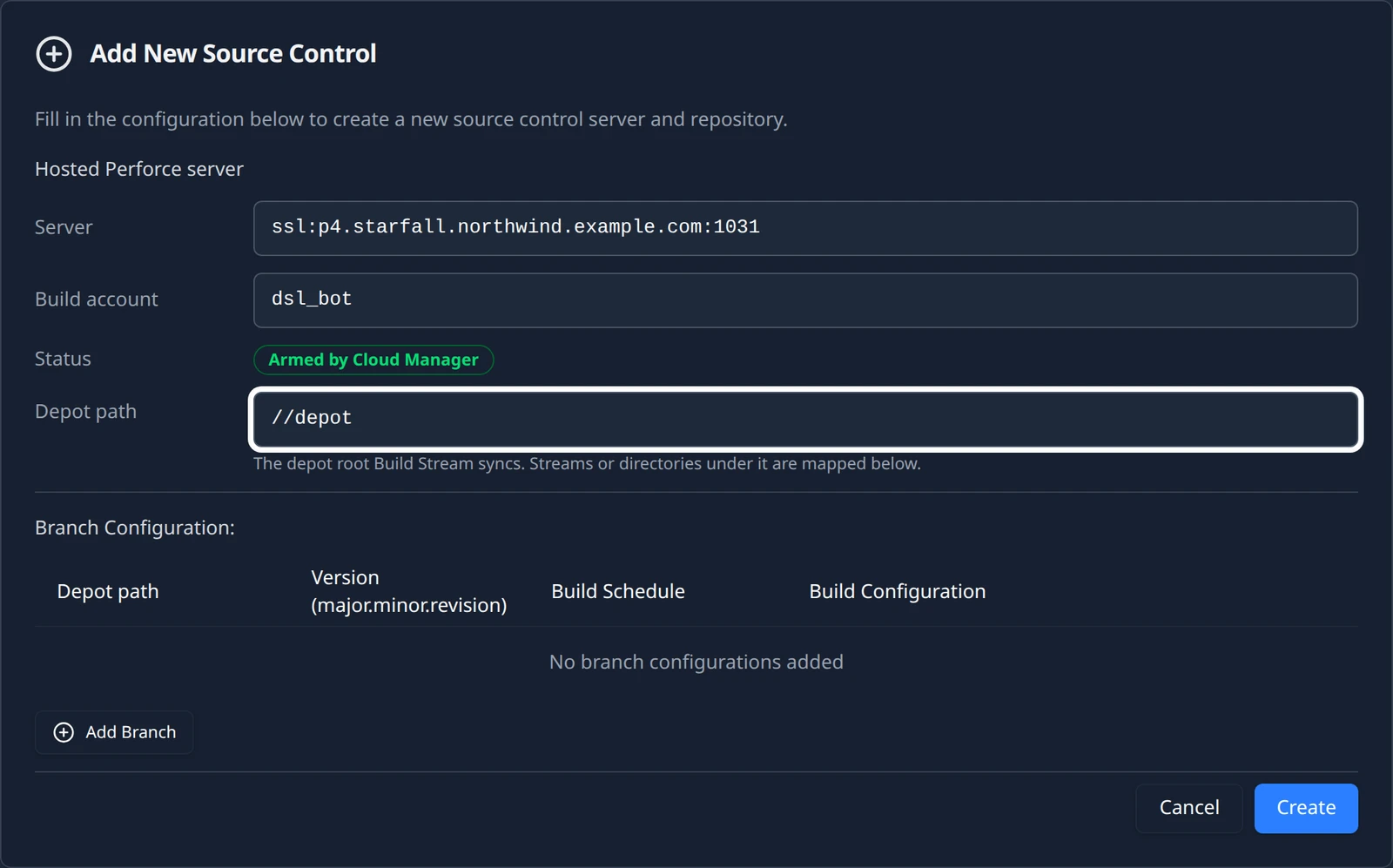
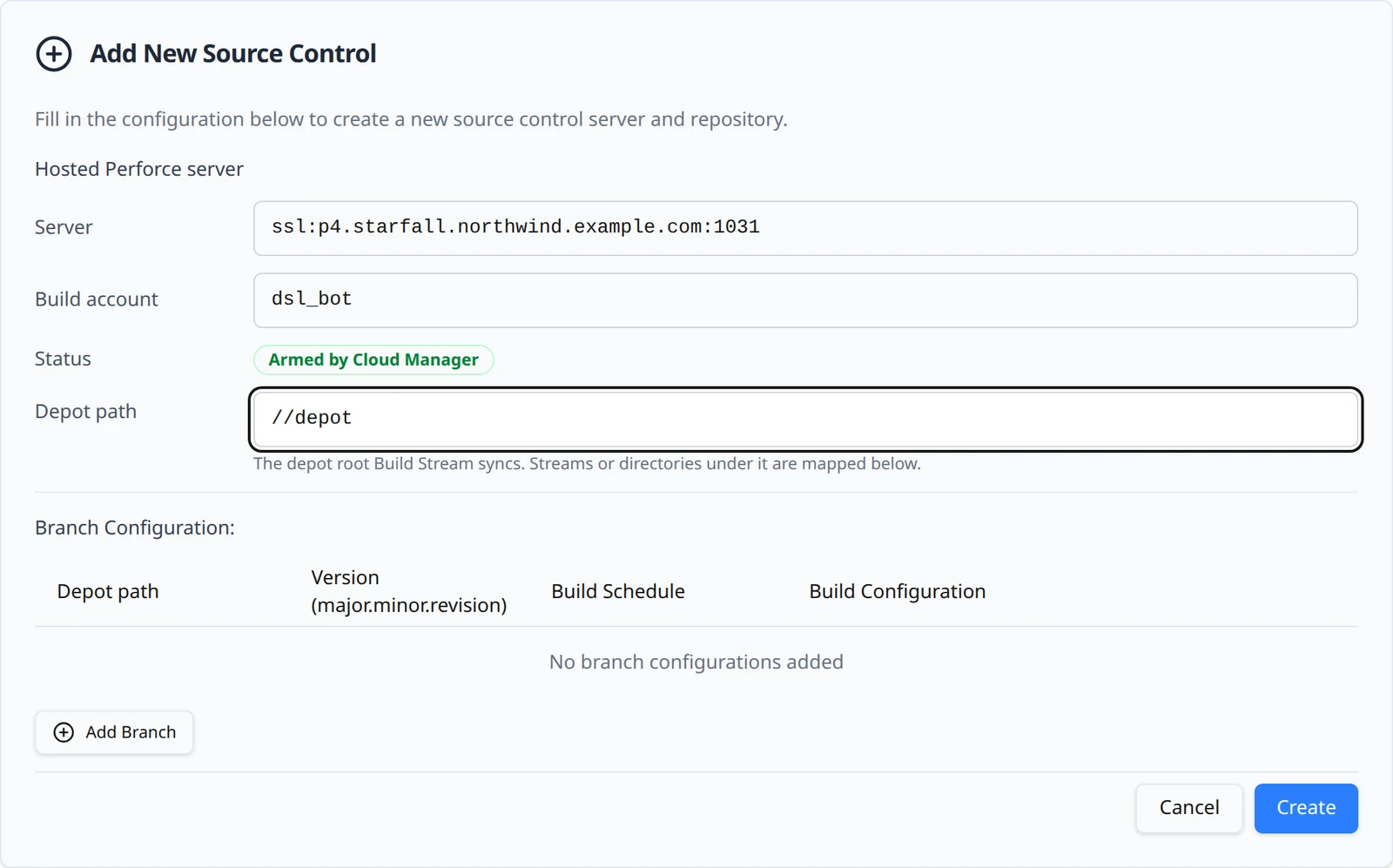
The Hosted Perforce server form with the depot path filled in. Server, build account and status are filled in for you. Add a row per stream or directory
In the card's branch table add a row named
main(the folder you created under the depot), type a base version such as1.0.0, leave the schedule on On Every Commit, tick one build configuration and press Confirm. Start with Windows, Debug: it is the platform the farm builds for every engine, and one configuration means one build to watch. Platforms the farm cannot build for your engine carry an amber unavailable marker in the picker; leave those unticked. Add more configurations once the first build is green. Without a configuration the row refuses with Select at least one build configuration for branch "main" before confirming.
The form, the rows, the validation messages and the card's delivery status are covered step by step on Connect your hosted Perforce server in the Build Stream guide.
Submit a change
With the switch on and a depot path mapped, any submit under that path starts a build. If your game was already in the depot before you turned the switch on, make one small change to start the first build: in P4V, right-click a file in the Workspace tab and choose Check Out, edit it, or add a new file with Mark for Add. Keep the default changelist, open the Pending tab, right-click the changelist and choose Submit…. Type a description and press Submit.
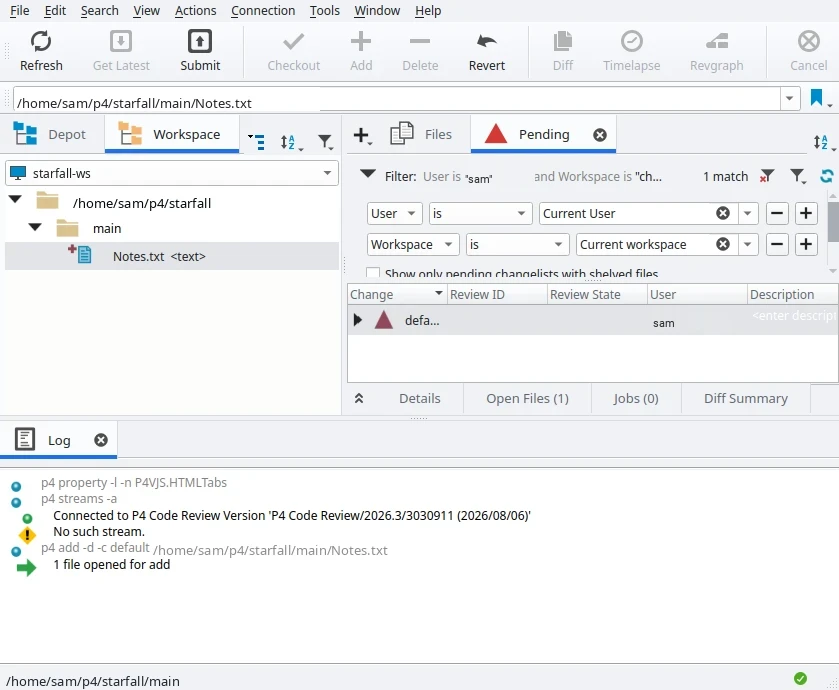
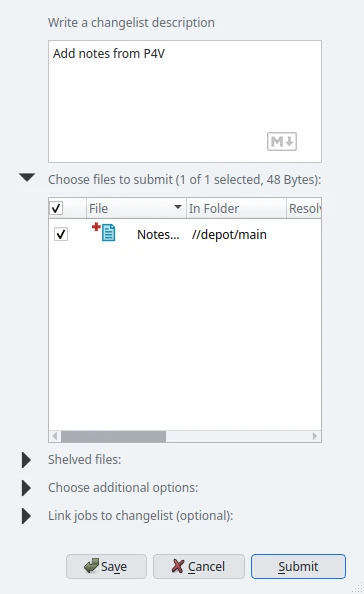
From the command line the same thing is:
p4 add main/Notes.txt p4 submit -d "Add notes"
Within about a minute the change appears on Build Stream's Commits page and a build starts for each configuration on the matching branch row.
Turned on, but nothing builds
Work through these in order.
Is the switch actually on?
The card must read the mapped-paths caveat, not Turning on… and not a refusal reason. If it is still pending after a few minutes, reload the page.
Is the submitted path mapped?
Compare the changelist's file paths with your mapping. In Build Stream, unmapped submits surface as a notice: Pushes are arriving on branches that are not set up to build, with the depot path and the changelist number. That notice is your confirmation that the trigger is delivering and only the mapping is missing. The notice itself is described in the Build Stream guide.
Does the project have a Build Stream service, and is it ready?
Both refusal reasons above apply here. Check the project's services in the home app.
Did you press Build Now while the switch was off?
Build Stream's Build Now refuses with Build on check-in is off for this Perforce server, so it has no build account. Turn on Build on check-in on the Hosting page to build this branch. The switch controls the build account as well as the trigger: off means the account is removed and nothing can sync your depot.
Still nothing?
Email support@devstreamlabs.com with the project name and a changelist number that did not build.
What the build machine does
When a submit builds, a build machine syncs your depot as dsl_bot, the read-only account the platform created on your server when you turned the switch on, pinned to the exact changelist that was submitted rather than to the head of the depot, so a build labelled with a changelist contains exactly that changelist. It also checks the server certificate against the fingerprint on your connection card before syncing. Workspaces on the build machines are reused, so the second build of a branch is an incremental sync rather than a full one.
MAJOR STEP START: clone_repo
RUN PROCESS START: p4_trust
  p4 -p ssl:p4.starfall.northwind.example.com:1031 -u dsl_bot trust -i AB:12:6D:4F:90:C3:E8:71:2A:55:BD:04:7E:39:F1:C8:6B:2D:A0:14
RUN PROCESS START: p4_sync
  p4 -p ssl:p4.starfall.northwind.example.com:1031 -u dsl_bot -c <workspace> sync //<workspace>/...@<changelist>
Turn it off
Turn the switch off. The sub-line reads Turning off… (with the same restart warning) until the trigger has been removed from the live server. Turning off is never refused, and submits made while it is off are not sent. If code review is also off, the dsl_bot account is removed too and, on the Free plan, its place comes back to your team; Build Stream's Build Now then refuses until you turn the switch on again.
Where the switch lives and how the check-in reaches Build Stream is also summarised on the overview.
Something out of date or unclear? Email support@devstreamlabs.com.