
Accounts, security and licensing
Your server speaks TLS only, arrives with an administrator account you named, and is hardened to Perforce's strongest password level. This page covers connecting for the first time, adding your teammates, the accounts you will find on the server, the settings we apply, and where licensing and plan limits are explained.
Install the Perforce tools
Perforce's client software is not part of the platform. Install it on your own machine from Perforce's download pages; the tools are free, and any current version works with a hosted server.
| Tool | What it is for | Where to get it |
|---|---|---|
| P4V, which includes P4Admin and P4Merge | P4V is the desktop client for syncing, editing and submitting files. The same installer carries P4Admin, the administration tool you use to add people and set permissions, and P4Merge for comparing files. | Helix Visual Client (P4V) |
| p4, the command line | Optional. One executable for scripts, build machines and the commands shown in this guide. The Windows P4V installer can add it for you; on macOS and Linux it is a separate download. | Helix Command-Line Client (P4) |
P4V and P4Admin are all most teams need, and the rest of this page uses them. The command line is covered at the end, under Use the command line.
Connect with P4V
You need three things, all of them in the Perforce is ready email: the server address, the fingerprint, and the temporary password for the administrator account you named when you created the server (sam in this guide). The address and fingerprint are also on the Project source control card; see Your connection details.
Open P4V and choose Connection → Open Connection. Enter:
| P4V field | Value |
|---|---|
| Server | ssl:p4.starfall.northwind.example.com:1031 |
| User | sam |
| Workspace | Leave empty the first time; create one after signing in. |
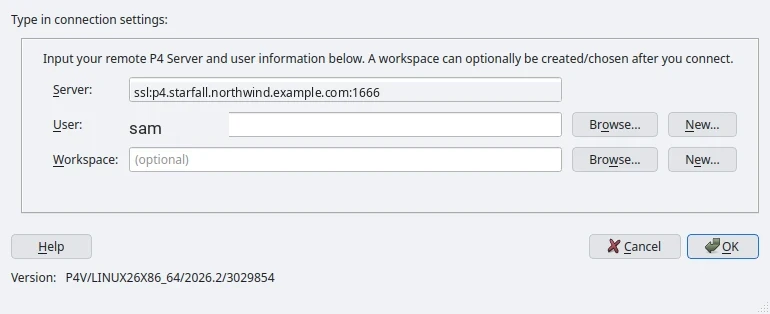
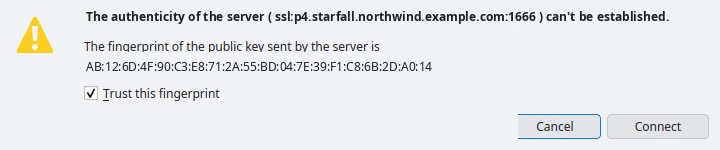
Press OK. P4V shows the server's certificate fingerprint and asks whether to trust it: compare it, character for character, with the Fingerprint row on your connection card or in the email, then press Connect. If it does not match, stop: you are not talking to your server.
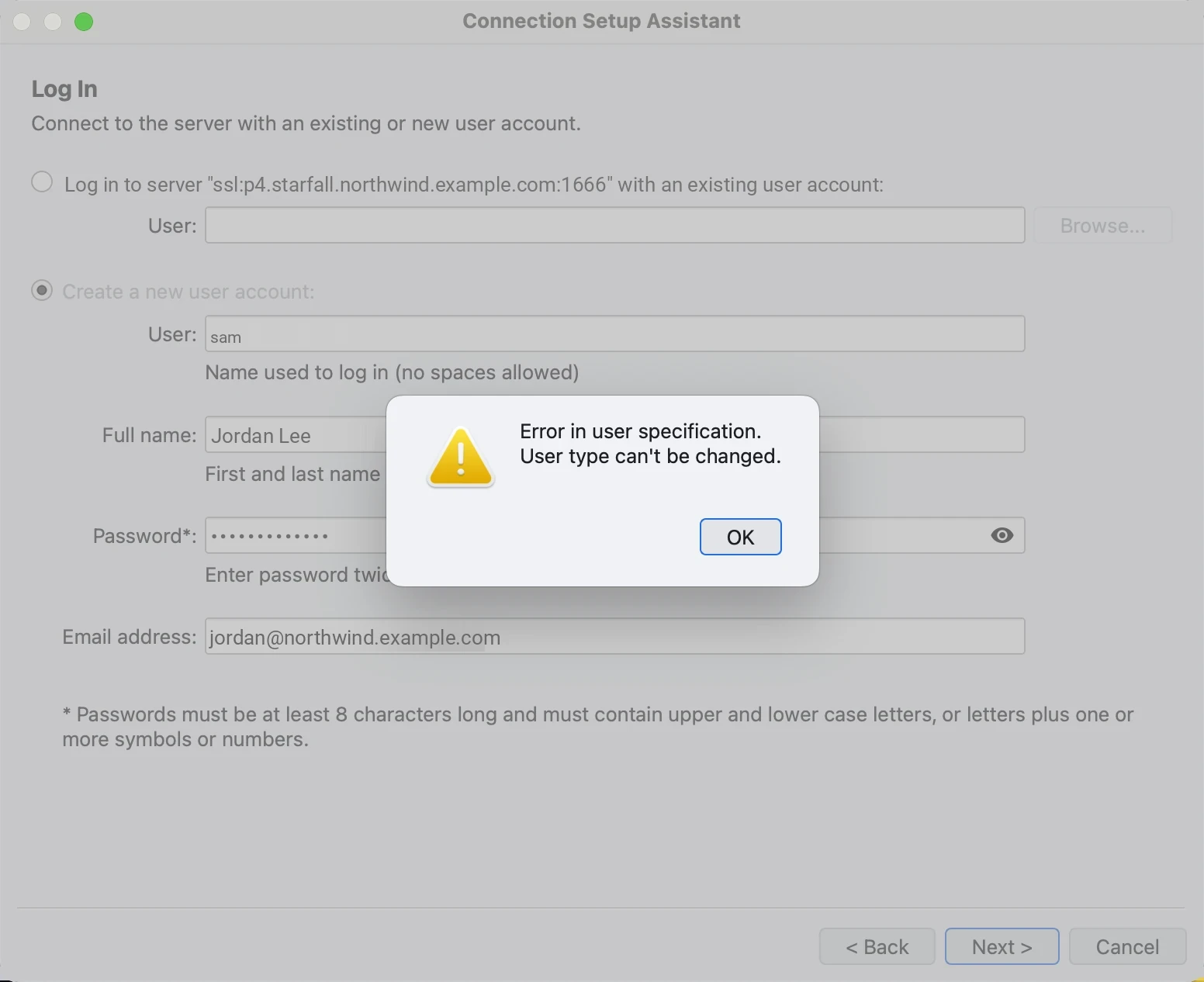
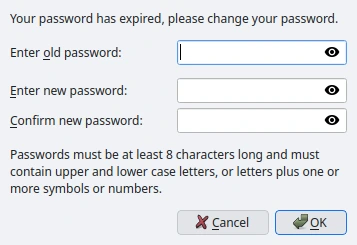
Enter the temporary password from the email. The server requires your administrator account to replace it at first sign-in, so P4V opens a dialog reading Your password has expired, please change your password. It asks for the old password, the new one twice, and reminds you of the policy: at least eight characters with a mix of upper and lower case, digits or punctuation. A wrong old password shows Password invalid. and asks again. Once you are in, delete the email.
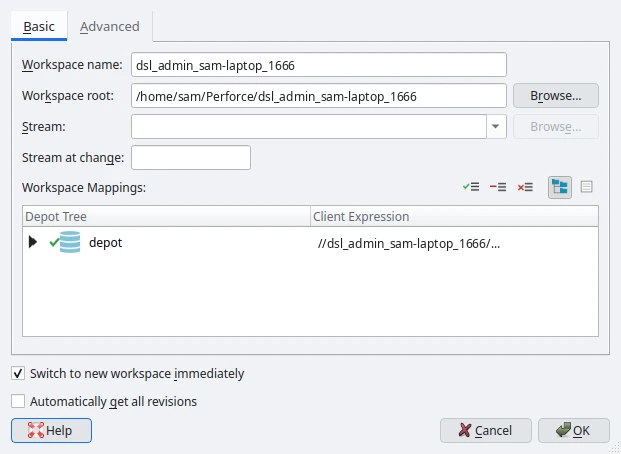
With the connection open, create a workspace from Connection → New Workspace. P4V proposes a name built from your user, machine and port, a root folder under your home directory, and one mapping that covers the whole depot; accept them or narrow the mapping to the paths you work on. Switch to new workspace immediately is ticked by default, so the Depot tab is ready to sync as soon as you press OK.
- P4V's Swarm integration finds your Swarm server automatically; the platform publishes its address on the server for that purpose.
- P4Admin connects with the same three values. Use it to add people and set groups and permissions; see Add your team in P4Admin.
For the tools themselves, Perforce's own documentation is the reference; this guide covers only what is specific to a hosted server.
Add your team in P4Admin
You add people in P4Admin, signed in as your administrator account. There is no people list in the app yet: the People panel on the hosting page counts the accounts on your server and, on the Team plan, changes how many seats you pay for.
Open P4Admin and connect
Start P4Admin (it is installed with P4V), choose Connection → Open Connection, and enter the server address and your administrator username, then the password you chose when you first connected. P4Admin opens on its Home tab; the Users & Groups tab lists every account on the server. On a new server that is your administrator and
dsl_admin, our operator account.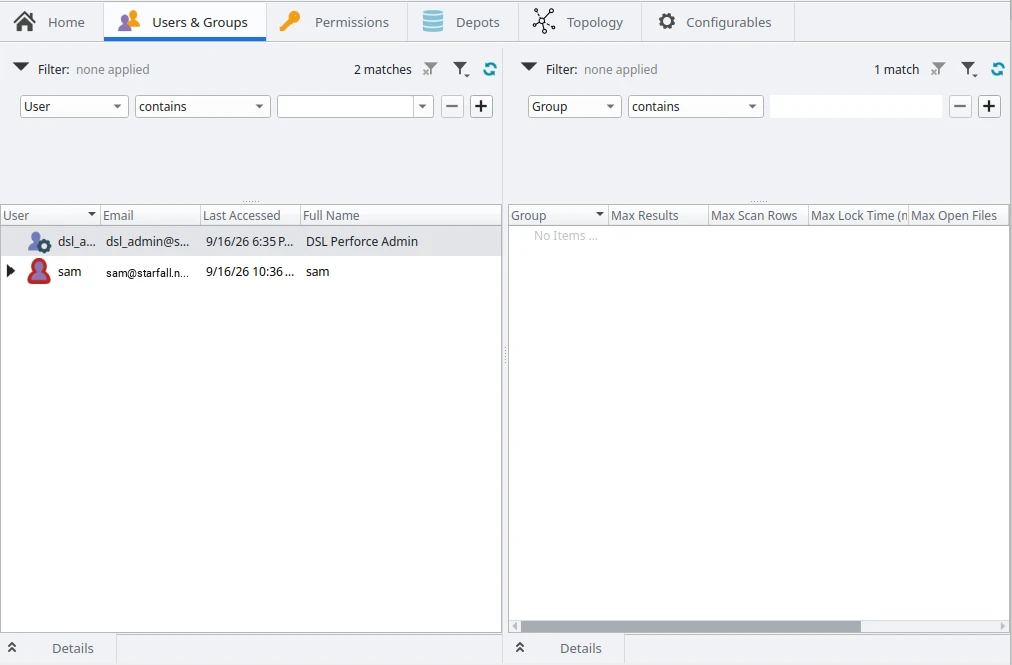
Users & Groups on a new server: your administrator and our operator account. Create the account
Open the Users & Groups tab and press the New user toolbar button (or Administration → New User…). Fill in the user name, email, full name and an initial password, leave Type as standard, and press OK.
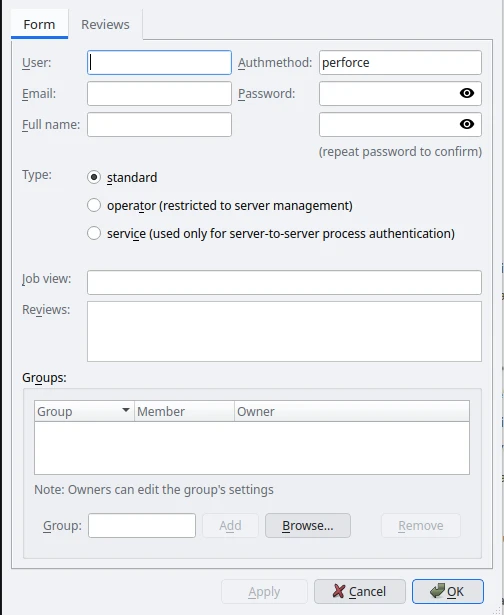
P4Admin's New User form. Leave Type on standard; the password you set here is the one the person changes at their first sign-in. Hand over the details
Give the person the server address, the fingerprint, their username and the initial password. They connect P4V with their own username, are asked to choose a new password, create a workspace and can submit straight away: every account on a new server can read and write the whole depot until you decide otherwise. When you want finer control, set it on P4Admin's Permissions tab, where the table starts with that default line, write user * //..., followed by super for your administrator and for our accounts.
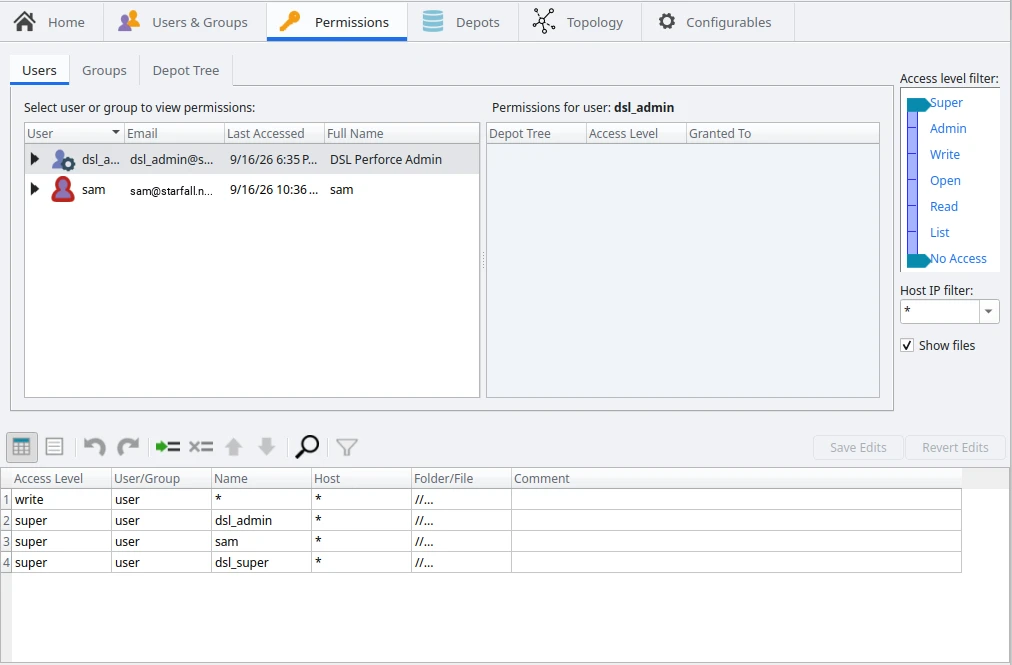
The Permissions tab on a new server. The first line is what lets a new teammate work immediately.
Perforce's documentation covers the spec formats and the protections table. Two things are specific to a hosted server: do not remove or demote the platform accounts listed below, and remember that every standard user you create is one of your plan's people.
Accounts on your server
| Account | Type | Counts as a person? | Purpose |
|---|---|---|---|
sam | standard, super | Yes | Your administrator account, under the name you chose when you created the server. Full access: your own day-to-day work, plus adding people and setting groups and permissions in P4Admin. The temporary password is emailed once and must be changed at first sign-in. |
dsl_admin | operator | No | Our account for looking after the server: checkpoints, backups, verification and restarts. It cannot read or change the files in your depot, and its password is never shared. Do not delete or demote. |
dsl_bot | standard | On the Free plan, yes, while it exists. On the Team plan, no. | The one account Build on check-in and code review share. Created when you turn either on, removed when both are off. It syncs and reads; it never submits. Do not change its permissions. |
dsl_replica | service | No | Replication to the standby server on the Team plan. Do not delete or demote. |
dsl_super | standard, super | No | Our provisioning and recovery account. On a Free server it is removed as soon as setup finishes so that its place goes back to you; on a Team server it stays for failover and support. Do not delete or demote. |
On a server you migrated in, your existing users, their passwords and your own administrator come across unchanged; sign in with the account you already use. dsl_admin is added to your protections table as our operator account rather than replacing anything. Your existing people count towards the plan limit; see Bring an existing server across.
Security defaults
| Setting | What it means for you |
|---|---|
| TLS only | Clients must use ssl:. There is no plaintext port to fall back to. |
| Certificate fingerprint published | Shown on the connection card and in the ready email, so every client can pin it with p4 trust. |
security=4 | Perforce's strongest built-in level: strong passwords, ticket-based authentication, and no password-in-config shortcuts. |
| Forced first password change | Your administrator account cannot keep the emailed temporary password. |
| Standby server | On the Team plan, a replica keeps a live copy for failover. |
| Platform backups | We keep our own backups of your server, separately from anything you pull through Backup & export. |
| Read-only build access | Build machines sync with dsl_bot, which has read access only. |
| Free-plan seat guard | On the Free plan a trigger refuses the sixth standard user, so the server never falls into Perforce's 1,000-file limit by accident. |
Licensing
Licensing follows the plan. On the Free plan the server runs on Perforce's built-in unlicensed limits (5 users and 20 workspaces once a depot holds 1,000 files or more), and the seat guard keeps you inside them. On the Team plan the platform installs a licence sized to the seats you bought. Plans, seats and prices are on Plans, people and billing. Two facts matter for backups:
- Your licence never leaves the server. Backups and exports exclude the Perforce licence file. A server you restore from a backup runs unlicensed until a licence is installed into its
P4ROOT, and unlicensed Perforce allows five users and twenty workspaces. See Restore from a backup. - Standard users are people. Every standard user on the server, including one you create for a build machine of your own, counts against the plan. Operator and service accounts do not.
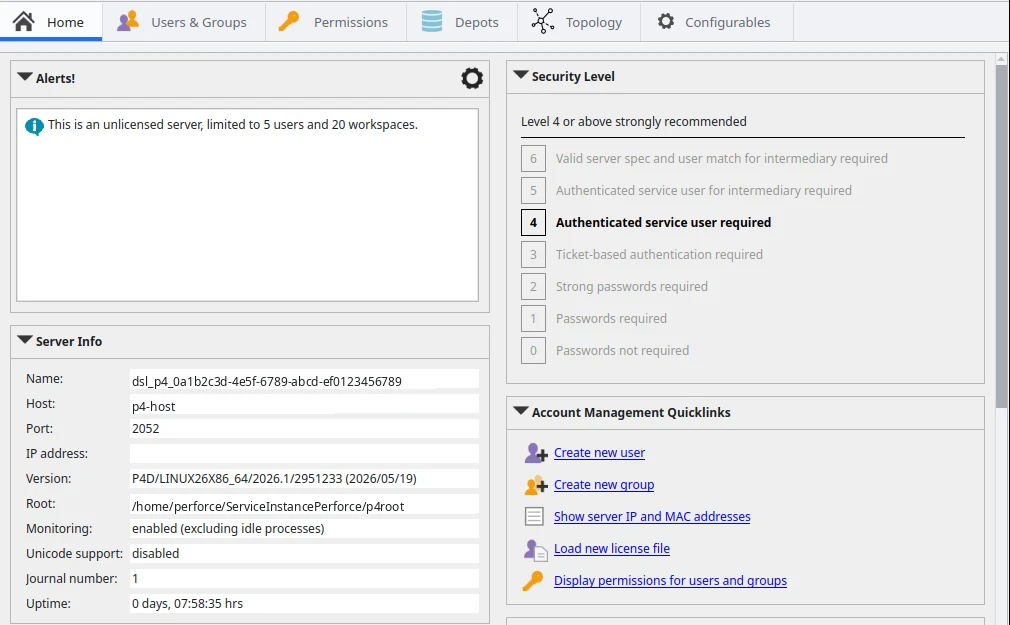
P4Admin's Home tab shows the licence state at a glance: an unlicensed (Free plan) server announces its limits under Alerts!, and the Security Level panel highlights the level your server runs at, which is 4 on a hosted server as described under Security defaults.
Helix Swarm (Team plan)
Helix Swarm, Perforce's code-review tool, is part of the Team plan (which the app labels Paid). Its address is on the connection card as Swarm Server and follows a fixed pattern: your server label with -swarm appended. Nothing answers at that address until you turn code review on.
On the hosting page, the Code review (Swarm) card (Review, comment on and approve changes before they ship.) has a switch on the Team plan. Turn it on and the card reads Setting up… this takes a few minutes., then Preparing your Swarm server…, and finally shows an Open Swarm link. Turning the switch off asks Remove code review? (Removing Swarm deletes the code-review server and its history of reviews. Your Perforce depots and submitted changes are not affected.) with Keep Swarm and Remove Swarm buttons. On the Free plan the same card carries a Paid plan badge and the sentence Code review is part of the paid plan. instead of a switch.




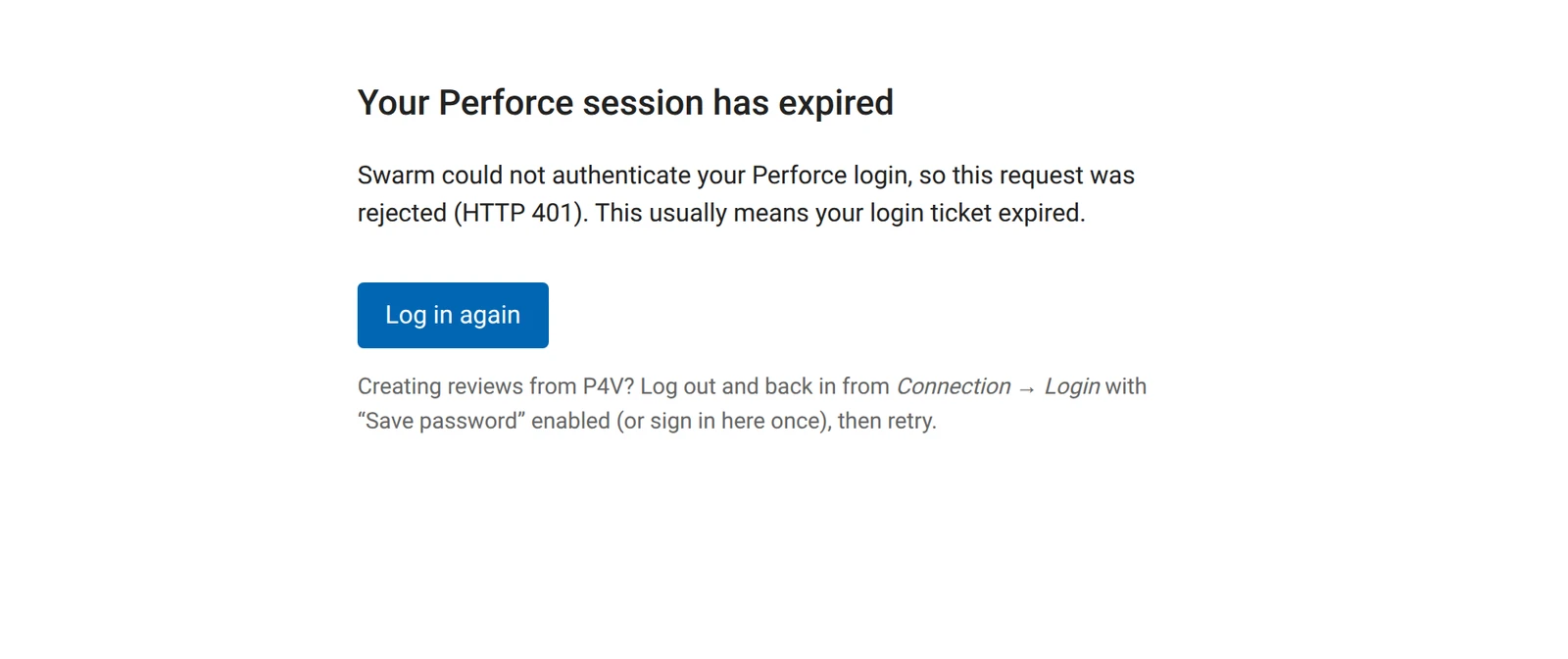
Your first visit to the Swarm address can open on a page reading Your Perforce session has expired with a Log in again button; press it to reach the login page.
https://p4-swarm.starfall.northwind.example.com
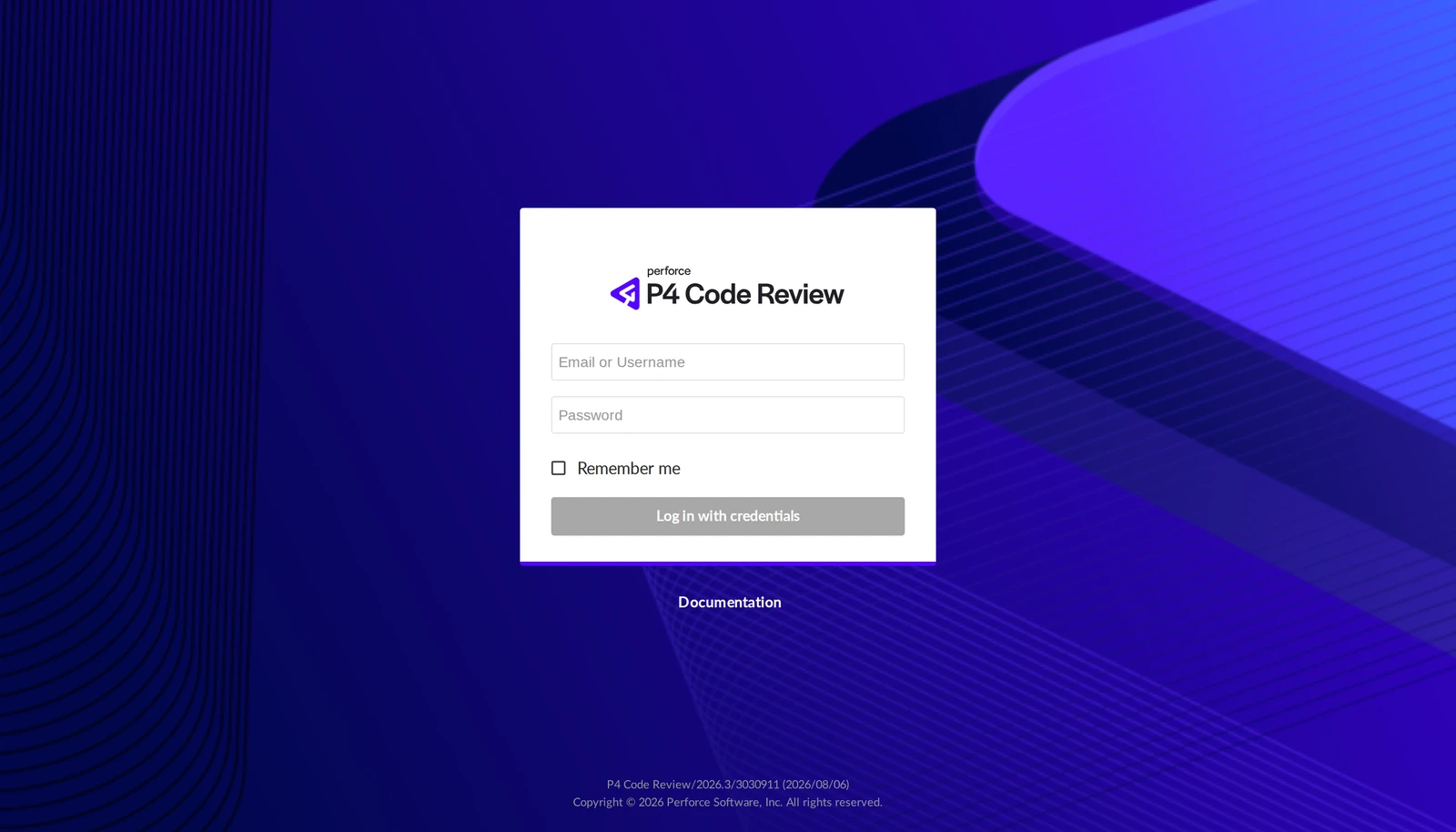
- Swarm requires sign-in. Use your Perforce username and password; there are no separate Swarm accounts. Your administrator account can administer Swarm as well as review.
- Swarm connects to Perforce through the shared
dsl_botaccount, which is created when you turn code review or Build on check-in on and removed when both are off. - Reviews, comments and Swarm projects are stored inside Perforce, so they are included in your backups.
- During a migration, Swarm is deliberately offline until you finalize. See Bring an existing server across.
Use the command line (optional)
Everything above can also be done from a terminal with the p4 command line: useful for scripts, build machines and anyone who prefers it. Nothing here is required if you use P4V and P4Admin.
Point the client at your server
macOS / Linuxexport P4PORT=ssl:p4.starfall.northwind.example.com:1031 export P4USER=sam
The
ssl:prefix is required. Hosted servers have no plaintext port; a connection withoutssl:is refused.Trust the certificate, by checking the fingerprint
p4 trustp4 trustprints the fingerprint the server presented and asks whether to trust it. Compare it, character for character, with the Fingerprint row on the connection card:Expected fingerprintAB:12:6D:4F:90:C3:E8:71:2A:55:BD:04:7E:39:F1:C8:6B:2D:A0:14If they match, answer yes. For scripts and build machines, pass the fingerprint you expect instead of answering a prompt:
p4 trust -i AB:12:6D:4F:90:C3:E8:71:2A:55:BD:04:7E:39:F1:C8:6B:2D:A0:14Sign in and choose your own password
p4 loginEnter the temporary password from the email. The server requires your administrator account to replace it at first sign-in; when Perforce tells you the password must be changed, set a new one:
p4 passwdThe server runs at Perforce security level 4, so the new password must be strong: at least eight characters using a mix of character classes (for example upper and lower case plus digits or punctuation). Then sign in again and confirm:
p4 login p4 info
Now delete the email.
Add a user from the command line
Signed in as your administrator account, run this once per teammate, replacing NAME:
p4 -p ssl:p4.starfall.northwind.example.com:1031 -u sam login p4 -p ssl:p4.starfall.northwind.example.com:1031 -u sam user -f -o NAME | p4 -p ssl:p4.starfall.northwind.example.com:1031 -u sam user -f -i p4 -p ssl:p4.starfall.northwind.example.com:1031 -u sam passwd NAME
The second line creates the user with Perforce's defaults; edit the spec first (p4 user -f NAME) if you want to set the full name and email. The third line sets the initial password, which the person changes at their first sign-in.
Something out of date or unclear? Email support@devstreamlabs.com.