
Create your Perforce server
A project gets one Perforce server. You create it from the project's hosting page: pick a plan, give the server a name, and either press Configure (Free) or pay for the first month (Team). Then wait while it is provisioned and read its address and certificate fingerprint off the connection card. The admin password arrives separately, by email.
Before you start
- You are an administrator of the project. Non-administrators do not see the hosting pages.
- The project has the Source Control Hosting service. If the sidebar has no Source Control Hosting section, add the service first with the sidebar's Add a Service button, the one with the plus icon, or tick it on the Services step when you create the project.
- You know which plan you want. Free holds 5 people; Team holds 6 to 23 and adds code review and a standby. The plans are compared on Plans, people and billing; you can move from Free to Team later.
- You know whether the server should start empty or from Perforce data you already have. That choice is made in the form and cannot be changed afterwards.
- For the Team plan, you have a card to hand. Payment is taken on a Stripe checkout page before the server is built.
Create the server
Open Server Configuration
In the project sidebar, expand Source Control Hosting and choose Server Configuration. The page is titled Hosting, with the sub-line Manage hosting configurations for your source control. A counter in the header shows how many servers the project has out of its limit of one: 0 / 1 hosting servers.
Before any server exists the page reads No hosting configurations yet. Click "Add" to create a new hosting configuration.
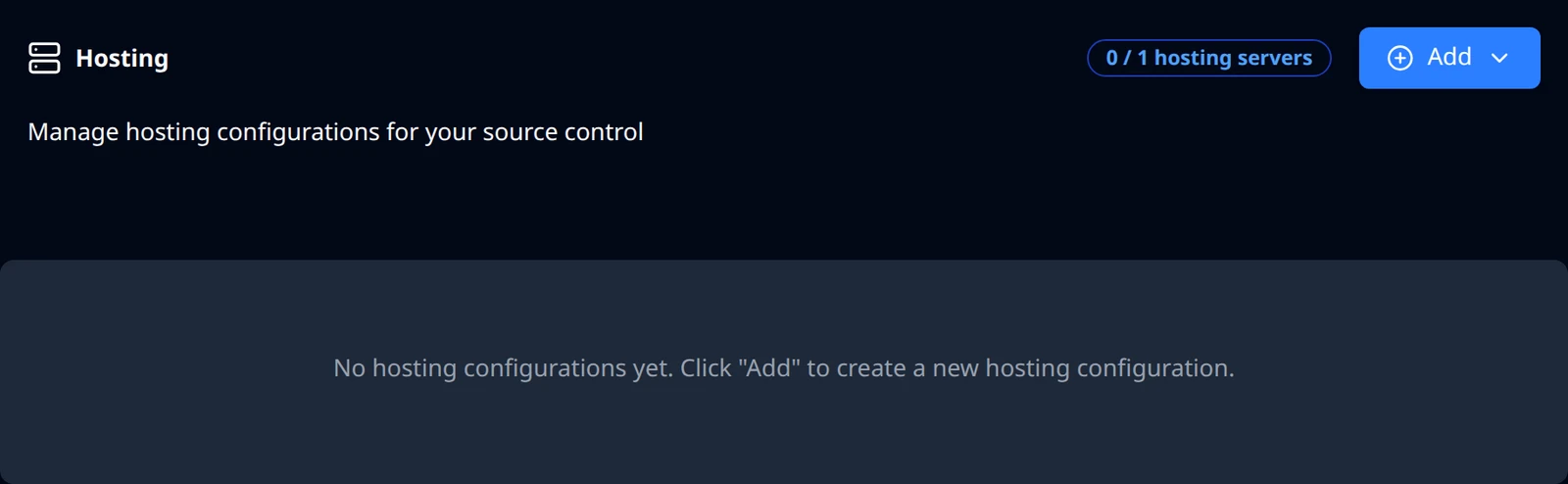
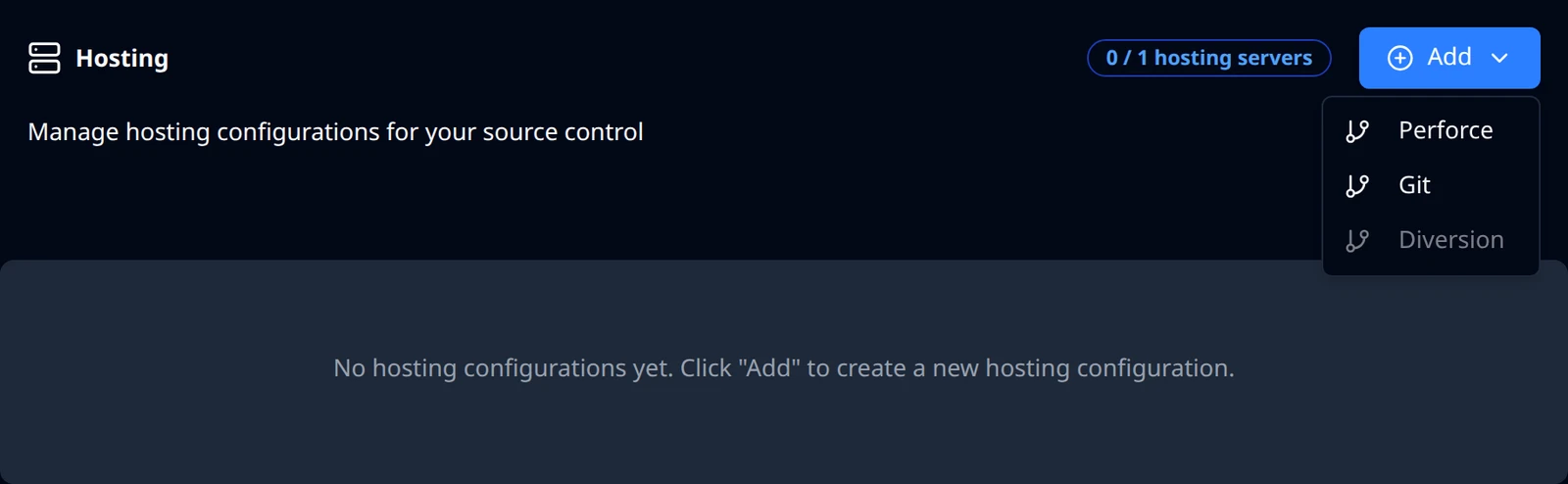
Server Configuration before a server exists. Choose Add, then Perforce
Open the Add menu and choose Perforce. The menu also lists Git, which takes you to Build Stream's connections instead, and Diversion, which is not available yet. The menu is disabled while the project already has a server or one is being created.
Pick a plan
The form is titled Add New Hosting Configuration and opens with two plan cards. Free is selected; the other card is labelled Paid and is the Team plan. Each card lists what it includes, so you can compare them in place. Selecting a card changes only the button at the bottom of the form: Configure for Free, Continue to plan for Team.
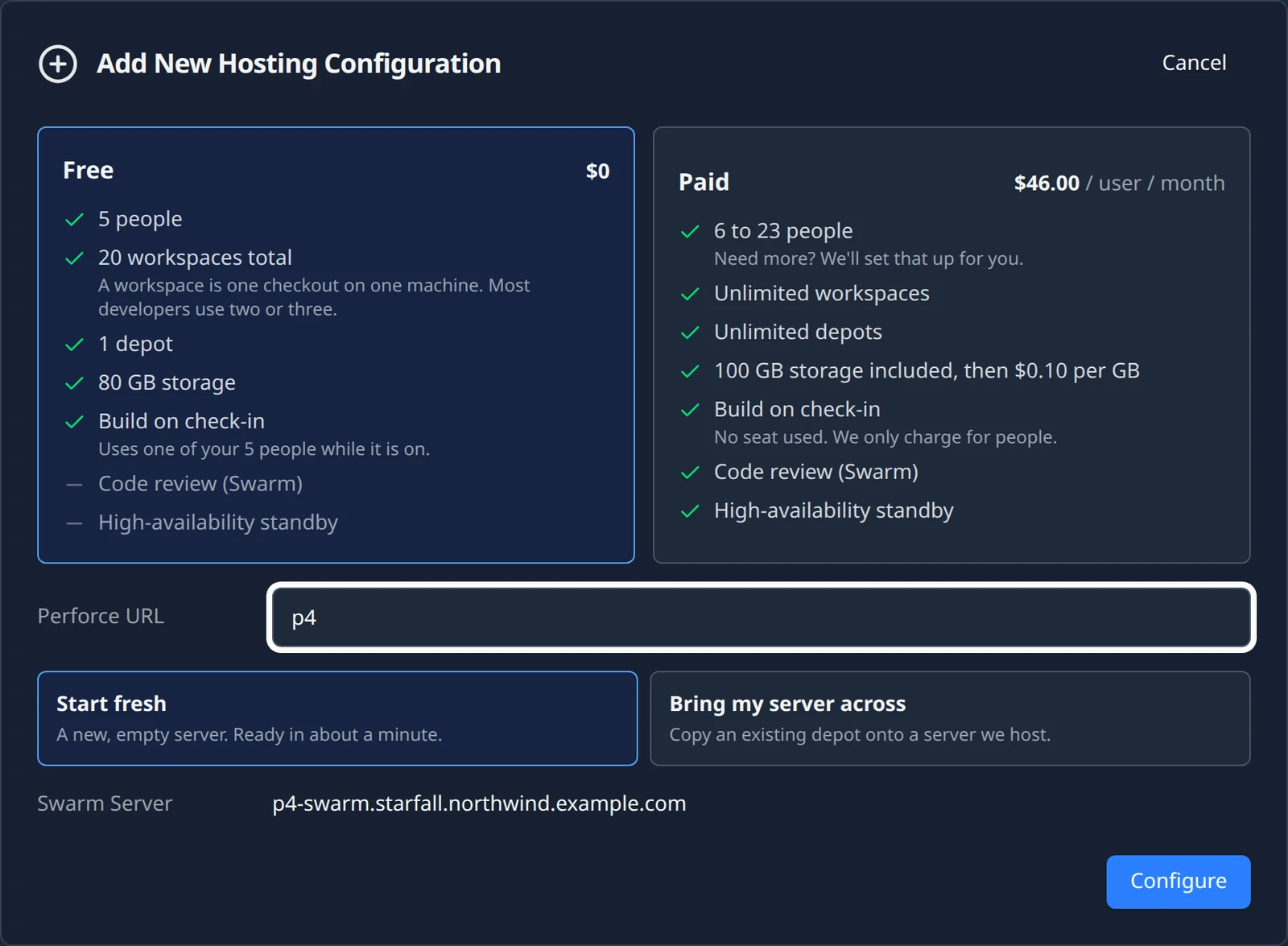
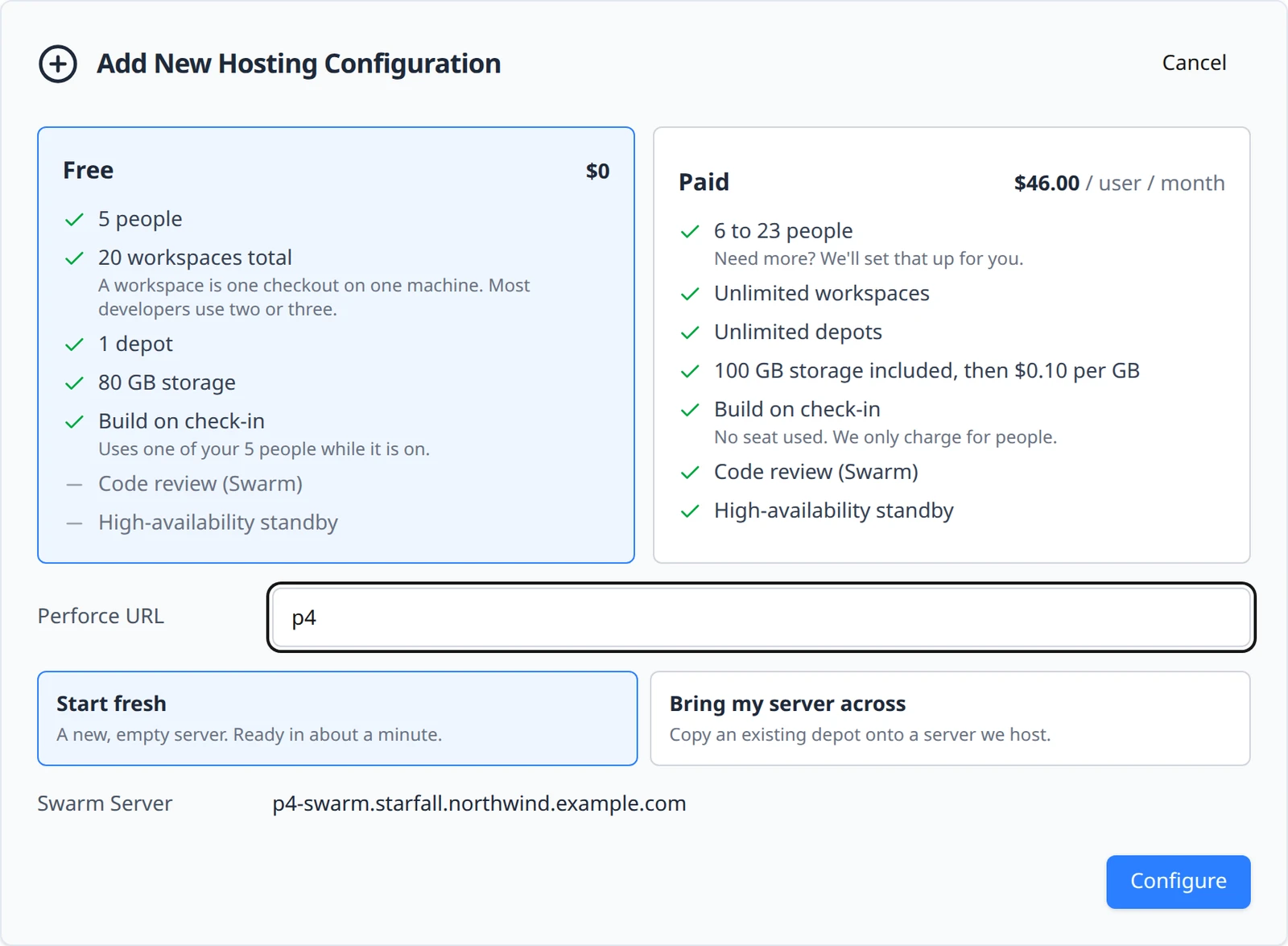
The create form with Free selected. Fill in the rest of the form
Fields on the Add New Hosting Configuration form Field What to enter Perforce URL A short label for the server, such as p4. It becomes the first part of the hostname:p4givesp4.starfall.northwind.example.com. Letters, digits and hyphens; it must start with a letter. The form rejects anything else with Must start with a letter and cannot contain spaces or underscores (_).Administrator The username of your own Perforce administrator account, for example sam. The form explains it: Your Perforce administrator account. You will get a temporary password by email and be asked to change it when you first sign in. Use this account in P4Admin and for your own day-to-day work — it is one of your seats, not an extra one. Up to 32 characters, no spaces or Perforce wildcard characters, not only digits, and not starting withdsl_, which is reserved for the platform's own accounts. The form shows the reason under the field when a name is refused, for example names starting with 'dsl_' are reserved for the platform's own accounts -- please choose another. The field appears only for Start fresh; a server you bring across keeps the administrator it already has.Start fresh A new, empty server. Ready in about a minute. Choose this for a new project or when you will populate the depot yourself. Bring my server across Copy an existing depot onto a server we host. Choose this to migrate from a Perforce server you run elsewhere. The server is then held back until your data has been copied in, and the next screen is the migration flow. See Bring an existing server across. Swarm Server Read-only. Previews the Helix Swarm address that comes with the Team plan, derived from your label: p4-swarm.starfall.northwind.example.com. On the Free plan the address is reserved but no Swarm server is created.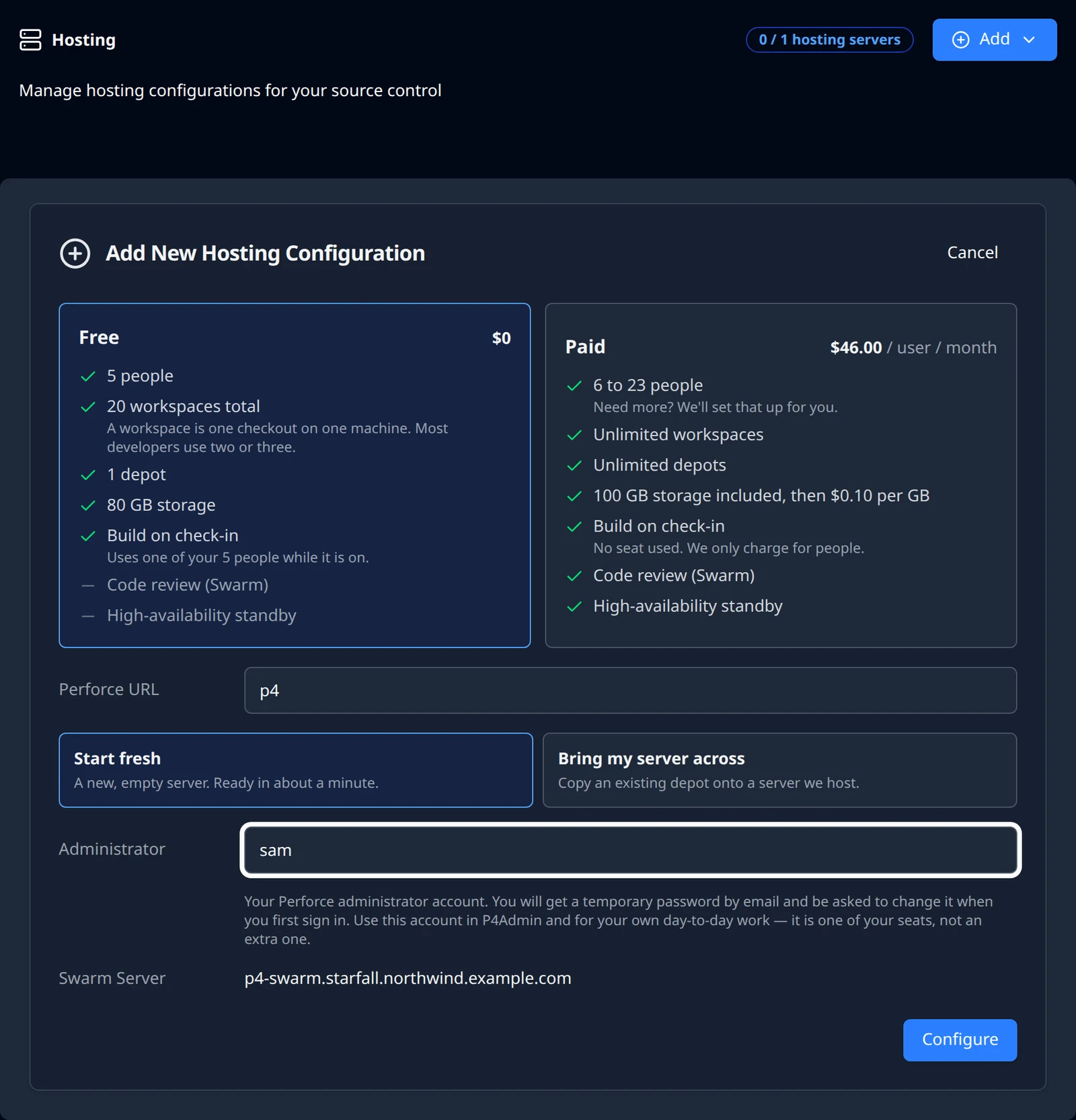
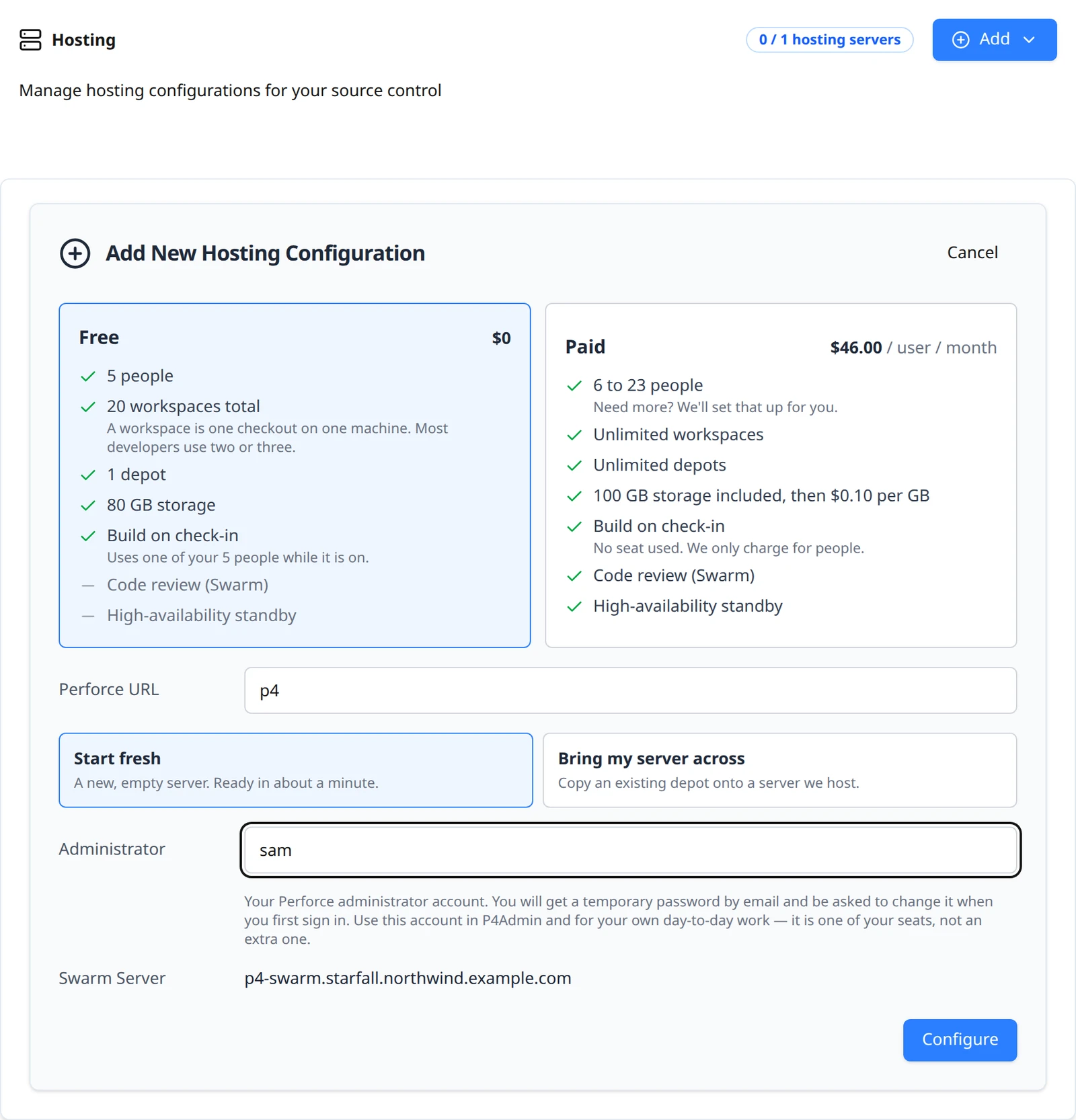
The form filled in for a fresh Free server. Configure, or continue to the plan
On the Free plan, choose Configure. The button reads Configuring... while the request is sent, and the page moves on to provisioning.
On the Team plan, choose Continue to plan and follow the next section.
Choose the Team plan
Two more screens stand between the form and a Team server: the plan configurator and the review. Both replace the form in place; the Back button returns to the previous screen with your choices kept.
Set people and storage
The configurator has two steppers. People (hint 6 to 23) is the number of seats you are buying; below the minimum the form says The paid plan starts at 6 people. Up to 5 is free. Storage (hint 100 GB included) starts at the included allowance and goes up in steps. At the top of the range a note reads Need more than 23 people? We'll set that up for you. with a Contact us link.
A quote updates as you change either value and ends with Monthly total. Press Continue.
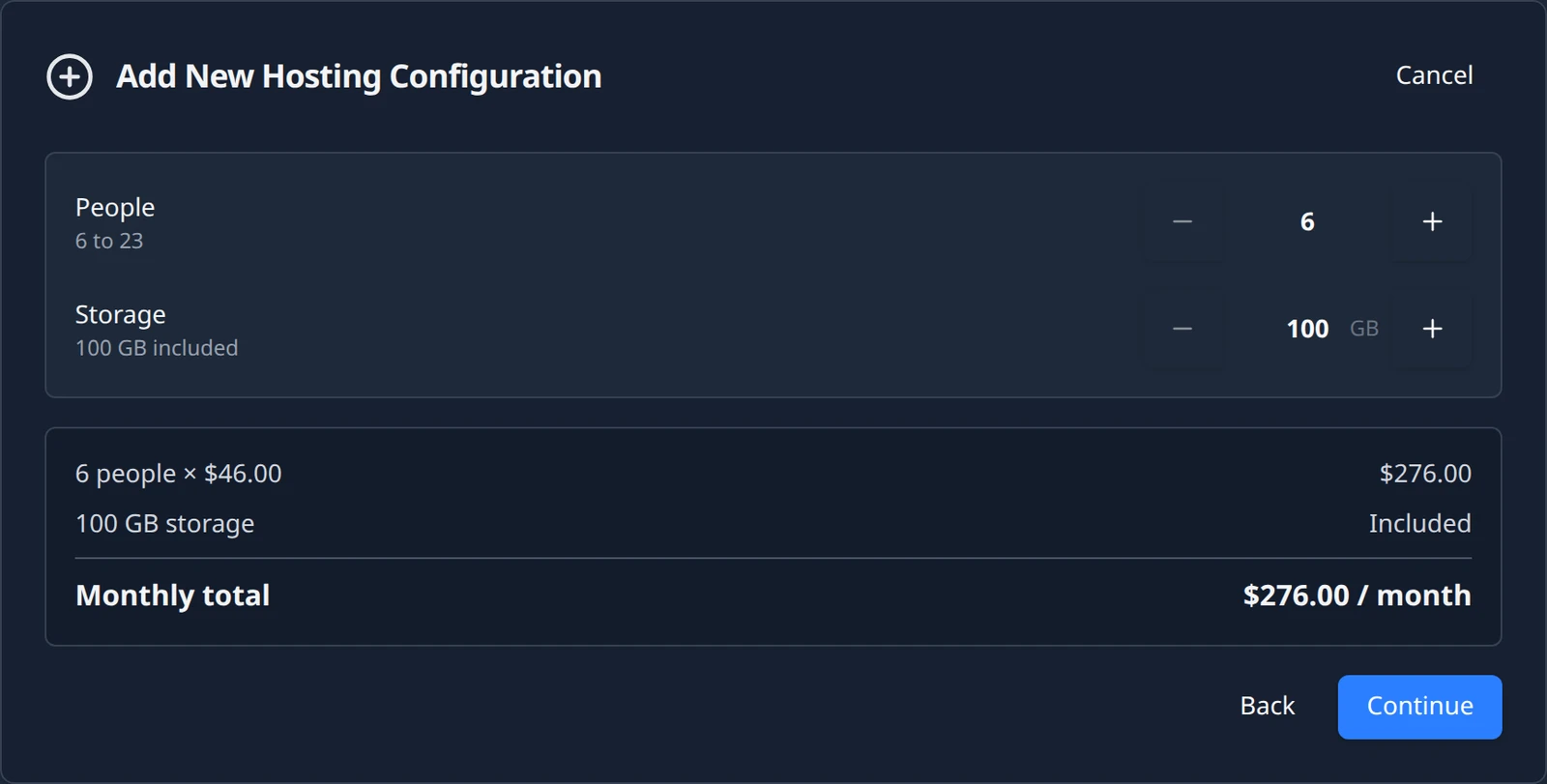
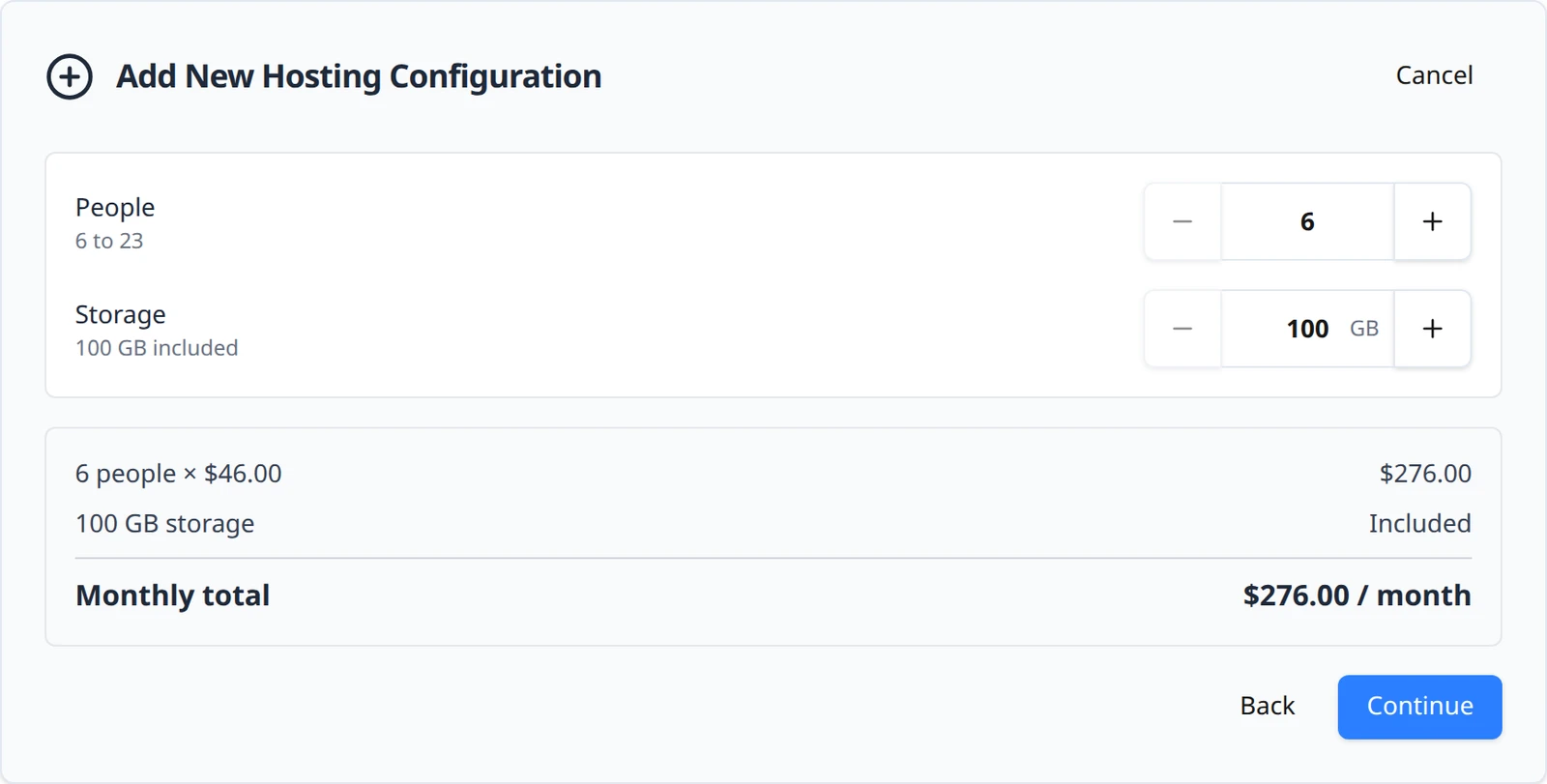
The plan configurator with the smallest Team plan. Review and pay
The review is headed Perforce server for starfall and lists the people line, the storage line (Included while you are within the allowance), Total per month and First charge today. A note reads Your server is created after payment. It takes a few minutes.
Press Pay and create server. The button reads Taking you to payment… and the browser goes to a Stripe checkout page for the card details. Nothing is built until Stripe confirms the payment.
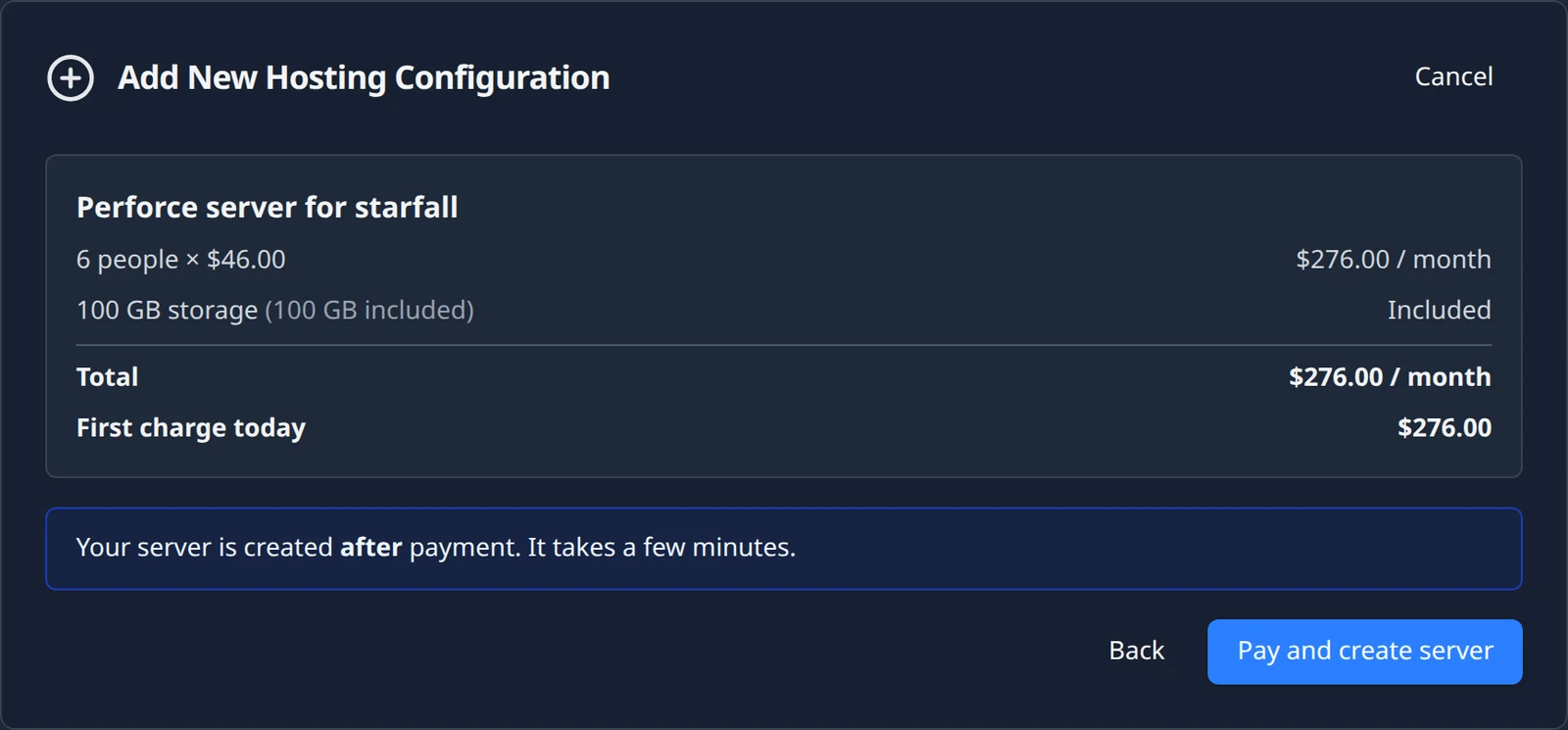
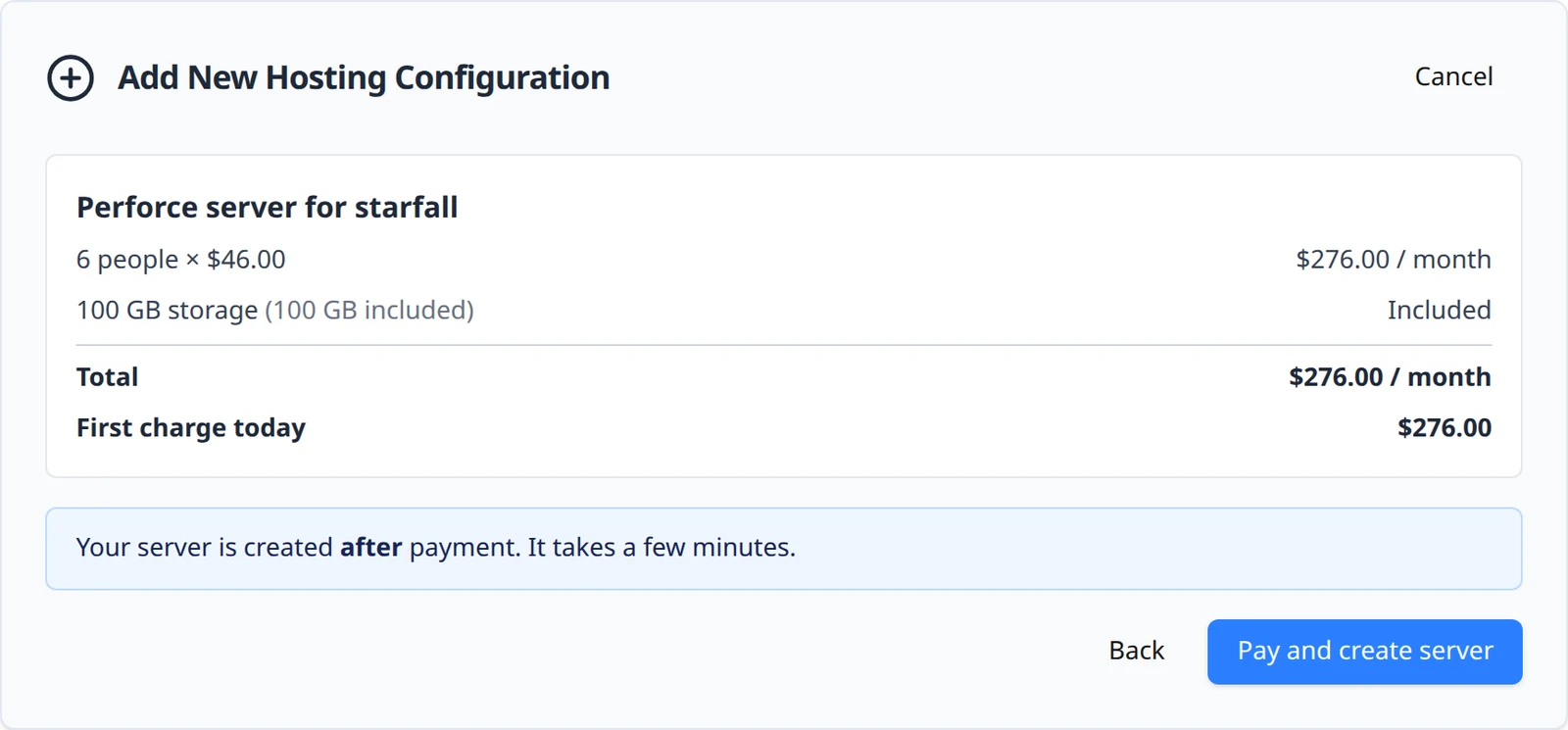
The review screen. The amounts are examples.
After you pay
Stripe sends you back to the hosting page, which now shows a checklist titled Setting up your Perforce server:
| Step | While it runs | When it is done |
|---|---|---|
| Confirming payment | Waiting for Stripe to confirm. This takes a moment. | Payment confirmed: Thanks — your card was charged. |
| Building your server | A real machine is allocated and licensed. This usually takes a few minutes. | The step is ticked. |
| Ready | Connection details appear here. The Perforce is ready email tells you how to sign in as your administrator; add your team in P4Admin with that account. | The checklist is replaced by the connection card. |
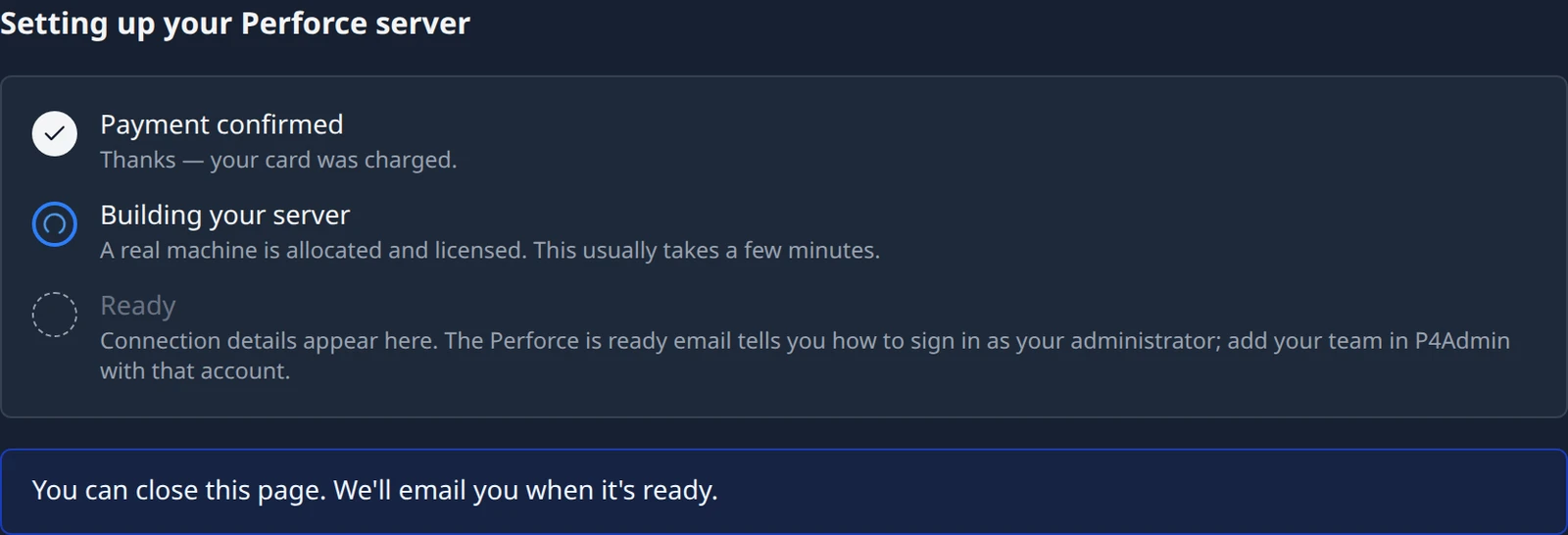
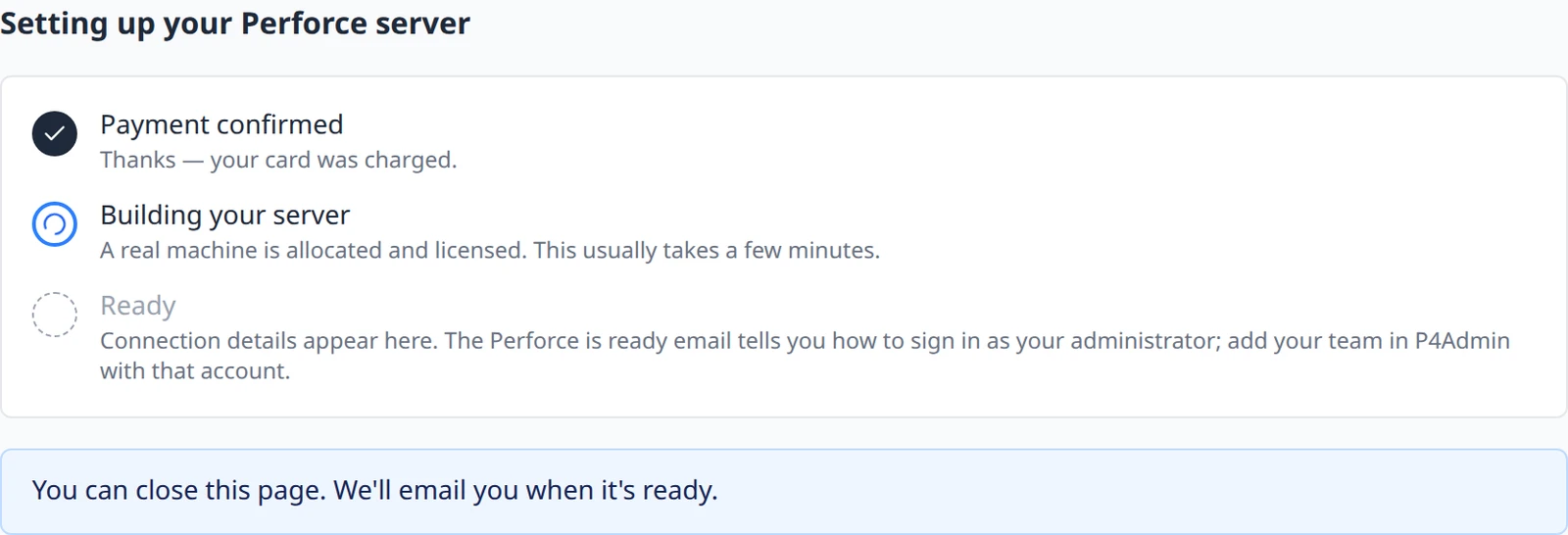
You can leave: the page says You can close this page. We'll email you when it's ready. The redirect back from Stripe is not what confirms payment; the checklist waits for Stripe's own confirmation, so the first step can stay open for a moment even though you saw a success page.
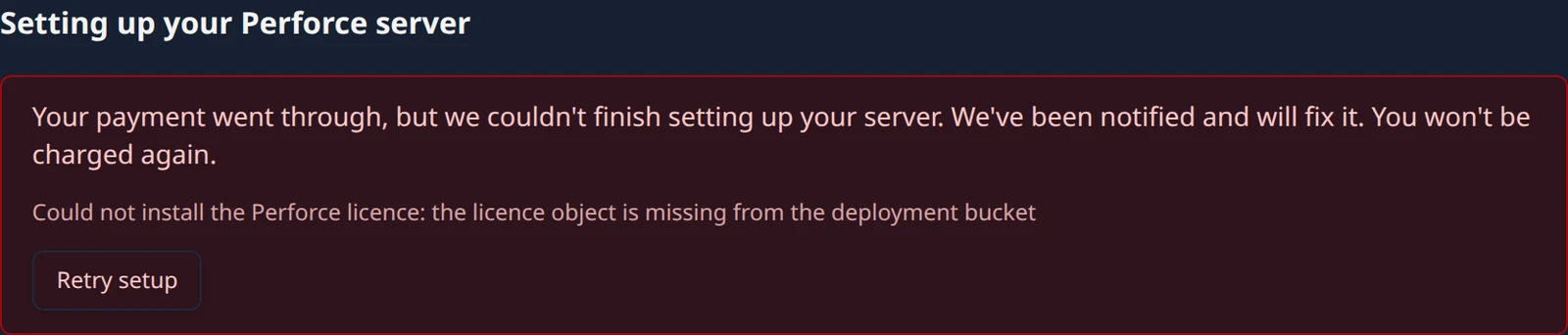
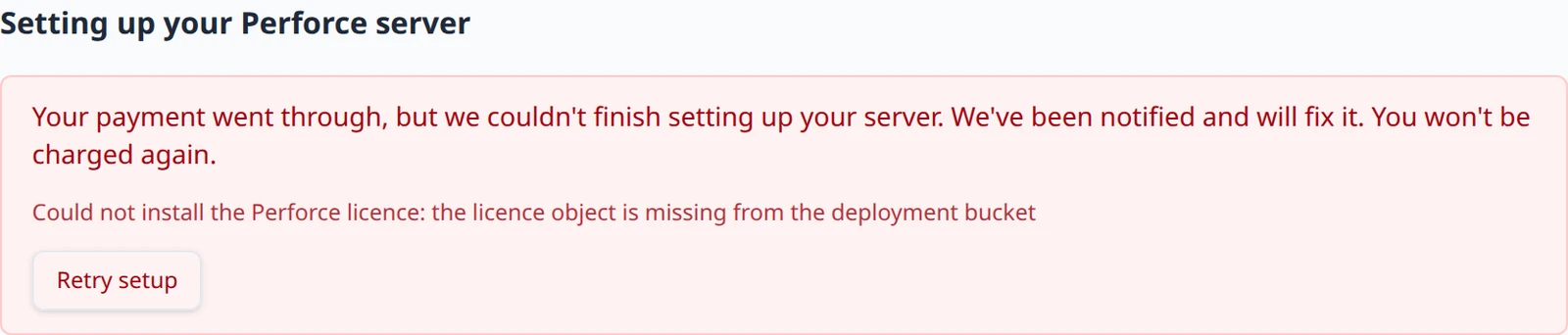
If the platform cannot finish building the server, the checklist is replaced by an explanation: Your payment went through, but we couldn't finish setting up your server. We've been notified and will fix it. You won't be charged again. followed by the reason. Once automatic retries are exhausted a Retry setup button appears; press it to try again yourself (a notification reads Retrying setup).
While it provisions
Accepting the form queues the work; it does not build the server. Provisioning allocates hardware, issues the TLS certificate and creates the admin accounts. On the Free plan the page shows a status banner while it runs: Your Perforce server is being created. Waiting for project source control to finish provisioning. On the Team plan the checklist above plays the same role.
You can leave the page. When the server is ready you get a notification titled Service ready (Source Control Hosting is now available in the sidebar.), and the connection card below replaces the banner.
Your connection details
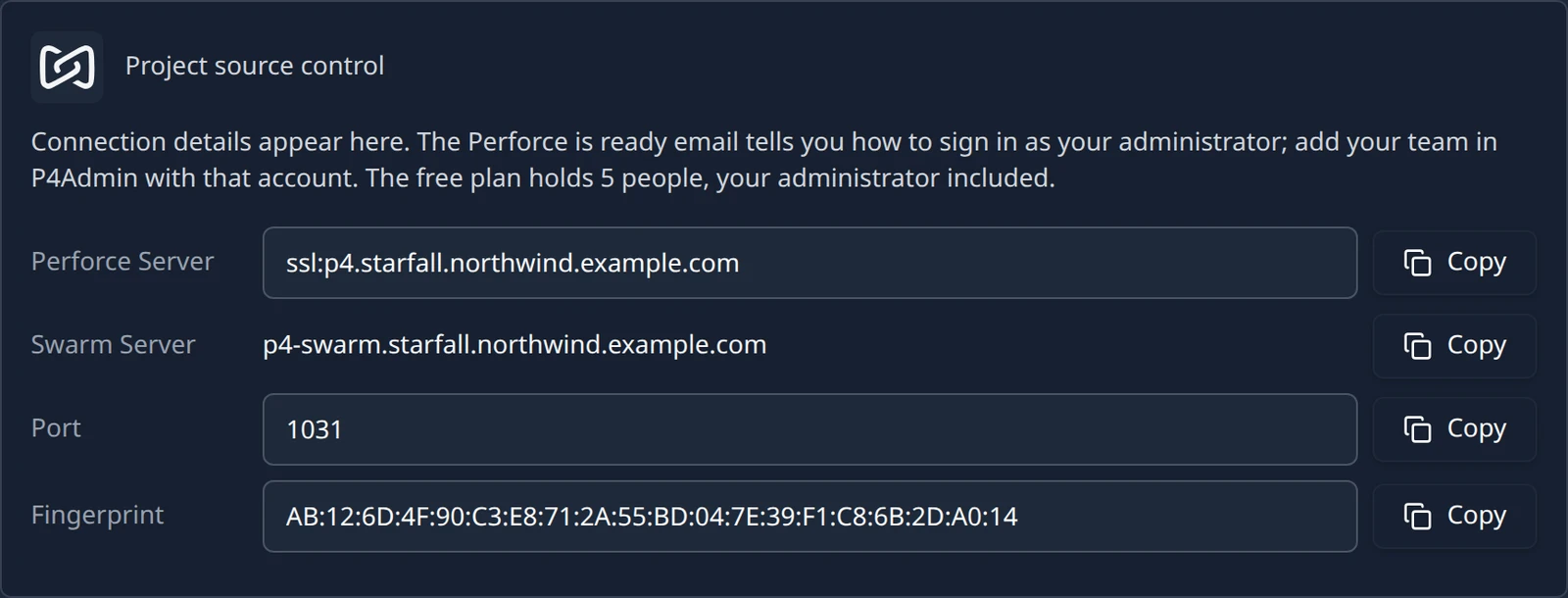
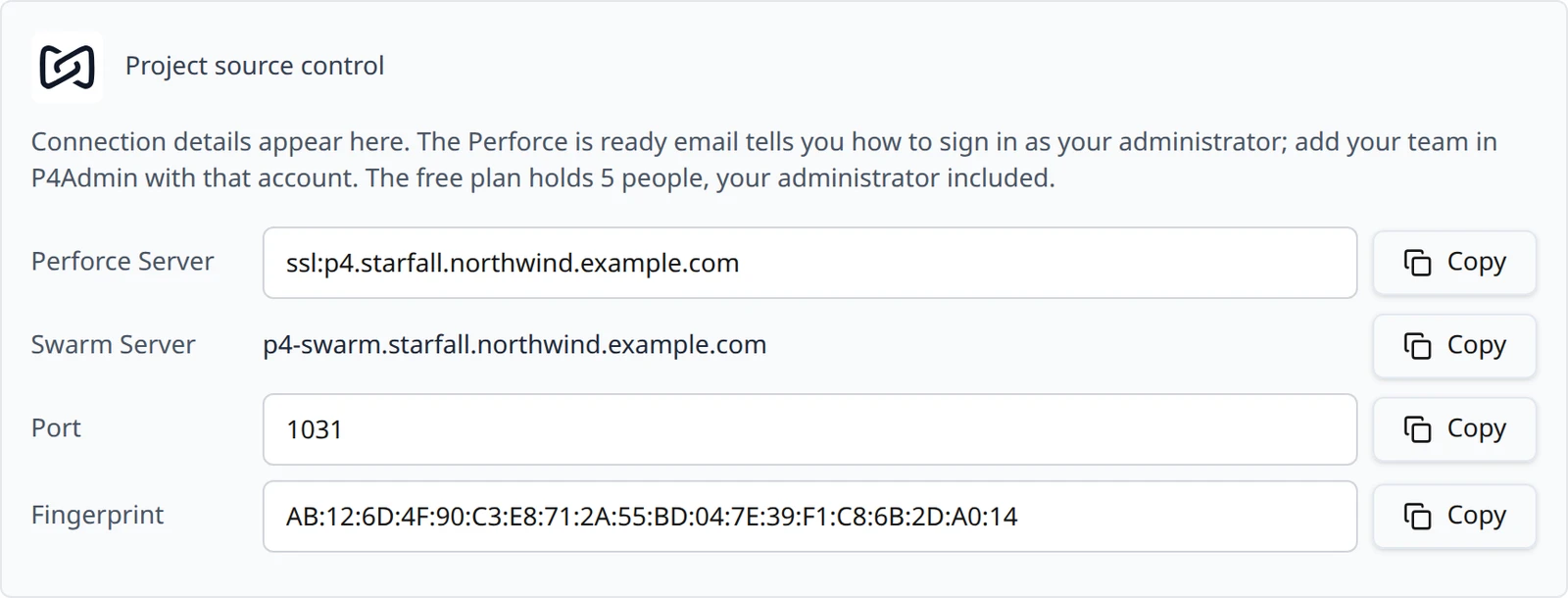
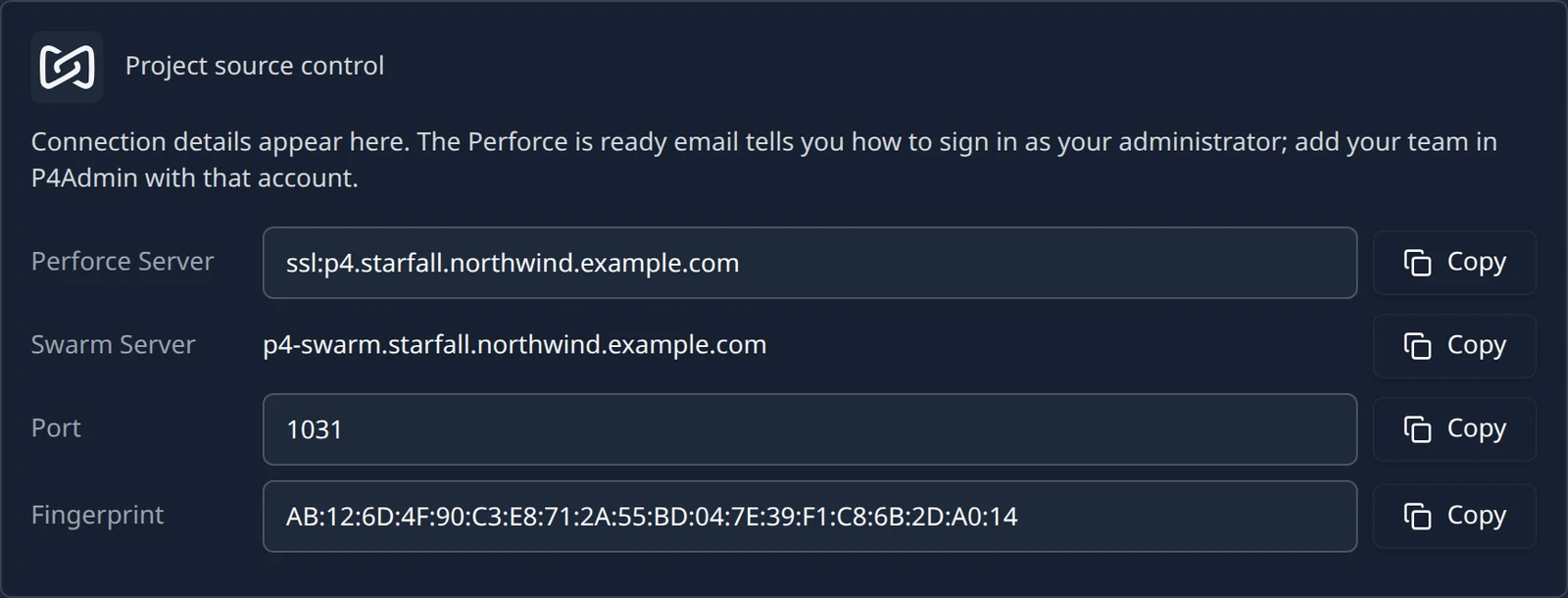
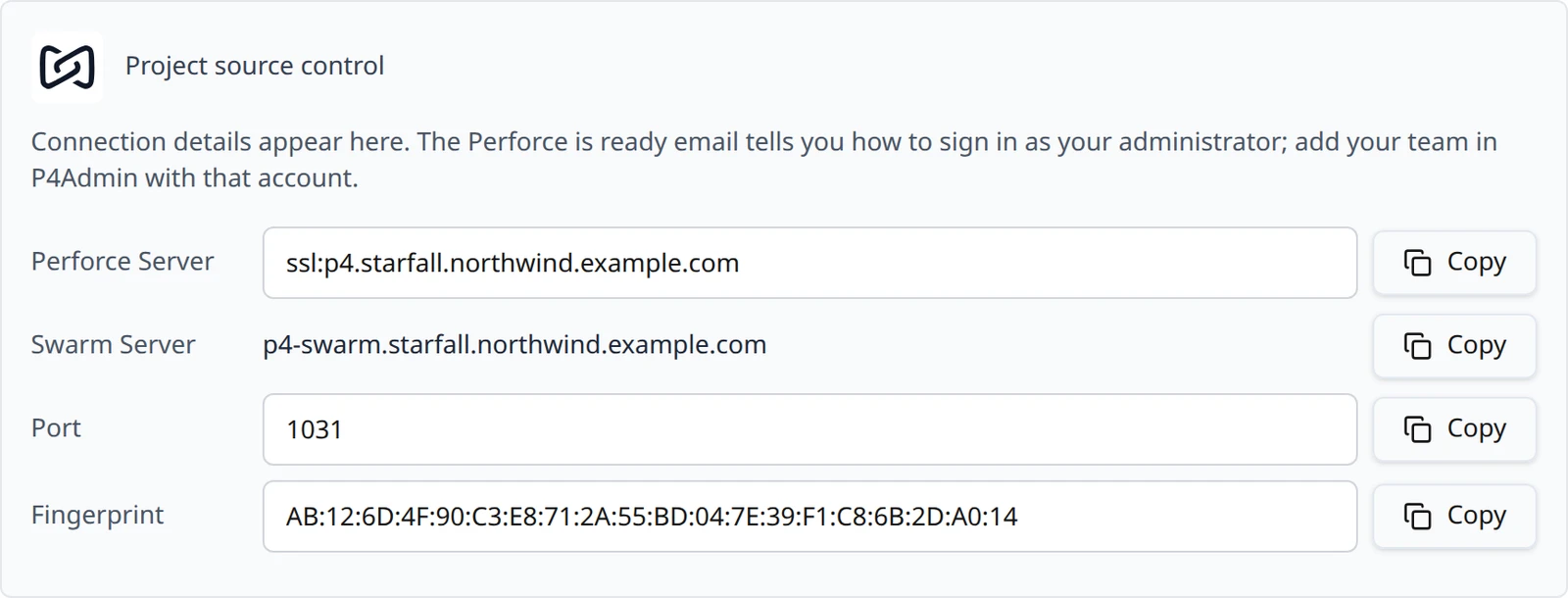
Once the server is up, the Project source control card shows what your team needs to connect. Each row has a Copy button. Above the rows the card repeats a one-line summary of your plan; on the Free plan it ends with The free plan holds 5 people.
| Row | Example | Use it for |
|---|---|---|
| Perforce Server | ssl:p4.starfall.northwind.example.com | The server address, already carrying the ssl: prefix. |
| Port | 1031 | The port assigned to your server when it was created; yours will differ from this guide. Address and port together are your P4PORT. |
| Fingerprint | AB:12:6D:4F:90:C3:E8:71:2A:55:BD:04:7E:39:F1:C8:6B:2D:A0:14 | The TLS certificate fingerprint. Compare it when you first connect; if it does not match, stop. |
| Swarm Server | p4-swarm.starfall.northwind.example.com | Helix Swarm, for code review, once you have turned it on (Team plan). Sign in with your Perforce account. |
Your team connects with the hostname and port joined into a TLS address:
ssl:p4.starfall.northwind.example.com:1031
How to trust the certificate, sign in and change the admin password is on Accounts, security and licensing. Below the card sit the Build on check-in card, the Code review (Swarm) card, the People panel and, on the Team plan, the Billing panel; each has its own section in this guide.
The email with your admin password
When the server is ready, the project maintainer receives an email with the subject Perforce is ready for Starfall, using the project's display name. It repeats the server address and fingerprint and carries the one thing the app never shows: the temporary password for the administrator account you named on the form.
| In the email | Example |
|---|---|
| Server | ssl:p4.starfall.northwind.example.com:1031 |
| SSL fingerprint | AB:12:6D:4F:90:C3:E8:71:2A:55:BD:04:7E:39:F1:C8:6B:2D:A0:14 |
| Username | sam, the administrator name you chose |
| Password | A temporary password. Perforce asks you to choose your own the first time you sign in. |
| How to add your team | Open P4Admin, connect it to the server, sign in as sam. See below. |
| Your plan | The free plan holds 5 people in total, sam included. To add a sixth, move to a paid plan from the Hosting page. |
| Our accounts on your server | dsl_admin, our operator account for looking after the server, and dsl_bot while Build on check-in is on. |
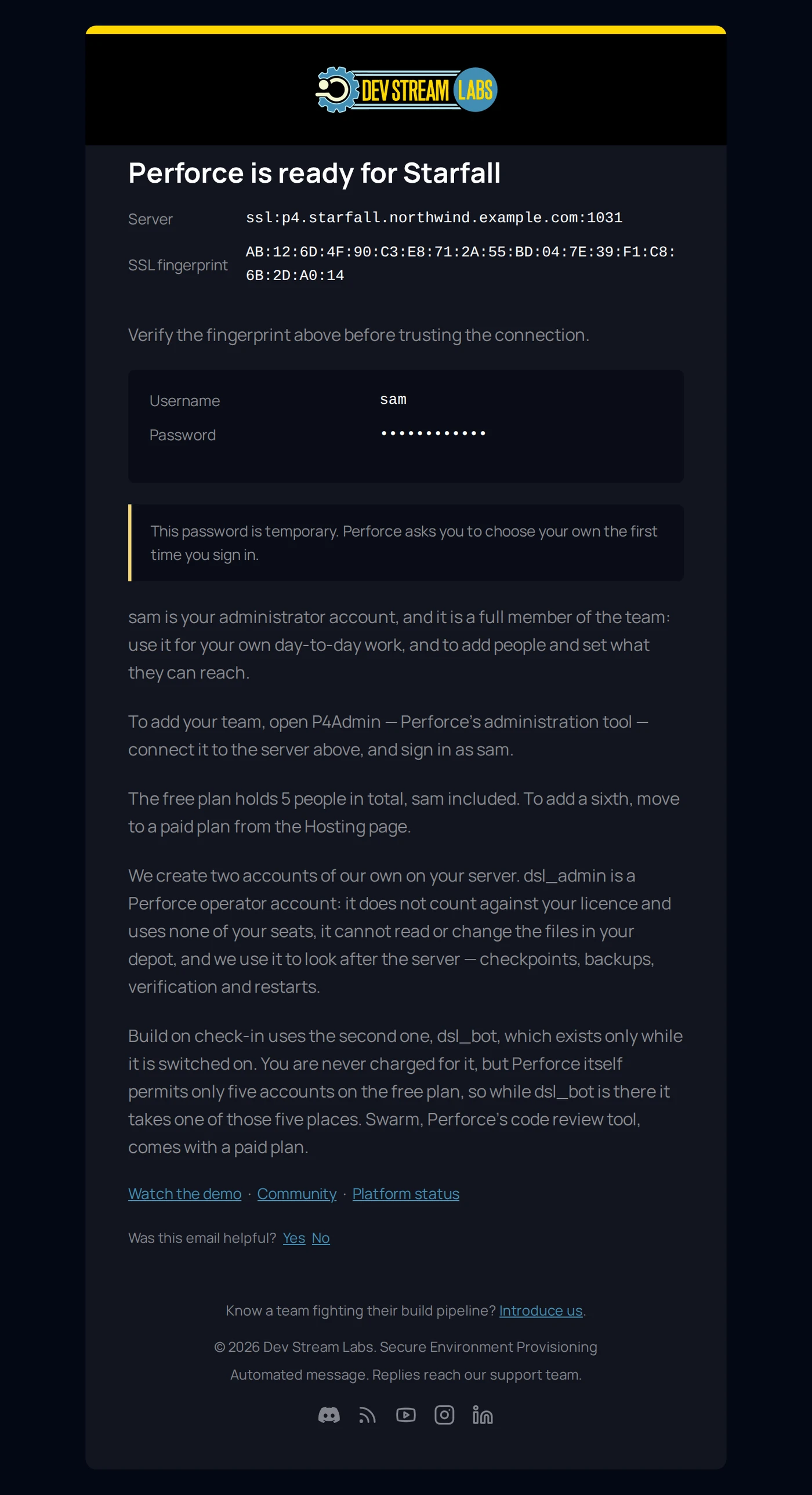
The email says Verify the fingerprint above before trusting the connection and, of the account: sam is your administrator account, and it is a full member of the team: use it for your own day-to-day work, and to add people and set what they can reach. Then: To add your team, open P4Admin — Perforce's administration tool — connect it to the server above, and sign in as sam. P4Admin is installed together with P4V; see Install the Perforce tools and Add your team in P4Admin.
On the Team plan the same email says Your plan holds the seats you bought, sam included. A server you brought across gets no new account: the email tells you to sign in with the Perforce administrator account you already use, because your users and passwords came across with your data.
Sign in as the administrator you named; do not create a new user for yourself first. In P4V that means Connection → Open Connection with the user set to that name. The Connection Setup Assistant's Create a new user account option fails with User type can't be changed, because the account already exists.
Retiring a server
There is no delete button on the hosting page. Retiring a Perforce server is done by our team, so that a server holding your history cannot be removed by an accidental click.
Next steps
- Install P4V, which includes P4Admin, and the p4 command line if you want it.
- Connect with P4V, check the fingerprint and choose your own password.
- Add your teammates in P4Admin, signed in as your administrator account.
- Turn on Build on check-in so submits start builds.
- Read about plans, people and billing before your team grows past the Free limit.
Something out of date or unclear? Email support@devstreamlabs.com.