
Plans, people and billing
A hosted Perforce server runs on one of two plans. Free holds a small team at no cost. Team is billed monthly per person and adds code review, a standby server and room to grow. You choose the plan when you create the server and can move from Free to Team later without losing anything. This page explains what each plan includes, how people are counted, and where billing lives in the app.
The two plans
| Free | Team | |
|---|---|---|
| People | 5 people | 6 to 23 people. Need more? The plan chooser says We'll set that up for you: email support. |
| Workspaces | 20 workspaces total. The chooser explains: A workspace is one checkout on one machine. Most developers use two or three. | Unlimited workspaces |
| Depots | 1 depot | Unlimited depots |
| Storage | 80 GB storage | 100 GB included, then a per-gigabyte rate. See Storage. |
| Build on check-in | Included. Uses one of your 5 people while it is on. | Included. No seat used. We only charge for people. |
| Code review (Swarm) | Not available | Included. Turned on from the Code review (Swarm) card; see Helix Swarm. |
| High-availability standby | Not available | Included |
| Price | $0 | Per person per month, shown on the plan chooser. Storage beyond the included allowance is added per gigabyte. |
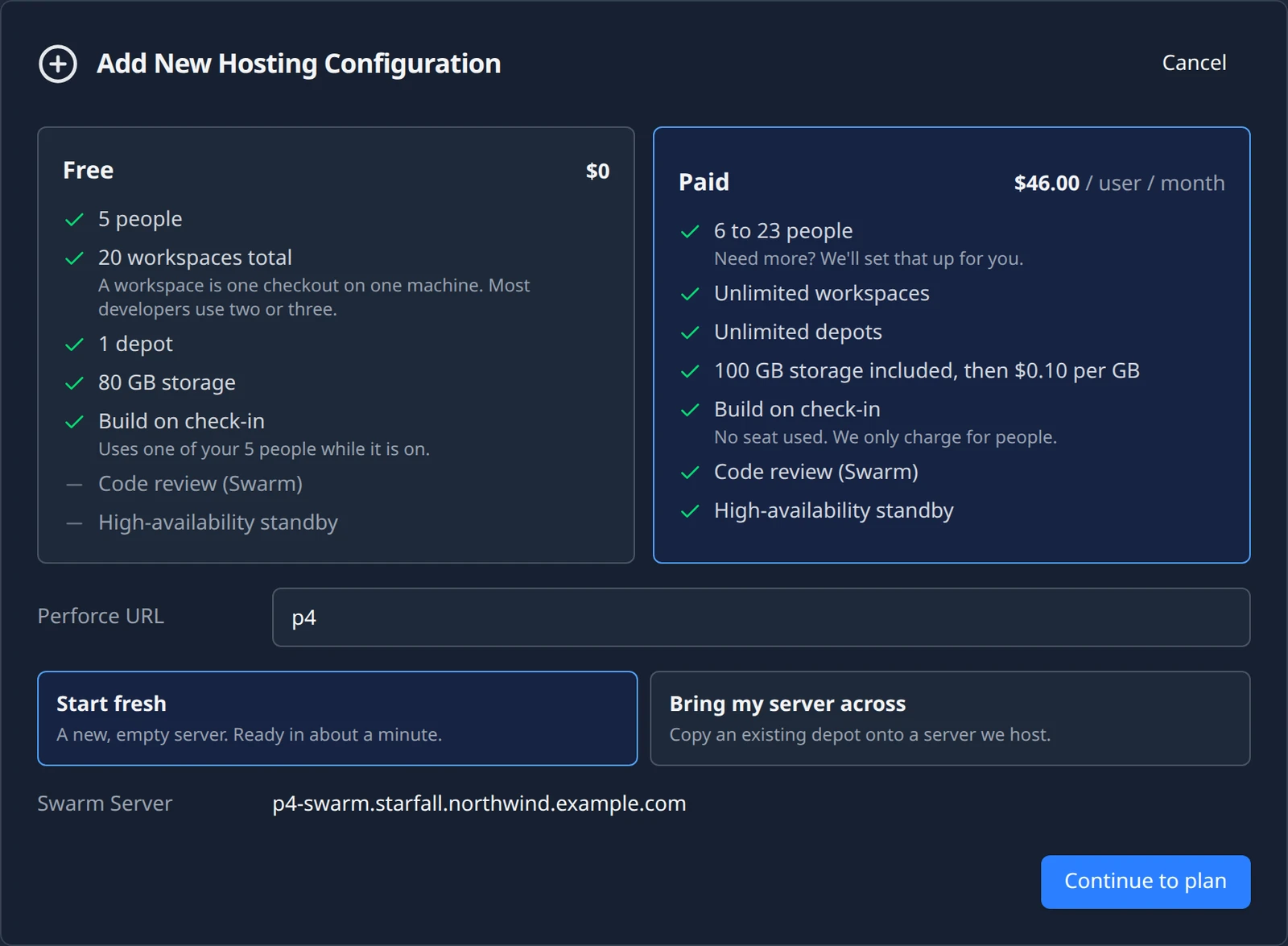
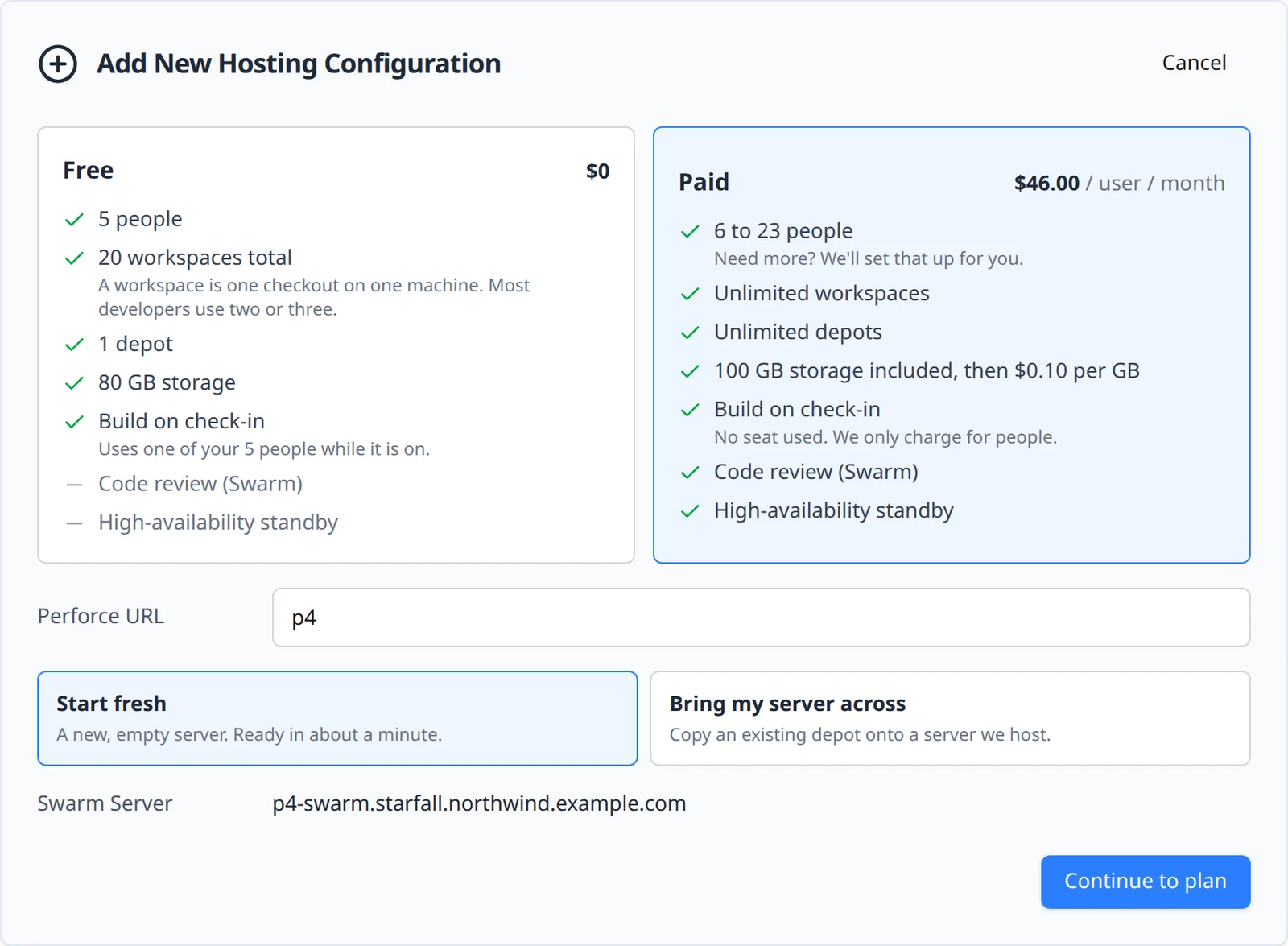
The guide never quotes a dollar figure because the price on the chooser is the one that applies to your organization; some customers see Your negotiated rate instead of a number.
How people are counted
A person is a standard Perforce user account on your server: anyone who can sign in, create a workspace and submit. The platform's own accounts are arranged so that they cost you as little as possible:
dsl_admin, the operator account we use to look after your server, does not count as one of your people. Your own administrator account, the one you named when you created the server, is a standard user and does count.dsl_bot, the account Build on check-in and code review share, is a standard user, so on the Free plan it takes one of your 5 places while either feature is on. On the Team plan it is not charged: No seat used. We only charge for people.- Replication and provisioning accounts are service accounts or are removed once their work is done, and never count.
The full list of accounts is on Accounts, security and licensing.
The People panel
On the hosting page (Source Control Hosting → Server Configuration), below the connection card, the People panel shows the plan and how many places are in use. Its badge reads Free plan or Paid · 8 seats, and the count reads, for example, 2 of 5 used. The count comes from the server itself and is refreshed regularly; right after a server is created it can read Who's using them isn't counted yet.




When every Free place is taken the panel says so: You've used all 5 users on the free plan. Adding another would limit your repository to 1,000 files.
Add or remove people
On the Team plan you buy a number of seats and can change it whenever you like. Press Add people on the People panel to open the Change how many people dialog. It explains the rule up front: Adding people is charged today for the rest of this billing period. Removing people credits your next invoice.
Pick the new number
The People stepper shows Currently 8 and has Fewer people and More people buttons. Two limits apply: you cannot go below the number of people who already have accounts (8 people currently have accounts. Remove some in Perforce first.), and you cannot go below the Team minimum (The paid plan starts at 6 people. Up to 5 is free.).
Read the preview
Press See what this costs. The dialog then quotes the change before you confirm it: for an increase, Adding 1 person, the amount Charged today, for the rest of this period, and Your new monthly total. For a decrease the middle line reads Credited to your next invoice.
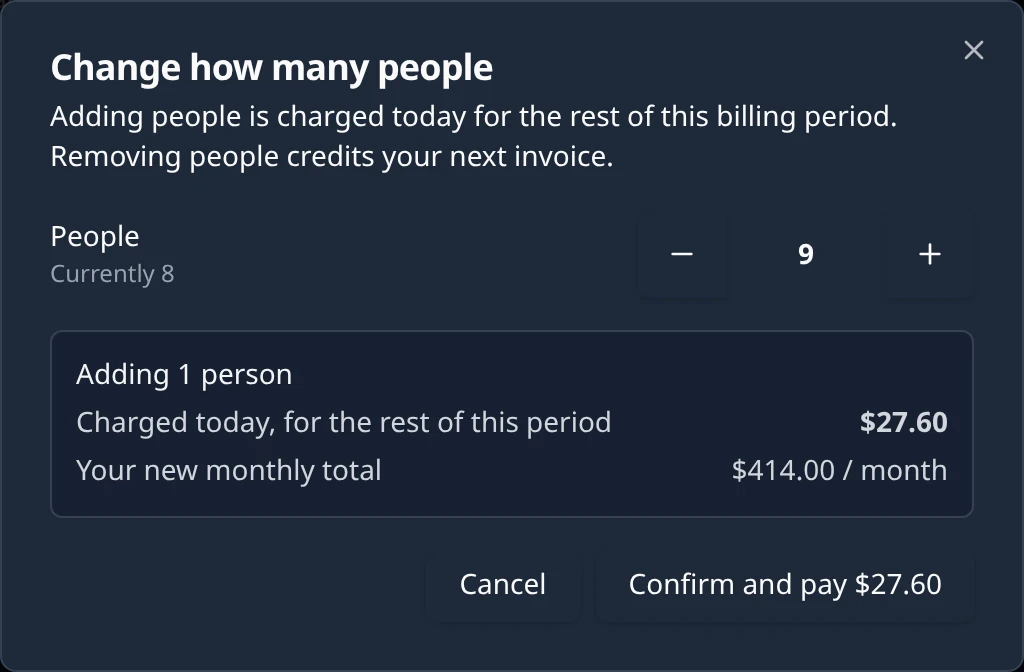
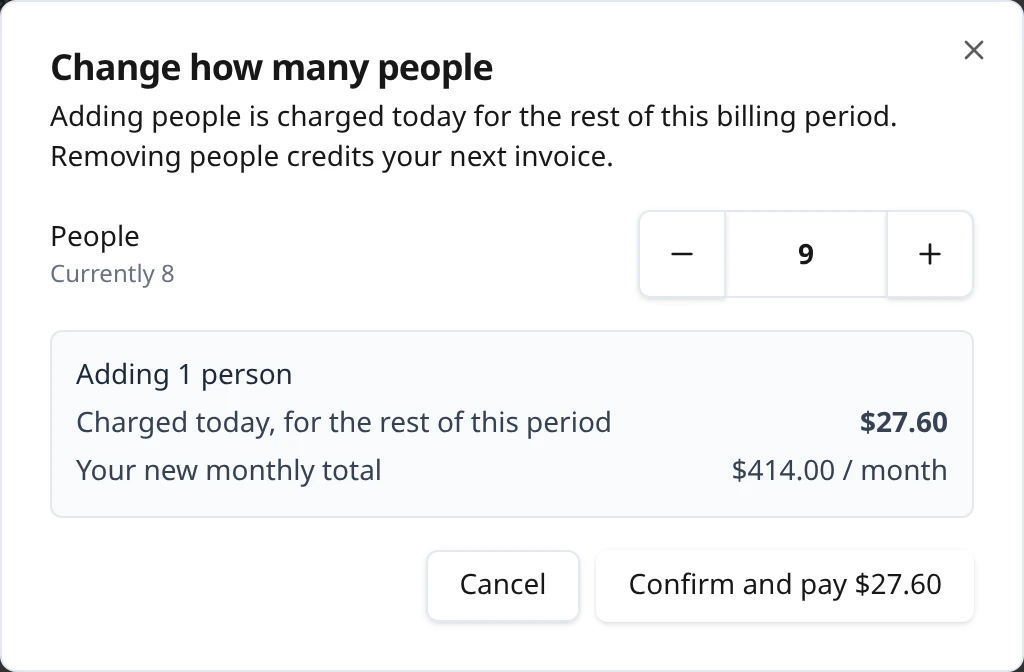
Adding one person to a Team plan. The amounts are examples. Confirm
The button reads Confirm and pay followed by the amount charged today, or just Confirm when nothing is charged. When the change has landed a notification reads Plan updated: Your plan now includes 9 people.
Upgrade from Free to Team
A Free server can move to the Team plan in place. Files, history and people are kept; the server restarts once to install the paid licence.
Open the upgrade
On the People panel press Upgrade to paid. A card titled Upgrade to the paid plan opens with the same People and Storage choices as the create form; see Choose the Team plan for the fields. The number of people cannot be lower than the accounts already on the server.
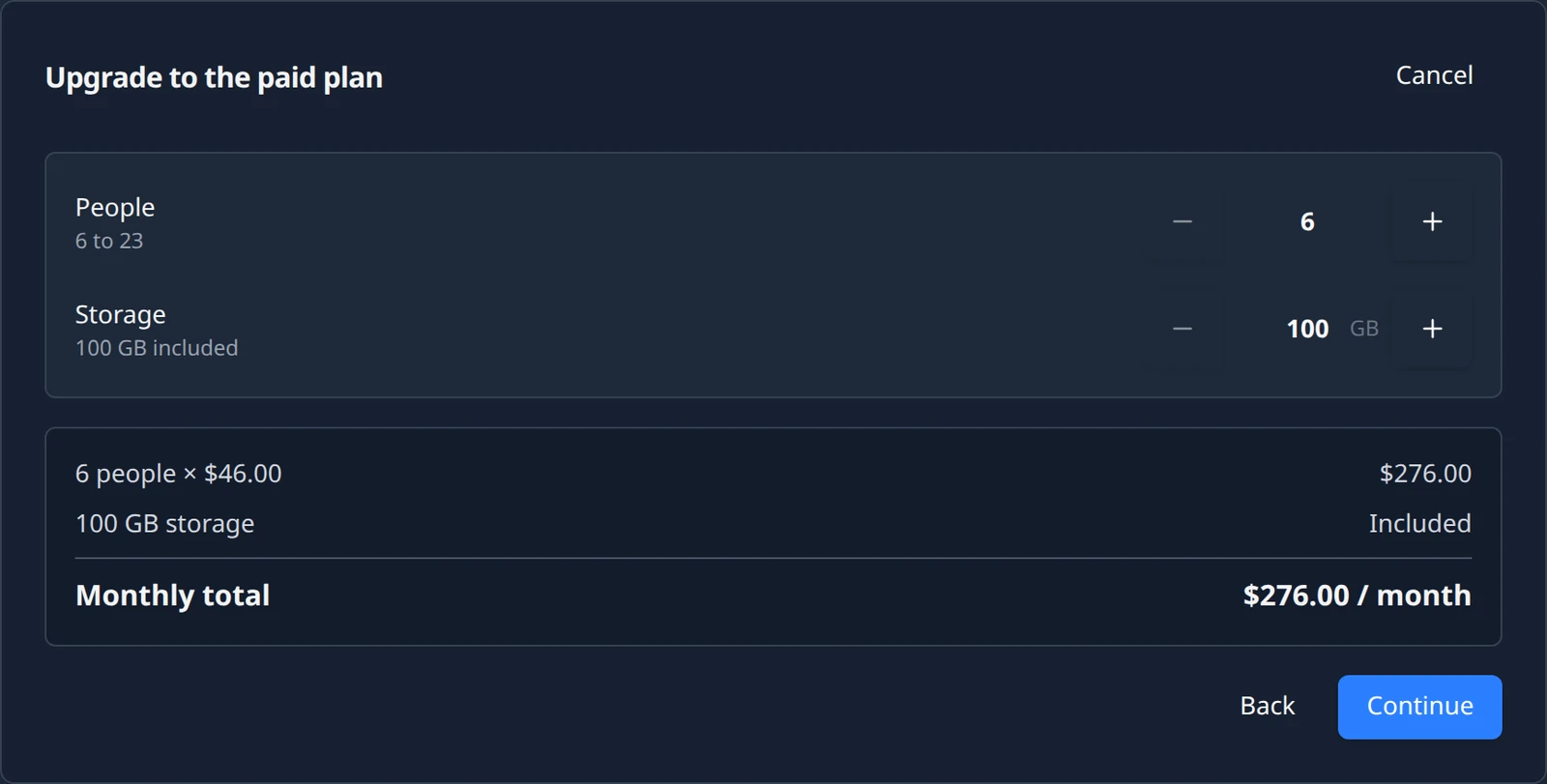
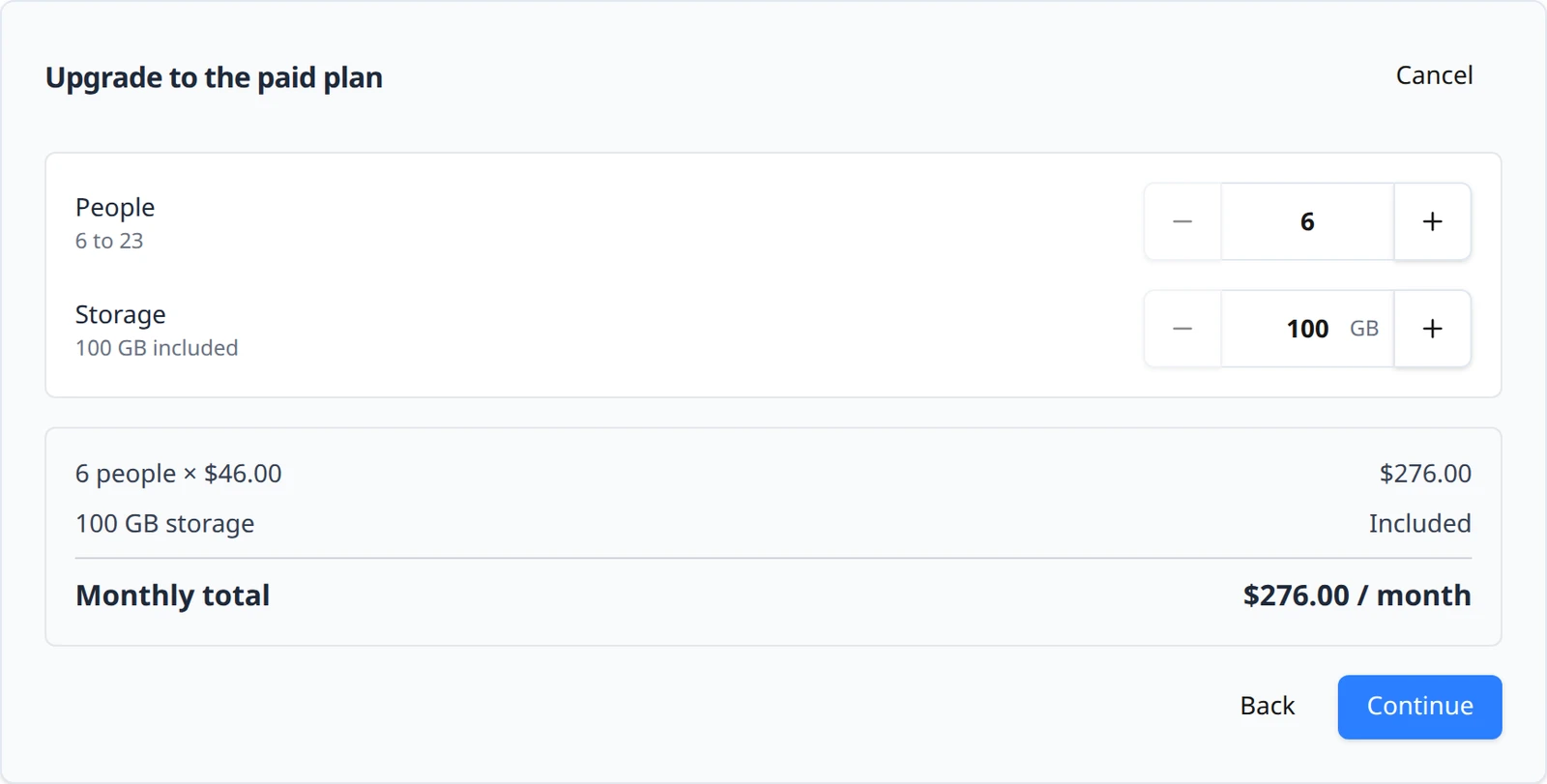
The upgrade card, opened from the People panel. Review and pay
The review screen is titled Paid plan for starfall's Perforce server, notes Your server keeps running while you pay. After payment it restarts once, briefly, to install the paid licence. Files, history and people are kept. and the button reads Pay and upgrade. Payment happens on a Stripe checkout page.
Wait for it to apply
Back on the hosting page, the People panel reports the two stages. First: Confirming your payment. Your server keeps running on the free plan until it lands. Then: Payment confirmed. Installing the paid licence: your server restarts once, briefly. Files, history and people are kept. When it is done a notification reads Upgraded to the paid plan: Your server now has room for 8 people.


Waiting for Stripe to confirm. 

Installing the licence. Expect one short restart.
- If you left the Stripe page without paying, the button changes to Resume upgrade and reopens the review with your choices intact.
- If the platform cannot upgrade the server right now, the panel says Upgrading isn't available yet: followed by the reason, and the button is absent. Try again later or contact support.
The Billing panel
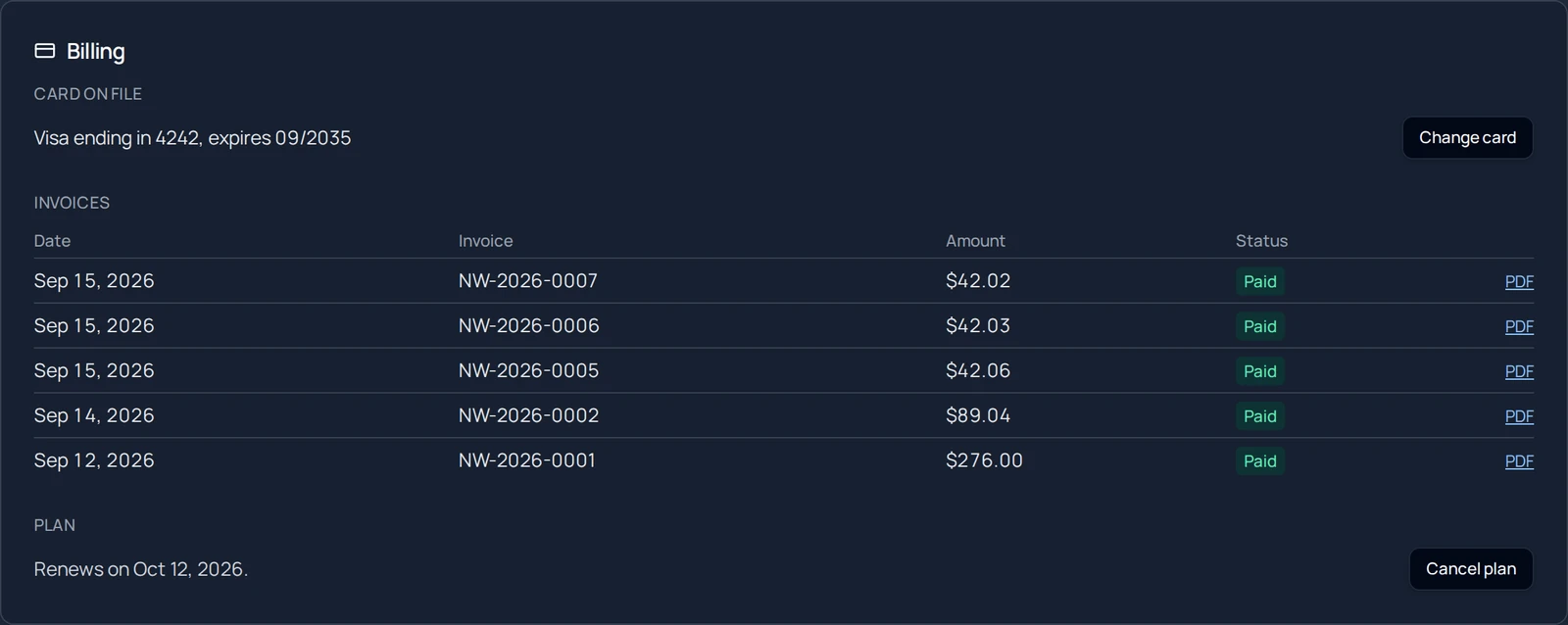
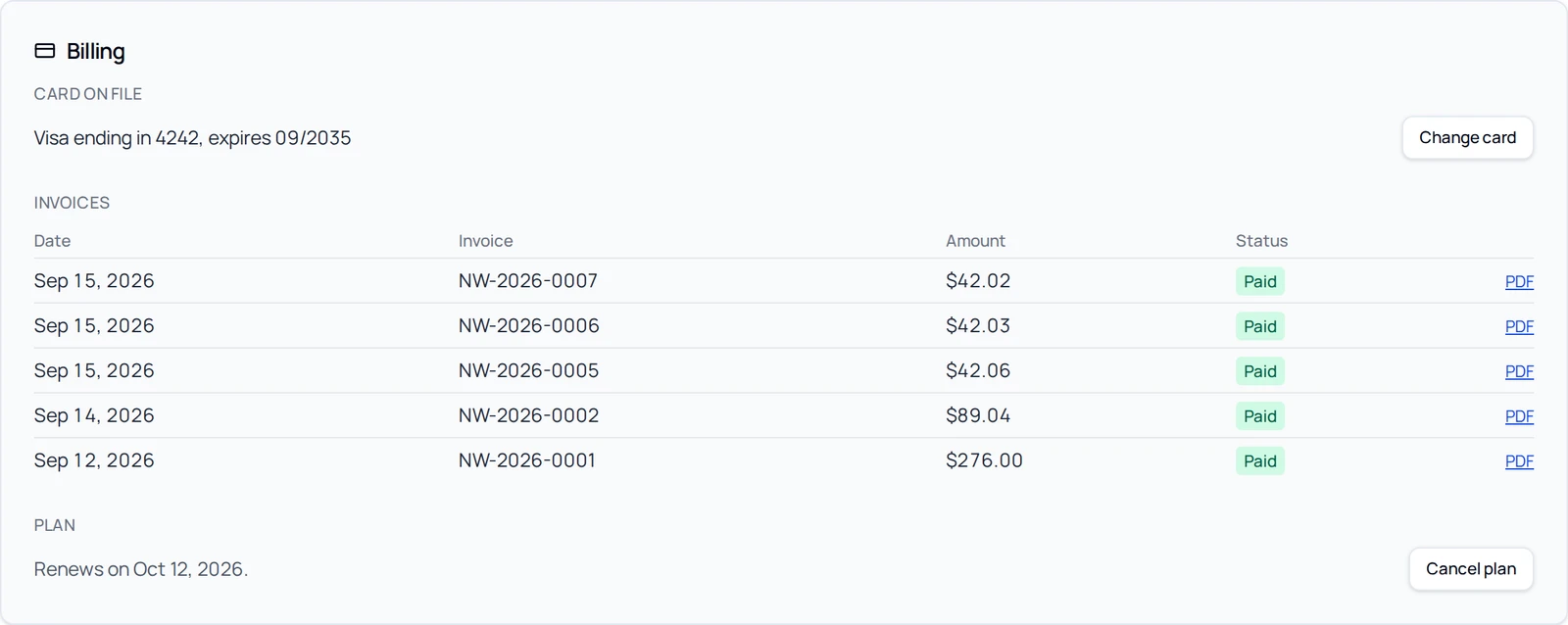
On the Team plan the hosting page ends with a Billing panel, below the People panel. It has three parts.
| Part | What it shows | What you can do |
|---|---|---|
| Card on file | The card the plan charges, for example Visa ending in 4242, expires 09/2035, or No card on file. Add one so your plan can renew. | Change card (or Add card) opens a Stripe card form inside the panel. The panel notes The card is saved by Stripe; the number never reaches DevStreamLabs. |
| Invoices | Newest first, with Date, Invoice, Amount, Status and a PDF link. Before the first charge it reads No invoices yet. | When a payment is outstanding the panel says how much is unpaid, that Paying it restores normal billing right away., and offers Pay now, which charges the card on file. |
| Plan | Renews on <date>. | Cancel plan, see below. |
Cancel plan
Cancel plan asks first: Cancel at the end of the period? You keep everything until <date>; after that the server is read-only: syncs work, submits are refused. Files, history and people are kept, and you can undo this any time before then. Choose Cancel my plan or Keep my plan. A cancellation is scheduled, not immediate: a notification reads Cancellation scheduled (Your plan ends on <date>. You can undo this until then.), and the Plan line changes to Your plan ends on <date>. Until then everything keeps working; after that the server is read-only until a plan is chosen again. with a Keep my plan button that undoes it (Plan kept: Your plan continues and renews as before.).
When a payment fails
The first charge is taken when you create or upgrade the server; the review screen shows it as First charge today. After that the card on file is charged monthly. If a monthly payment fails, nothing changes at first. The sequence is:
| Stage | What you see | What works |
|---|---|---|
| Payment retried | Email Payment failed for Perforce on Starfall with a Pay the invoice link. The People panel reads Your last payment didn't go through. We'll retry; your server is unaffected. | Everything. Payment is retried for about two weeks; Pay now on the Billing panel, or the Pay the invoice link in the email (any card), settles it at once. |
| Read-only | Email Perforce on Starfall is now read-only. The panel reads Payment is overdue, so your server is read-only: syncs work, submits are refused. Paying restores it automatically. | Sync, read and export. Submits are refused until the balance is paid. |
| Restored | Email Perforce on Starfall is fully writable again. | Everything. Write access returns within a few minutes of payment; there is nothing to re-enable. |




Storage
The Free plan includes 80 GB. The Team plan includes 100 GB and lets you buy more in steps from the plan configurator; the Storage field has the hint 100 GB included and cannot go below it (The smallest plan includes 100 GB.). The monthly total on the review screen lists storage as Included when you stay within the allowance, and as an extra line when you go over.
Your Perforce licence
- On the Free plan the server runs on Perforce's built-in unlicensed limits: 5 users and 20 workspaces once a depot holds 1,000 files or more. The seat guard described above keeps you inside them.
- On the Team plan the platform installs a Perforce licence sized to the seats you bought, and reissues it when you add people. You never handle the licence file.
- The licence stays on the server. Backups and exports exclude it, so a copy you restore elsewhere runs unlicensed. See Restore from a backup.
Next steps
- Create your Perforce server on the plan you chose.
- Add your teammates on the server.
- Turn on Build on check-in, remembering that it takes one Free place while it is on.
Something out of date or unclear? Email support@devstreamlabs.com.