
Your first build
Once a branch is added with at least one build configuration, the next push to it becomes a build, or you ask for one with Build Now. This page follows that build from the push to the downloaded artifact, using the main branch of Starfall as the example.
What starts a build
A build is created for a push when all three of these are true: the push lands on a branch listed under Branch Configuration on the Connections page, that branch has at least one entry in its Build Configuration column, and the branch's Build Schedule allows it. One build is created per push, with one job per selected configuration.
| Build Schedule | What starts a build |
|---|---|
| On Every Commit | Every push to the branch. The head commit of the push is what gets built. |
| Nightly Only | Once a day at the time you picked, building the latest push on the branch. If that push has already been built, nothing is created. |
| Weekly Only | Once a week on the day and time you picked, with the same latest-push rule. |
| On Demand (Build Now only) | Nothing, on its own. Pushes are recorded as commits; the branch builds only when someone uses Build Now or Build Commit. |
The time shown next to a nightly or weekly schedule is in your own time zone; the label names the zone, for example Time (PDT):. Whatever the schedule, you can start a build yourself at any time: Build Now on the Builds page builds a branch's latest commit, and Build Commit on the Commits page builds one particular commit. Both are described below.
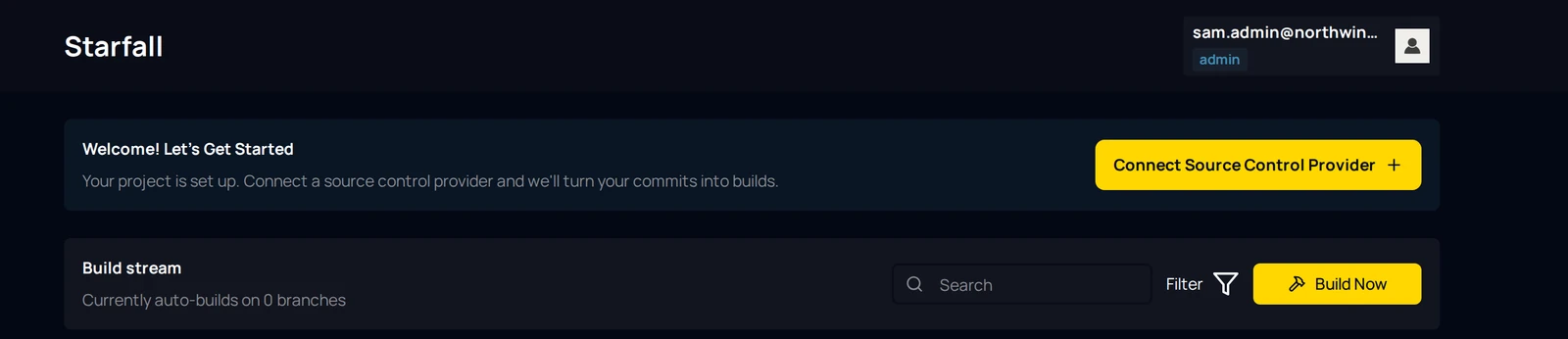
If the Builds page still shows the Welcome! Let's Get Started banner, the project has no repository yet and nothing can build. Choose Connect Source Control Provider and follow the connection page for your provider: GitHub, Bitbucket Cloud, Diversion or Perforce.
Build Now
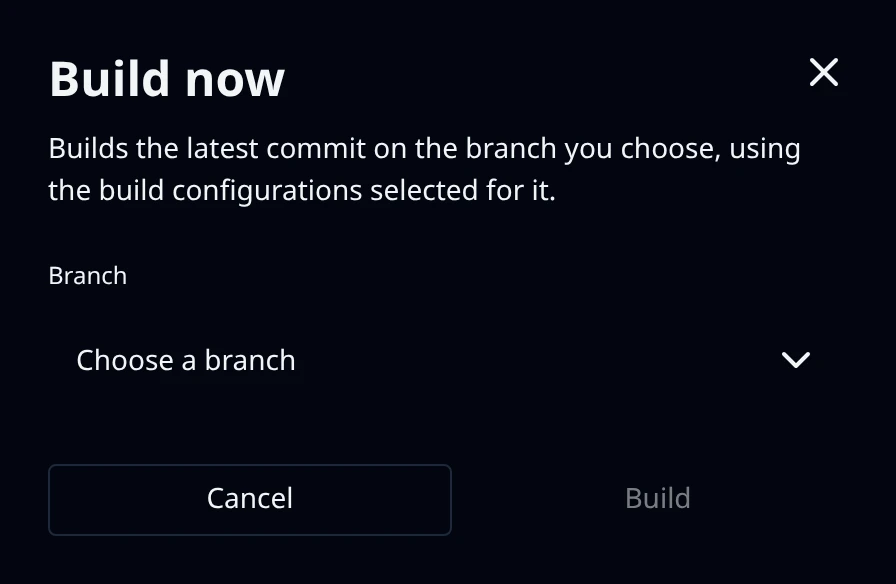
Build Now is the yellow button at the right of the Build stream header. It opens a dialog titled Build now whose description reads Builds the latest commit on the branch you choose, using the build configurations selected for it. Which commit is latest is decided when the request is handled, not when the page last refreshed.
Choose the branch
The Branch select lists every branch in the table, with the placeholder Choose a branch. With exactly one branch it is preselected; with several you have to pick, so the wrong branch is never built by default. While the list loads the dialog reads Loading branches…, and a project with no branches reads No branches are configured yet. Add one on the Source Control page, then come back here to build it.
Check the count
Under the select the dialog states what will run, for example 2 build configurations will run. A branch with nothing selected shows, in red, No build configurations are selected for main. Choose at least one on the Source Control page first. and Build stays disabled.
Build
Click Build; it reads Starting… while the request is in flight, and Cancel closes the dialog without building. On success the dialog closes and a toast titled Build started names the build, for example Build 5 of main at a7f3e2c1 — 2 configurations. If that commit already had a build, the title is Rebuild started instead: the earlier build and its artifact are kept, and the new one gets its own build number and artifact.
A refusal shows a toast titled Could not start the build with the reason. The reasons are:
| Reason | What to do |
|---|---|
| No commits have been recorded for branch "main" yet. Push a commit first, then build. | Build Stream has not seen a push on the branch, so there is no commit to build. Push one, or wait for the scheduled check on a polled connection. |
| No build configurations are selected for branch "main". Choose at least one configuration for this branch, then build. | Open the branch row on the Connections page and pick at least one configuration. |
| Build on check-in is off for this Perforce server, so it has no build account. Turn on Build on check-in on the Hosting page to build this branch. | Hosted Perforce only. The switch that provisions the build account is off; turn it on and try again. |
| This Perforce server is not connected to Build Stream yet: a DSL-hosted server has not been armed by the Cloud Manager, and a customer-hosted one has not run its installer. Connect it, then build. | Perforce only. Finish connecting the server before asking for a build. |
| The build configurations for branch "main" changed while the build was being created. Try again. | Someone edited the row at the same moment. Click Build again. |
Read the Builds page
Builds in the sidebar opens the build stream. The header card is titled Build stream and states how many branches build automatically, for example Currently auto-builds on 1 branch; when a branch is on demand the line adds a count such as , 1 on demand. The Search field matches commit messages; Filter opens a sheet with Order by, Branch, Status and Configuration, plus Reset filters; Build Now is at the far right.
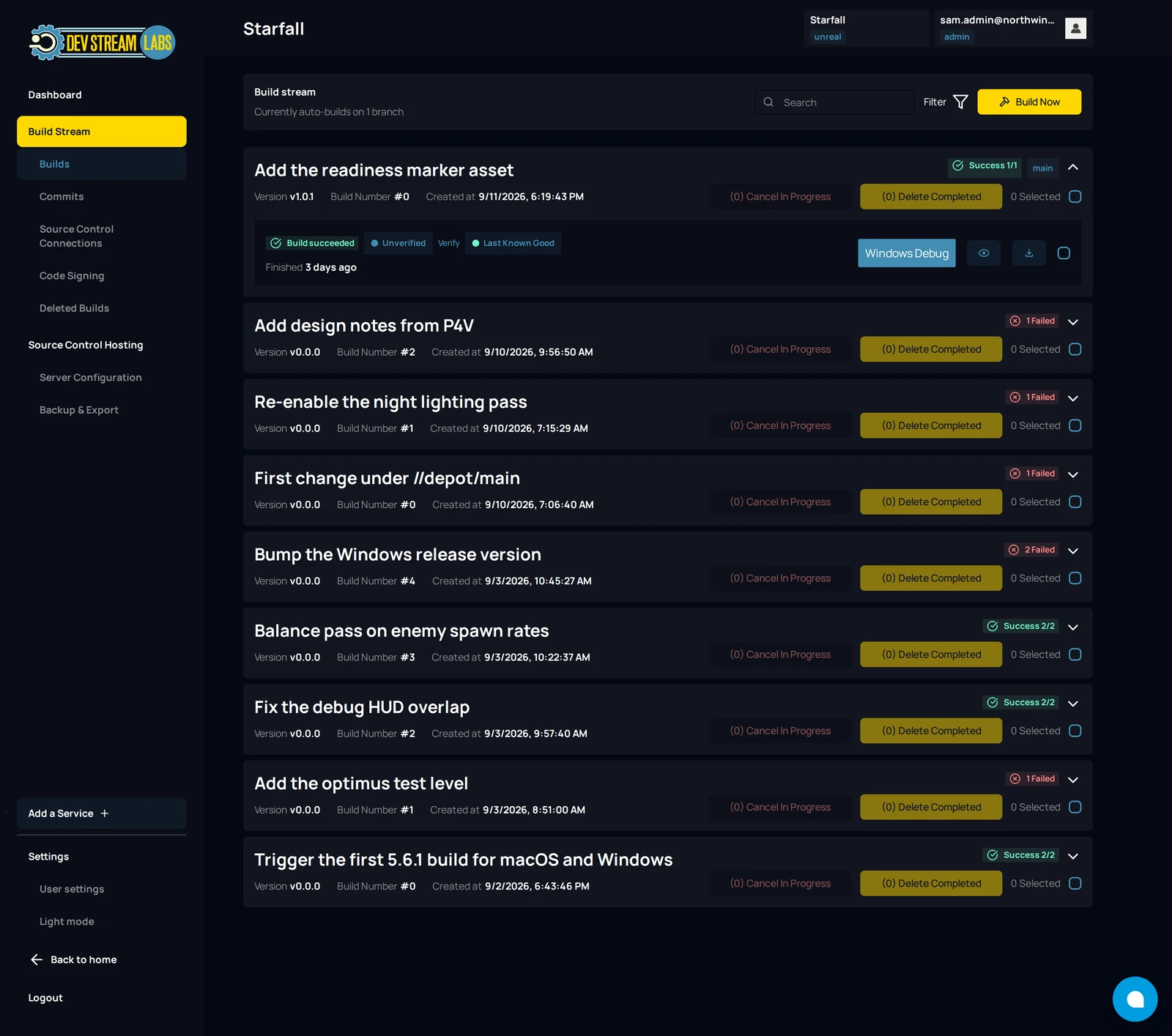
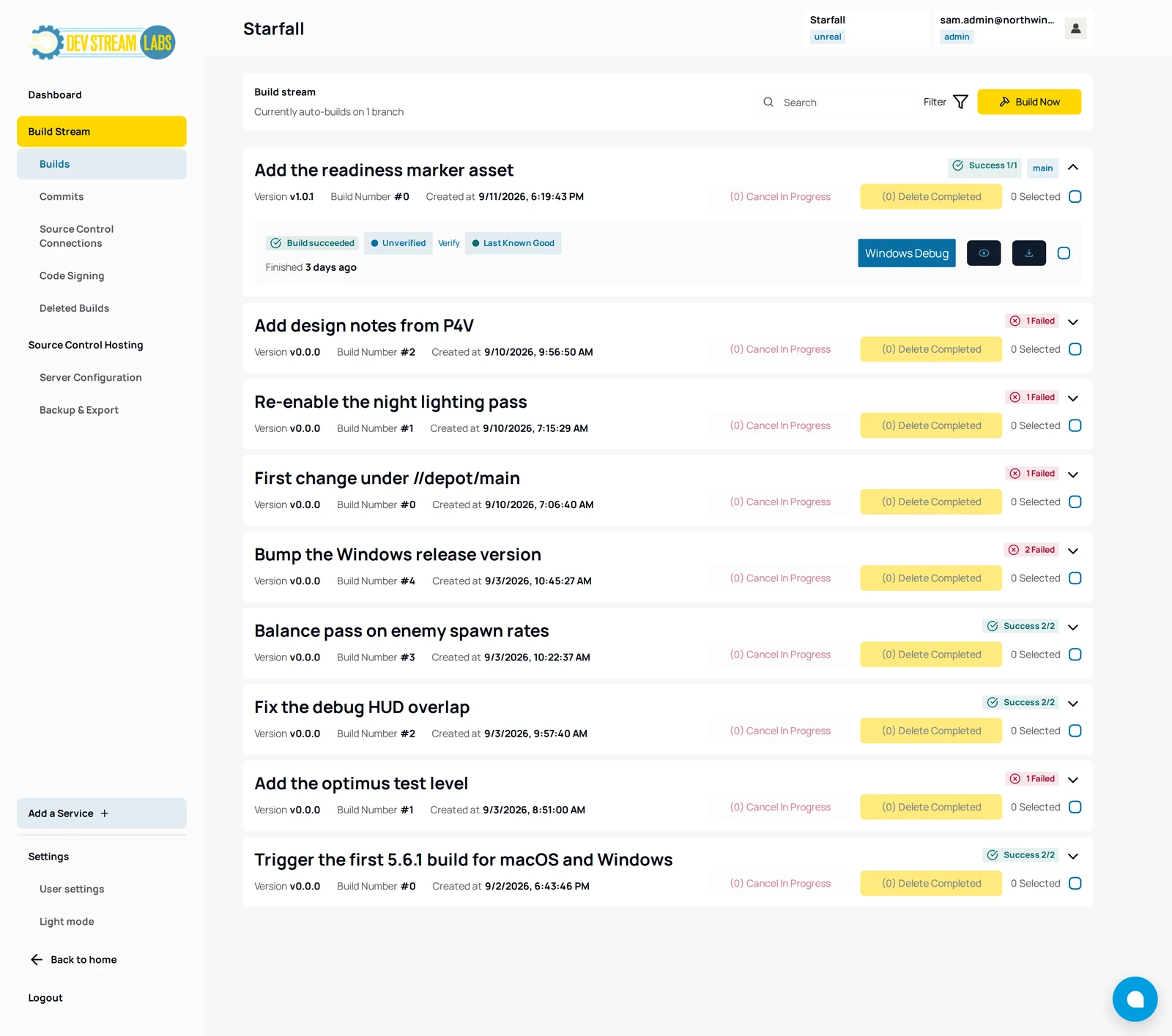
Each card is one push. The heading is the commit message, followed by Version (the branch's version, for example v1.4.0), Build Number (counts up per branch, for example #4) and Created at. On the right, a summary chip rolls up the jobs: 1 Running while any job is still going, then 2 Failed if any failed, otherwise Success 2/2. The branch name sits next to it as a chip.
Click the card to expand it. Each row is one job, named by its configuration chip such as Windows Release; the chip shows the display name, not the internal win32-release. The status chip at the left of a row is one of:
| Status chip | Meaning | Time label |
|---|---|---|
| Build in progress... | A build machine is working on it. | Running for and a live elapsed time |
| Waiting for a build machine | The job is queued because no machine on the farm can take it right now. It stays queued and is retried; it does not time out on its own. | Queued for |
| Build succeeded | The job finished and an artifact was produced. | Finished |
| Build failed | The job finished without an artifact. Open the log. | Finished |
| Build canceled | Someone canceled it while it was in progress. | Finished |
| Not Built | The job exists but has not been submitted. You rarely see this. | Created |
More chips can accompany the status. Last Known Good marks the most recent succeeded job for that configuration on the branch. Canceling... appears after you request a cancel and before the build machine confirms it. A succeeded job also carries its verification chip and a Verify link, and a job that requested code signing carries a signing chip; both are explained in Verified build and Signed.
At the right of every row are View Log, and on a succeeded job Download, both as icon buttons whose names show on hover, followed by a checkbox labelled Select Windows Release (one per configuration). The card header has Select all jobs and a 0 Selected counter; selection drives the cancel and delete buttons described in Cancel and delete. An expanded card with no jobs reads No builds have been run for any configuration yet; an empty stream reads No builds found.
Verified build and Signed
Every succeeded job says whether Build Stream can vouch for the bytes it stored. Next to the status chip, on the job row and again in the banner of the Logs page, one of these chips appears with the first twelve characters of the artifact's sha256 and a Verify link:
| Chip | Meaning |
|---|---|
| Verified build | A signed attestation exists for this artifact: the sha256, the source revision, the build recipe and the builder are bound together and signed by Dev Stream Labs. |
| Verifying… | The attestation has been recorded but not signed yet. Check back shortly. |
| Unverified | No signed attestation exists, either because none was produced for this build or because signing was declined. The hash check still works. |
Verify opens a dialog titled Verified build, Verifying build or Unverified build to match the chip. Its Fingerprints section lists the sha256 of the artifact, the manifest and the build log with a copy button each, the Source repository, the commit or changelist that was built, and the Build recipe sha256. Downloads offers Artifact, Attestation (.intoto.jsonl), Manifest and Build log; the links are minted on each click and expire after 60 seconds. Verify it yourself holds copy-paste command blocks: Quick check (any OS) hashes your downloads and compares them to the digests, and on a verified build Full verification (Python) and OpenSSL only (no DevStreamLabs code) check the signature against the published keys. The dialog ends with What this proves — and does not, which is worth reading once: a verified attestation proves these exact bytes came from the stated revision and recipe on the stated builder; it does not vouch for the recipe itself, and it does not make the build reproducible.
On the Logs page the banner adds a line Build log sha256: followed by the full digest and a copy button, once the build machine has reported one, so a saved log can be checked against it later.
A job whose branch has Windows code signing turned on also shows a signing chip next to the verification chip: Signed with the file count and signer, for example 2 files · Northwind Games; Unsigned when signing did not complete and the build was published anyway; or Signing failed when the failure is why the job failed. The line beside the chip carries the signer's message. A job that did not ask for signing shows no chip. Signing is set up on Signing and notifications.
Open the log
View Log on a job row opens the Logs page for that job. Back returns you to the Builds page with the row you came from scrolled into view. The page has three tabs: Log Viewer, Build Buddy and Export, the last of which is disabled today.
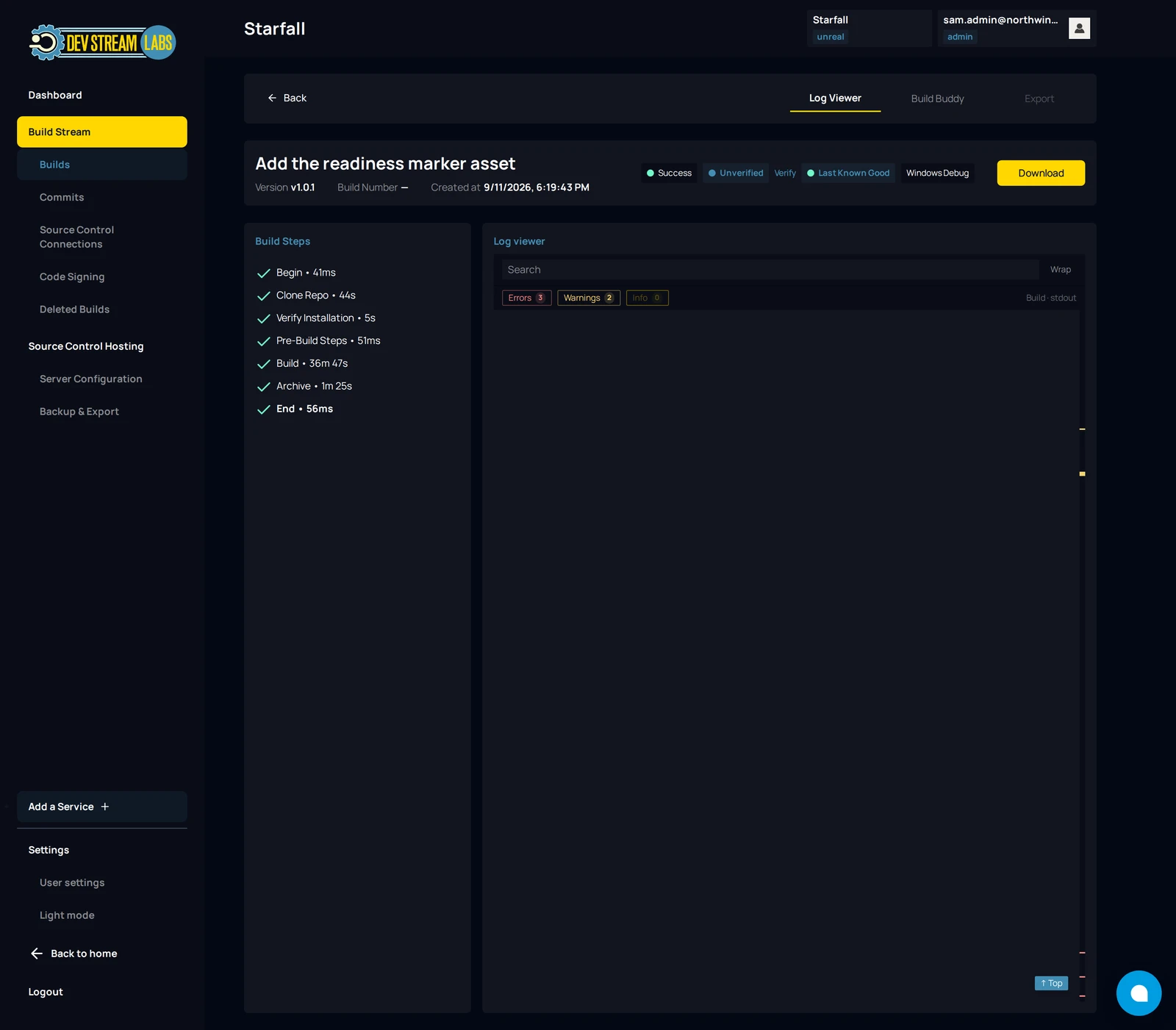
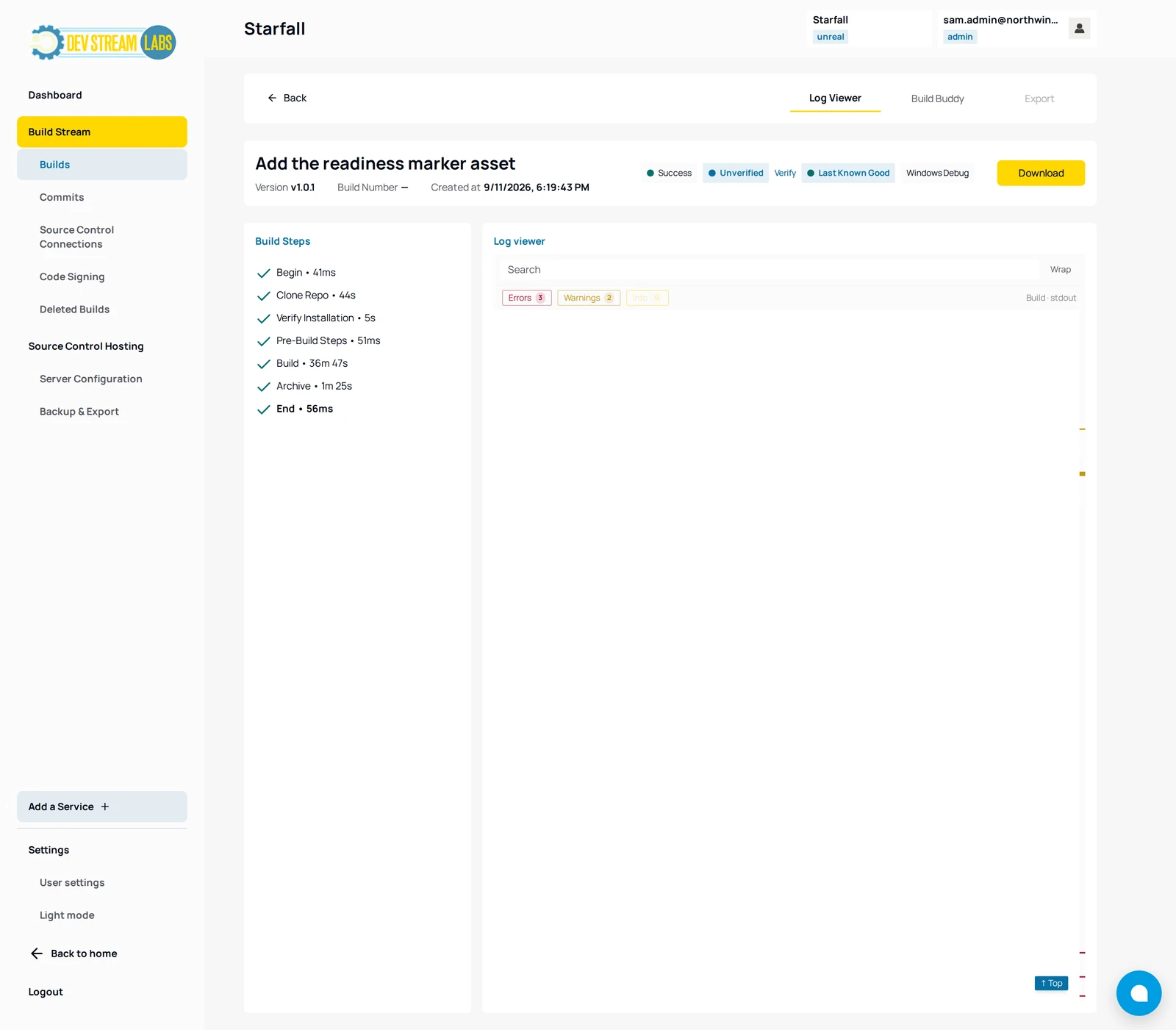
The banner repeats the commit message, Version, Build Number and Created at, then a status chip: Success, Running, Waiting for a build machine, Failed, Canceled or Idle, with the verification and signing chips, Last Known Good and the configuration chip alongside. On a succeeded job the banner also carries Download.
Build Steps lists the stages the build machine reported, in its order, each with its duration and a tick, a cross or a spinner. A typical run is Begin, Clone Repo, Verify Installation, Pre-Build Steps, Build, Archive and End; the names come from the build machine, so a toolchain may add or rename steps. The step that introduced a failure is the one marked with the cross. Until the machine reports its first step the panel reads No build steps available.
Log viewer shows up to four streams joined in order, labelled Setup · stdout, Setup · stderr, Build · stdout and Build · stderr. Setup is everything before the engine runs (checkout, toolchain checks, submission); Build is the engine's own output. Empty streams are dropped. The viewer has a Search field with previous and next match buttons, a Wrap toggle, three level filters labelled Errors, Warnings and Info with their counts, and an error-density strip you can click to jump. On a failed job the viewer opens at the first error. While a job is running the log streams in as it is written.
Build Buddy is an automated reading of a failed log. It opens with one of four verdicts, Build infrastructure issue, Project code issue, Project configuration issue or Cause unclear, then a Signature (the lines it keyed on), Affected Files and Warnings & Notices. Treat it as a lead. The log is the record.
Download the artifact
Download appears only on a job whose status is Build succeeded and which produced an artifact. It is on the job row on the Builds page and in the banner on the Logs page. Each click asks for a fresh, short-lived link and starts the download in your browser; there is no permanent URL to bookmark.
The artifact is one zip per configuration, named after the configuration's internal name, for example win32-release.zip, containing the engine's build output for that platform and flavor. A failed or canceled job has no artifact, so it has no Download button. If the link cannot be issued you see a toast titled Download Failed; wait a moment and try again, and if it persists the artifact may have been removed with the build (see Deleted Builds).
The Commits page
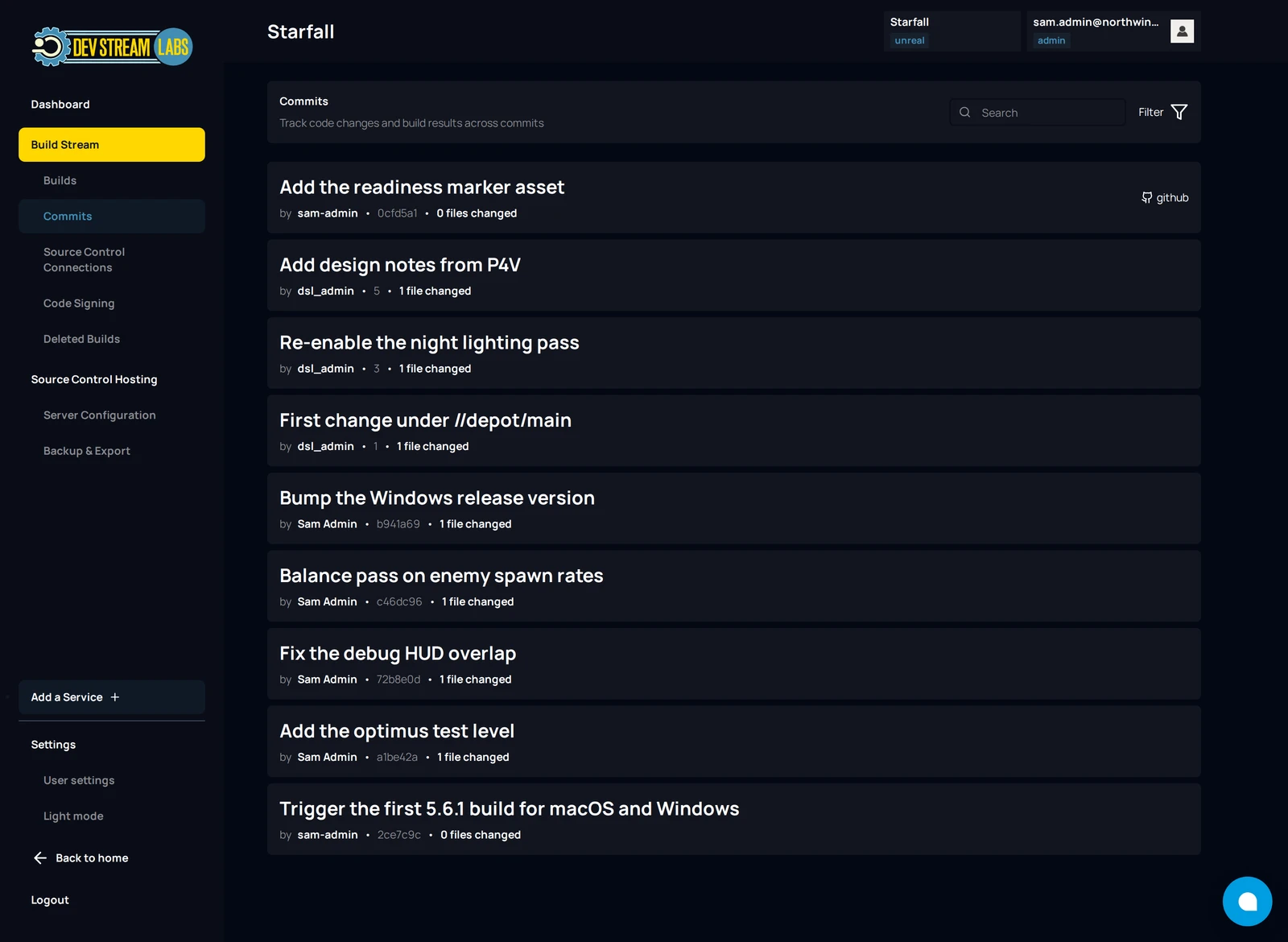
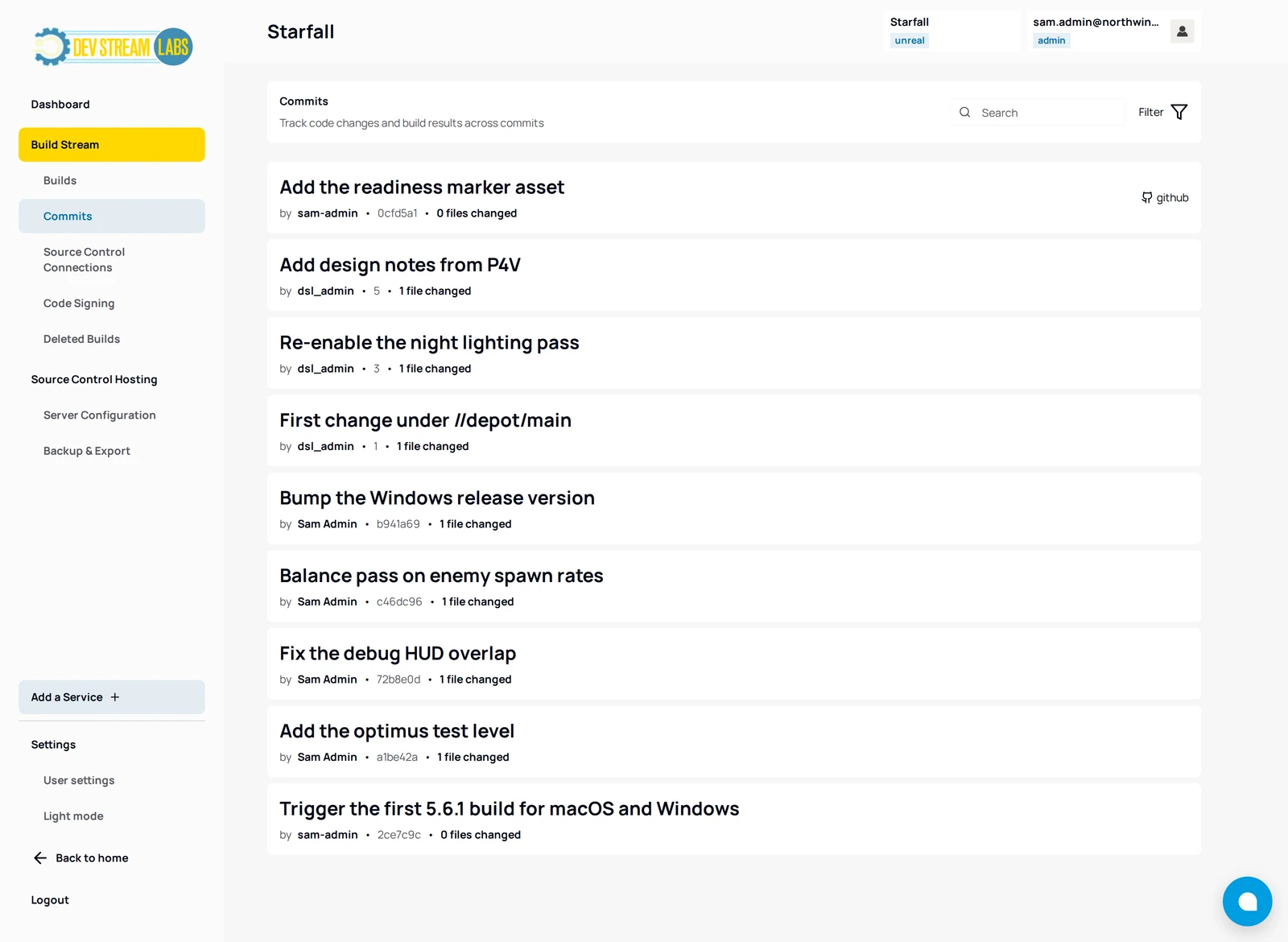
Commits in the sidebar lists every commit Build Stream has received from your repository, whether or not it built. The page header reads Track code changes and build results across commits and has the same Search and Filter controls as the Builds page. Each row shows the commit message, then by the author, the short commit id (or the changelist number on Perforce) and a count such as 1 file changed, with the provider name at the right.
Click a row to open the details panel. It shows Changes (for example 1 added • 0 modified • 0 removed), Contributors, Files Changed and Related Builds. Each related build is a row such as Failed • Windows Release • 5d ago (or Not started for a job that has not begun); clicking it takes you to that build on the Builds page.
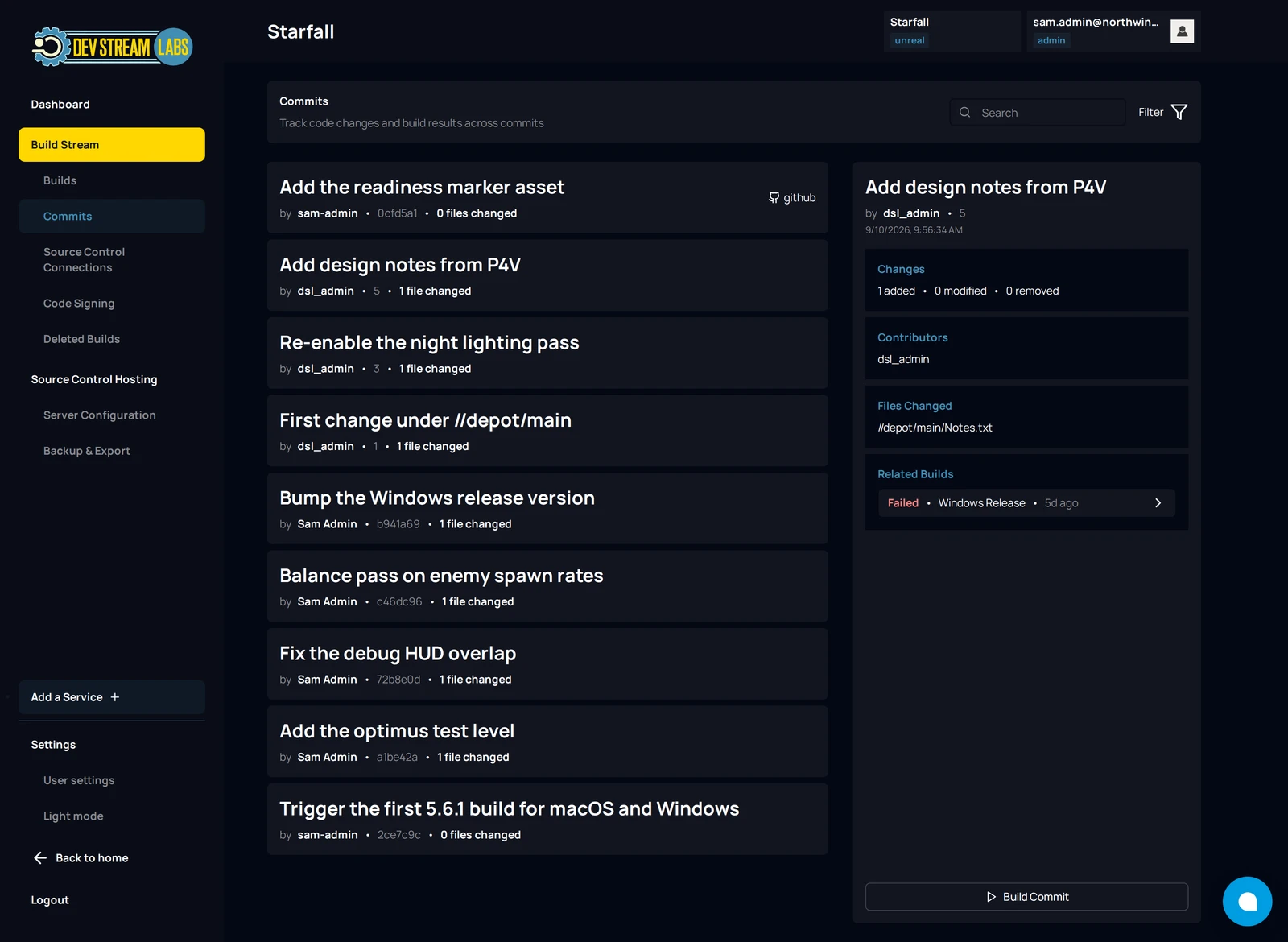
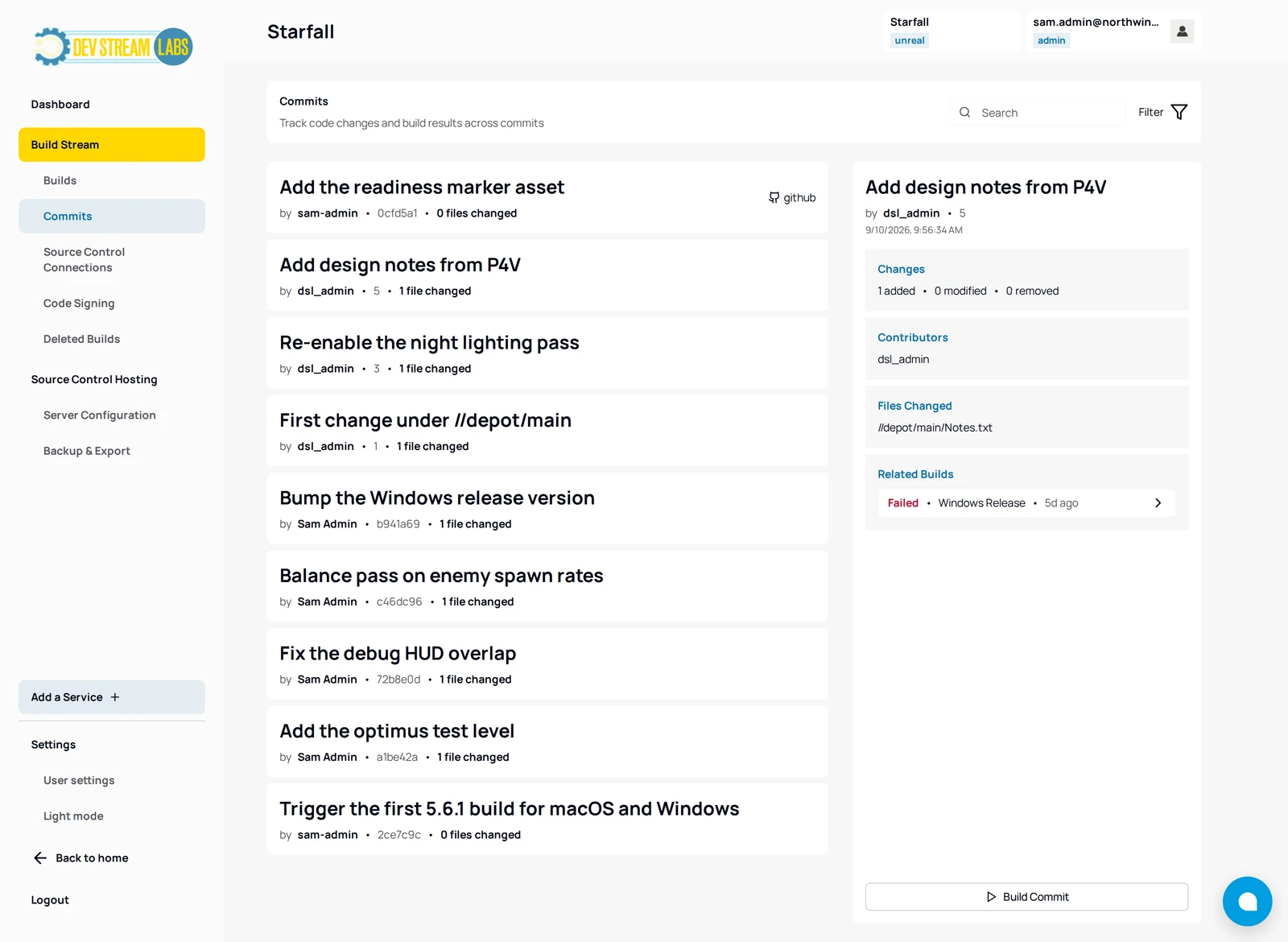
Build Commit sits at the bottom of every panel. It builds exactly this commit with the branch's current configurations, whatever the branch's schedule and whether or not the commit has been built before; the button reads Starting… while the request is in flight, and the Related Builds list refreshes when the build is created. The toasts are the same as for Build Now: Build started or Rebuild started on success, Could not start the build with the reason on refusal. One reason is specific to this button: This commit is not on a branch that is configured to build. Configure its branch in Source Control first. It appears for a commit received before its branch was added, or after the branch row was deleted; add the branch and the next push builds, but the older commit cannot be built.
Cancel and delete
Both actions work on a selection. Tick the checkbox on one or more job rows, or Select all jobs in the card header, then use the buttons in the header. The counts in the button labels tell you what the selection contains.
Cancel a job that is in progress
Select the running or queued jobs and choose (1) Cancel In Progress. The dialog is titled Cancel Builds and asks Cancel 1 in-progress build?; confirm with Cancel Builds. A toast reads Cancel Requested / 1 build is being canceled., the row shows Canceling..., and it settles to Build canceled once the build machine has stopped. A job that is Waiting for a build machine can be canceled the same way.
Delete completed jobs
Select succeeded, failed or canceled jobs and choose (1) Delete Completed. With one job selected the dialog is titled with the commit message and the configuration's display name, for example Add double-jump: Windows Release, and reads This build will be moved to the trash and will be permanently deleted 24 hours from now. Confirm with Delete Build. With several selected the title is Delete 2 Builds, the body says These builds, and the button is Delete Builds.
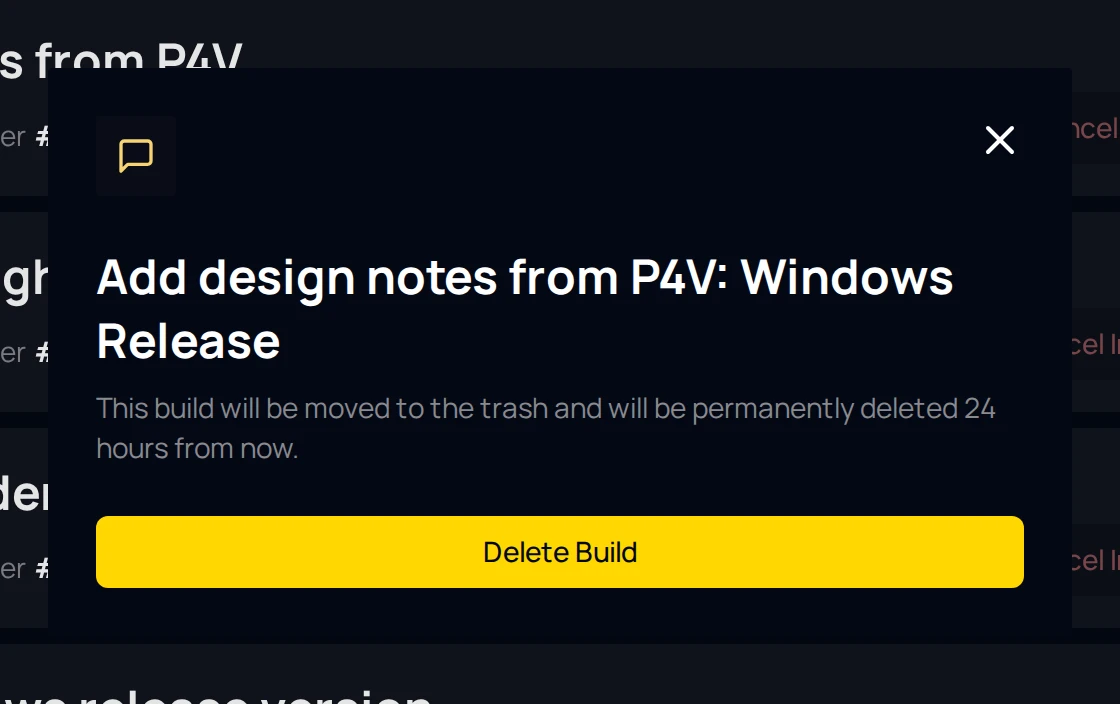
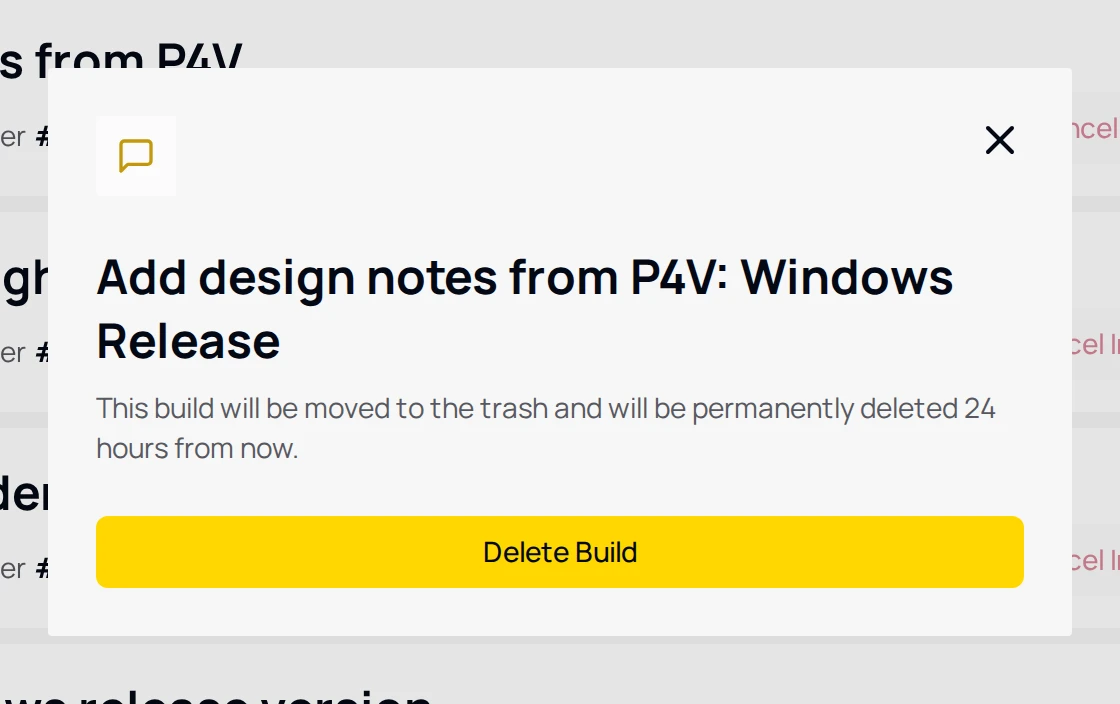
The toast reads 1 build deleted / Auto-deletes after 24 hrs. The job leaves the Builds page at once and appears under Deleted Builds. If part of a selection could not be deleted, a second toast titled Delete Failed names how many, and those rows stay selected so you can retry.
Deleted Builds
Deleted Builds in the sidebar is the trash. The header reads Deleted builds are staged here and permanently deleted 24 hours after deletion. Each row shows the commit message, Deleted at, a countdown such as Permanently deletes in 23h 59m, the branch chip, a job count such as 1 build and a Restore button. A deleted single job shows its configuration chip, for example Windows Release, instead of a count.
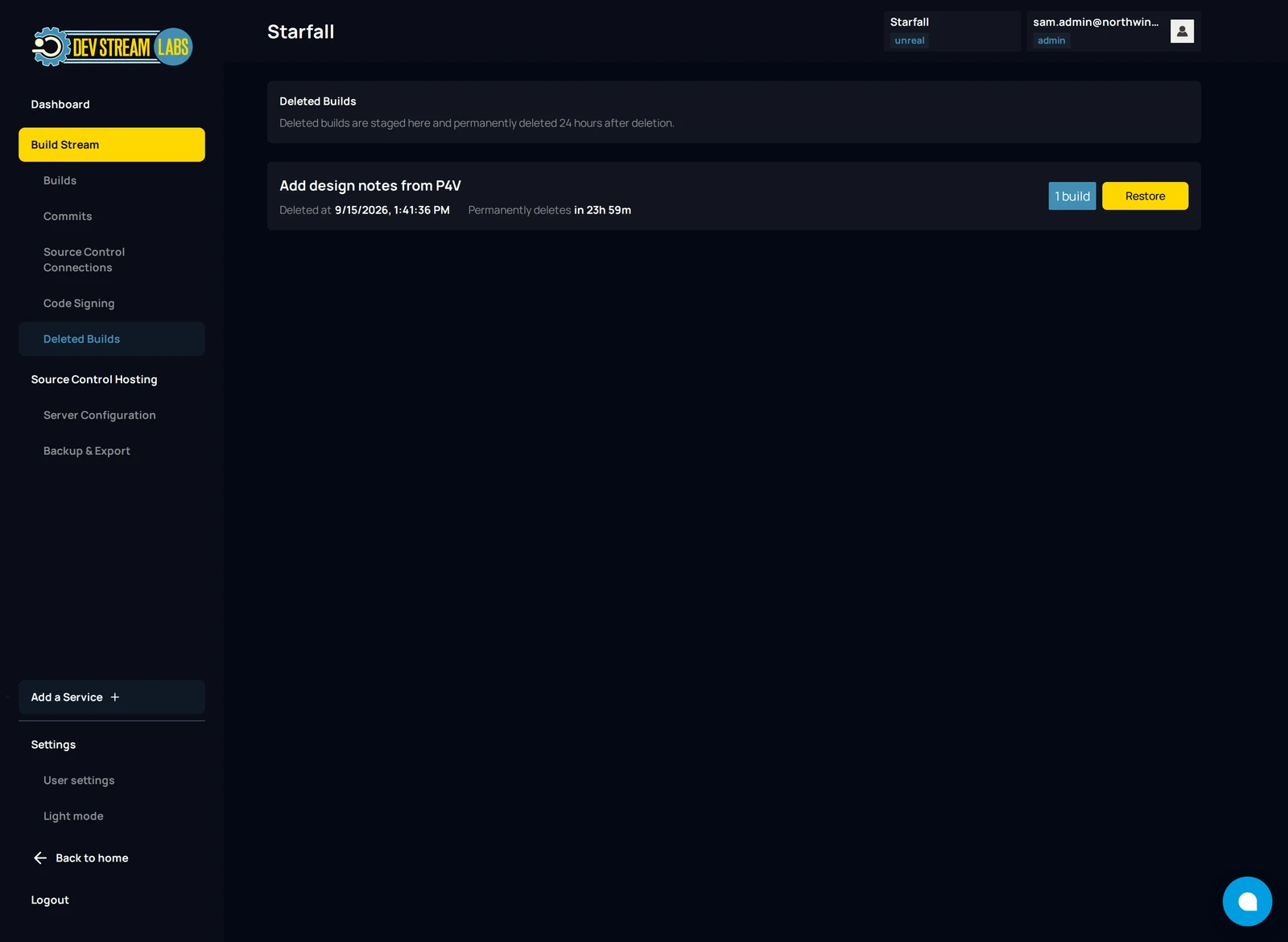
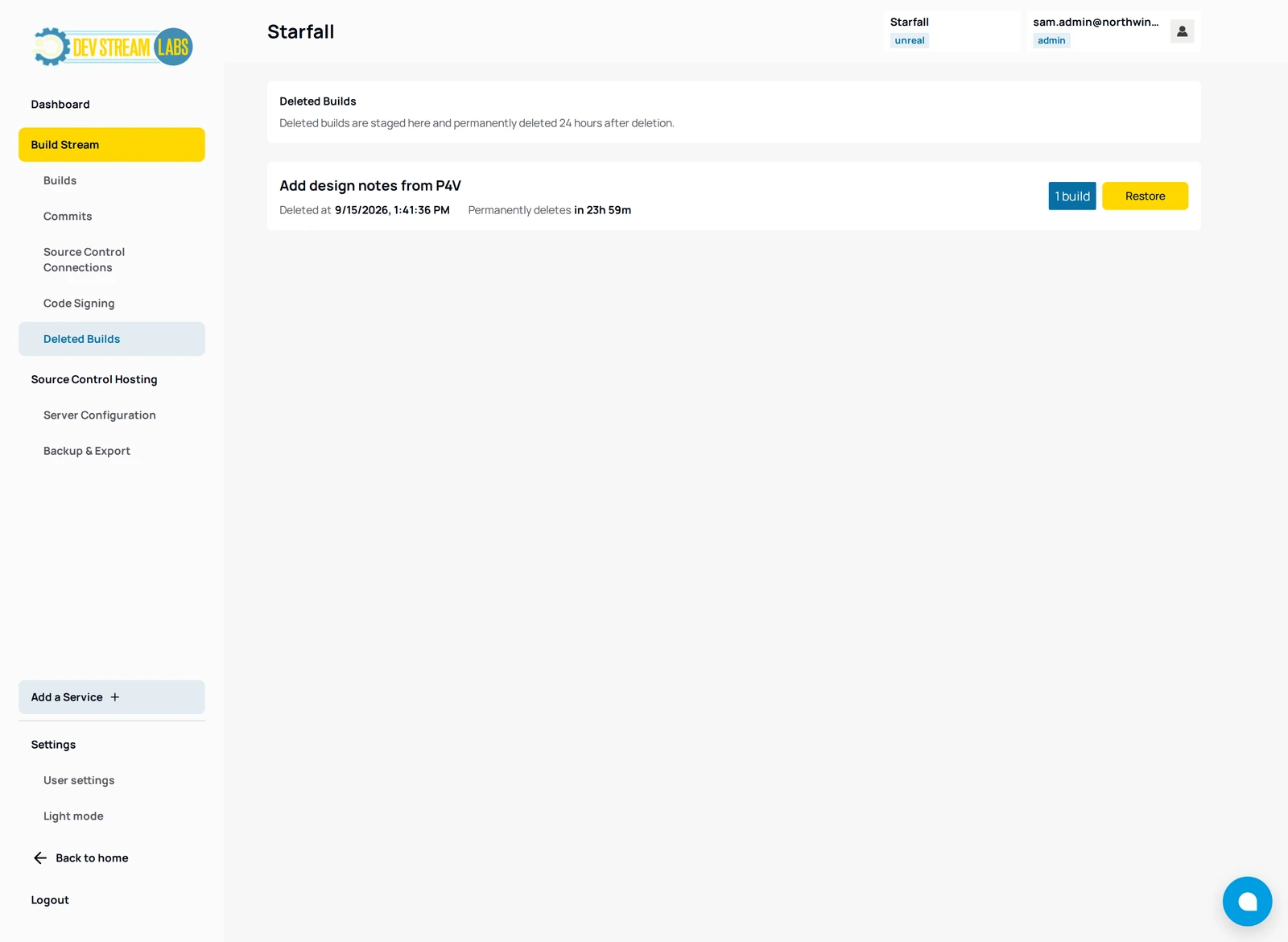
Restore puts the build back in the stream with its artifact and log intact; the toast reads Build restored and names the commit as being back in the build stream. When the trash is empty the page reads No deleted builds. Once the countdown reaches zero the next cleanup pass removes the build and its artifact from storage, and it cannot be recovered.
Builds also arrive in the trash without anyone deleting them: builds older than the retention window are swept into it automatically, and from there follow the same 24-hour countdown. The window is 90 days by default. See the reference.
When a build fails
Open the log first. A failure that happened before the engine ran appears in the Setup · stderr stream, prefixed OVERALL WORKER PROCESS ERROR:, and the message names what to change. A failure inside the engine appears in Build · stderr and the viewer jumps to it.
Build Stream also writes a one-line summary for every failed job and posts it under the build notification in Slack or Discord (see Build notifications). The summary states the cause rather than the last thing the log said. For a Unity project it starts with the verdict: Scripts have compiler errors: followed by the first compiler error and a count such as (+3 more), or Unity licence unavailable on the build agent: followed by the licensing line. Where no verdict rule matches, the summary is the last error-classified line of the log, which for an Unreal cook is its own final verdict line.
The troubleshooting page quotes each Build Stream message with its cause and fix:
- The branch has no build configuration (No autobuild configurations found for branch)
- The project toolchain or version is not set, or disagrees with the repository (configured for … but the repository is authored with)
- No Unity licence of the project's type, or all are in use
- A selected Unity build profile no longer exists in the repository
- The build controller could not be reached, or gave up
- No build machine can take the job (the Waiting for a build machine chip and the farm warnings on the configuration picker)
Something out of date or unclear? Email support@devstreamlabs.com.