
Signing and notifications
A debug build runs on a device without any of this. The moment a confirmed branch selects a Windows, Android or iOS configuration, the branch row grows a gear button that opens the signing panel. This page covers that panel platform by platform, the Code Signing page that holds Windows signing profiles, and the Slack and Discord notifications that live on the same Connections page.
Where signing lives
Signing is configured per branch, not per project. Open Source Control Connections, expand the repository card, and look at the Build Configuration column of the Branch Configuration table. Once a branch is confirmed and its selection includes a Windows, Android or iOS configuration, a gear button appears in that cell. Its hover title is Platform specific configurations.
Above the gear, the cell tells you whether anything is required:
- Configuration Required, in amber, when the selection includes
android-releaseorandroid-shippingand the branch does not yet have all four keystore values stored. The gear is outlined in amber too. A release or shipping Android build needs a keystore to be signed. Only a project admin sees this label, because only an admin can read whether the keystore is stored. - Optional Configurations Available when the selection includes Windows or iOS but no Android. Those builds run without the panel; fill it in when you need a signed build.
- Nothing, when the only mobile configuration is
android-debug, or once the keystore is stored.
Click the gear to open the Platform Specific Configurations panel beneath the row. A chip row names the selected configurations that can be signed, followed by a Windows group, an Android group and an iOS — Optional Configurations Available group, whichever the branch's selection calls for. Windows has its own save button; Android and iOS share one at the bottom of the panel.
Windows
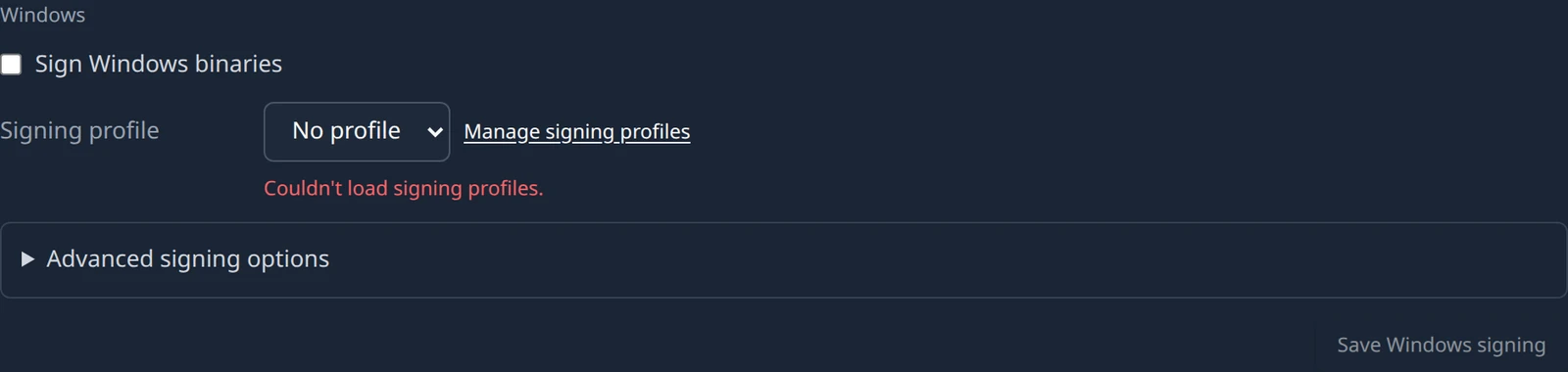
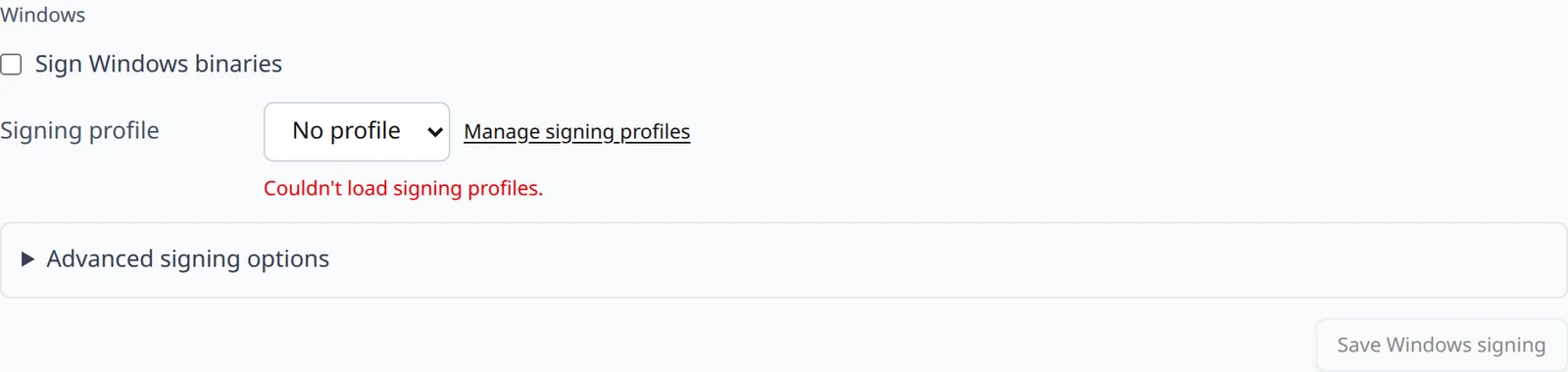
Windows signing uses an Azure Artifact Signing identity that you set up once on the Code Signing page as a signing profile. The branch chooses which profile signs its Windows builds and what to sign.
| Control | What it does |
|---|---|
| Sign Windows binaries | Turns signing on for the branch's Windows builds. Off by default. |
| Signing profile | The profile to sign with. The list reads No profile until you pick one; beside the chosen profile a chip shows Verified, Verification failed or Not verified from its last credential test. Manage signing profiles opens the Code Signing page. |
| Advanced signing options | Collapsed by default. Files to sign and Files to skip take One glob per line, relative to the build output. The defaults sign **/*.exe and **/*.dll and skip nothing. |
| Skip files already signed by another publisher | Leaves third-party binaries that carry their own signature alone. On by default. |
| If signing fails | Fail the build, the default, or Publish unsigned with a warning. |
Create a signing profile
If the select reads No signing profiles yet. Create one under Code signing first., follow the Code Signing page first and come back.
Tick Sign Windows binaries and pick the profile
Open the advanced options only if the defaults do not fit. The form refuses to save with Choose a signing profile to sign Windows binaries. or Add at least one file pattern to sign. until both are in place.
Choose Save Windows signing
The toast reads Windows signing saved. Unlike the mobile groups, these settings are shown again after a reload: they are settings, not secrets. The profile's credentials stay on the Code Signing page.
Every later Windows job on the branch is signed before its artifact is published, and the job carries a badge: Signed, Unsigned when the build was published unsigned with a warning, or Signing failed. A branch that turns signing on without a usable profile does not build unsigned by accident: the job is refused before it is queued, with a message that names the branch or profile. Those messages are in Troubleshooting.
The Code Signing page
Code Signing is a Build Stream page in the sidebar, shown to project admins only. Its title is Code signing, and it holds the project's signing profiles: one Azure Artifact Signing identity each, entered once and referenced by any number of branches. The branch panel picks a profile; this page is where the credentials live.
Choose New signing profile
Fill in Profile name, the region your signing account was created in, Signing account, Certificate profile, Directory (tenant) ID, Application (client) ID and Client secret. The secret's hint reads Stored encrypted. Never shown again. Secret expires on is optional; when set, We'll remind admins 30, 7 and 1 days before.
Choose Save profile, then Test credentials
The profile card's Test credentials signs a random digest with the profile and uses one signature from your account's quota. The card's chips then read Verified or Verification failed; a profile that has never been tested, or whose tenant, client, account or secret was edited since, reads Not verified.
Watch the expiry and usage chips
A card also shows Never used or the date it last signed, and Not used by any branch until a branch selects it. From 30 days before the date you entered it adds a countdown chip, then Secret expires today and Secret expired.
Android


Android signing needs the keystore and the three values that unlock it. The four fields are required: once stored, each can be replaced but not cleared, and an edit cannot be saved while any of the four is still empty.
| Field | What to enter |
|---|---|
| Android keystore file | Your release keystore, a .jks or .keystore file. The file is read in your browser and sent with the form; once chosen the row names the file followed by loaded. |
| Android keystore alias | The alias of the signing key inside the keystore. |
| Android keystore password | The password that opens the keystore. Entered masked. |
| Android key password | The password for the key itself. Often the same as the keystore password; enter it anyway. |
Select a release or shipping Android configuration
In the branch row, pick
android-releaseorandroid-shipping. The cell shows Configuration Required.Open the gear and fill in the Android group
Choose the keystore file, then type the alias and both passwords. While any of the four is missing the save button's hover title reads Complete the keystore fields before saving.
Choose Add Configurations
The toast reads Configuration saved / Platform configuration has been saved for this branch. The Configuration Required label clears, each field now shows that it is stored and when, and the button reads Save changes from then on.
The next Android build on the branch is signed with that keystore. A signed release build is what you upload to a store or sideload onto a device; the artifact is otherwise the same zip described on Your first build.
iOS
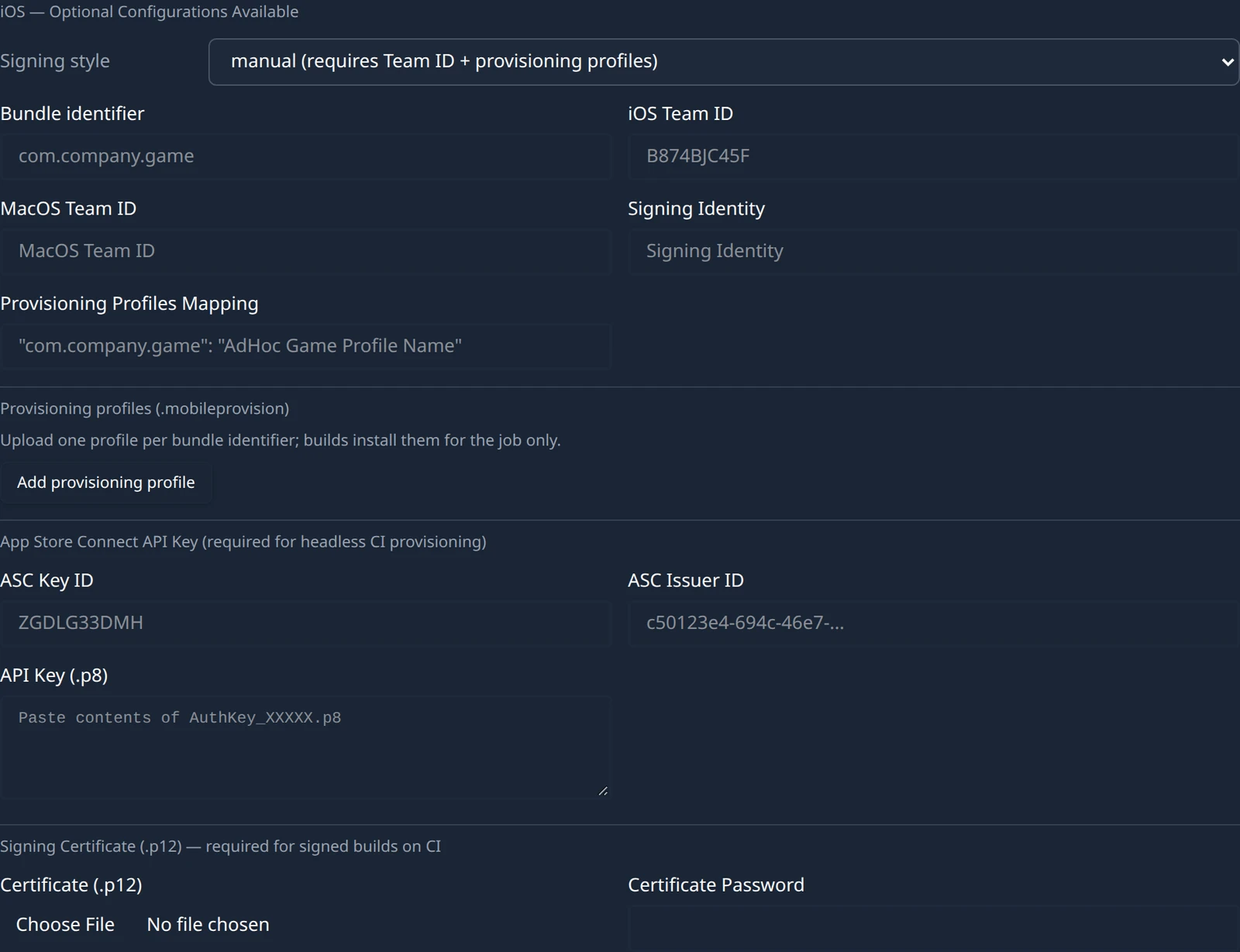
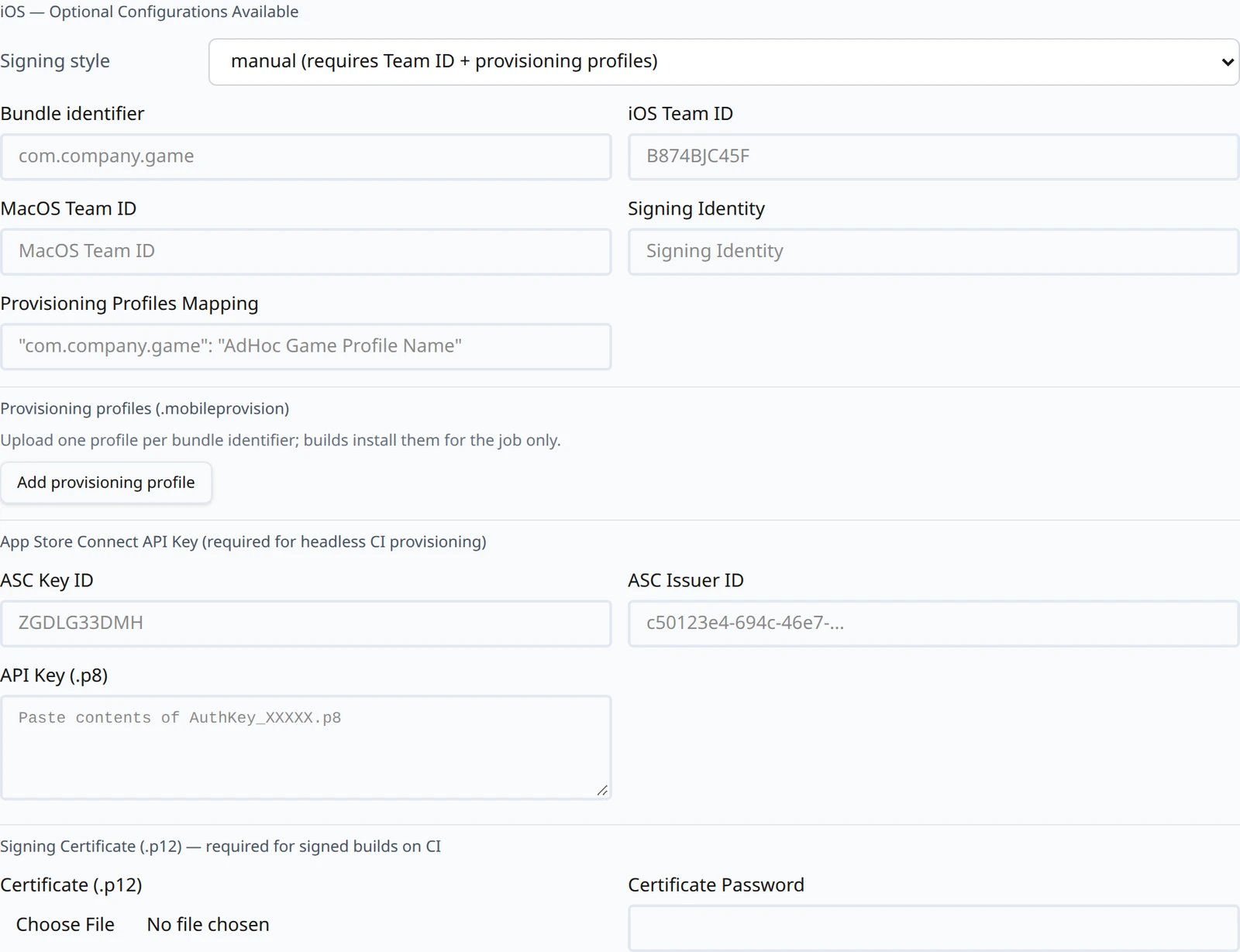
The iOS group is optional and layered. Start with Signing style, then add what that style needs.
| Signing style option | What it means |
|---|---|
| automatic (default — requires a Team ID) | The initial, unsaved value. Xcode manages profiles; you supply the team. |
| automatic | The same, chosen explicitly so it is stored on the branch. |
| manual (requires Team ID + provisioning profiles) | You supply the profiles: upload them under Provisioning profiles and name the certificate below. |
| none (unsigned .app for pipeline testing — not installable) | Builds an unsigned app to prove the pipeline. It cannot be installed on a device. |
| Field | What to enter |
|---|---|
| Bundle identifier | The app's bundle id, for example com.northwind.starfall. |
| iOS Team ID | Your Apple Developer team id, ten characters. Required for automatic and manual signing. |
| MacOS Team ID | The team id for a macOS build on the same branch. Leave it empty if the branch does not build macOS. |
| Signing Identity | The certificate name Xcode should sign with, for manual signing. |
| Provisioning Profiles Mapping | Which profile name applies to which bundle id, for manual signing, written as "com.northwind.starfall": "AdHoc Starfall Profile". |
| Provisioning profiles (.mobileprovision) | The profile files themselves. Choose Add provisioning profile once per bundle id, enter the bundle identifier and pick its .mobileprovision file. The build installs them for the job only. Uploading again replaces all of them. |
| ASC Key ID | Under App Store Connect API Key (required for headless CI provisioning): the key id from App Store Connect. |
| ASC Issuer ID | The issuer id shown with that key. |
| API Key (.p8) | The full text of the AuthKey_XXXXX.p8 file, pasted into the text area. |
| Certificate (.p12) | Under Signing Certificate (.p12) — required for signed builds on CI: your distribution certificate exported as .p12 or .pfx. Once chosen the row names the file followed by loaded. |
| Certificate Password | The password you set when exporting the certificate. Entered masked. |
The provisioning upload rows refuse to save until each row is complete: Every provisioning profile needs a bundle identifier., Choose a .mobileprovision file for <bundle id>. and <bundle id> has more than one provisioning profile. name what is missing. Remove an unwanted row with Remove.
The App Store Connect key lets the build machine fetch or create provisioning profiles without a signed-in Apple ID, and the certificate is what actually signs. For a signed build you need both. Choose Add Configurations or Save changes as for Android; the same Configuration saved toast confirms it.
macOS
There is no macOS signing form in the app today. The panel opens only for branches that build Windows, Android or iOS, and the one macOS-related field it contains, MacOS Team ID, sits inside the iOS group. A branch whose only Apple configuration is macos-release has no gear button at all, so there is nowhere to enter a team id, a certificate or notarisation credentials for it. Sign and notarise the macOS artifact yourself after you download it.
What happens to what you save
Every Android and iOS value except Signing style is stored as a secret for the branch: encrypted, used by the build machine for builds on that branch, and never returned to the browser. What the browser does get is whether each value is stored and when, so a stored field shows a masked marker followed by set and the date, with Replace beside it. Optional iOS values also offer Clear; a cleared field reads Will be removed when you save until you save or choose Undo.
A save sends only the values you replaced or cleared. Anything you did not touch keeps what is stored, so updating one password does not mean re-entering the keystore, and saving the iOS group cannot wipe the Android group. The button stays disabled, with the hover title No unsaved changes, until you change something.
If the panel cannot read what is stored it says Couldn't load this branch's saved signing settings. Try again shortly. rather than show every field as empty. If a save fails, the toast reads Failed to save platform specific secrets and the form keeps your entries so you can try again.
Windows signing is different: the branch stores settings and a reference to a profile, both of which are shown again after a reload. The one secret involved, the profile's client secret, lives on the Code Signing page and is never shown again after it is saved.
Build notifications
Below the webhook section of each repository card is Build notifications, introduced by Post build results to a Slack or Discord channel. Each entry is an incoming webhook in your chat tool; Build Stream posts to it when a job finishes.


Create an incoming webhook in Slack or Discord
In Slack, add the Incoming Webhooks app to the channel and copy the URL, which starts with
https://hooks.slack.com/services/. In Discord, open the channel's integrations, create a webhook and copy its URL, which starts withhttps://discord.com/api/webhooks/.Choose Add Slack/Discord webhook
Pick Slack or Discord in the service selector, paste the URL into Webhook URL, and leave On success and On failure ticked unless you want only one of them. Choose Add webhook; it stays disabled until the URL field has something in it.
Check the entry
The saved webhook is listed by service with a hint instead of the URL, the host and the last four characters only, for example
hooks.slack.com/…XXXX, and the events it posts on: success, failure or success + failure. The trash icon removes it. You can add more than one.
The form refuses these before anything is saved:
- Webhook URL must start with https://: the URL was pasted incomplete or with the scheme missing.
- Pick at least one of success/failure to notify on.: both boxes were unticked.
- The backend rejected this webhook. Check the URL and try again.: the URL did not pass the server's checks. Re-copy it from Slack or Discord.
The webhook URL is a credential: anyone holding it can post to your channel. Build Stream stores it write-only and never returns it to the browser; the list shows only the hint. To rotate it, delete the entry, create a new webhook in your chat tool and add that. Notifications are per repository, so they cover every branch of northwind-games/starfall.
Each message is one line naming the repository, branch, version and build number, the configuration and the result, for example:
✅ starfall main v1.4.0 (build 4) [win32-release]: build succeeded
❌ starfall main v1.4.0 (build 5) [android-release]: build failed
A failure message carries the job's status line on a second line when there is one. That line is the build's failure summary, the same text the Builds page shows on the job; see Reading the failure summary.
Something out of date or unclear? Email support@devstreamlabs.com.