
Ship iOS to TestFlight with no Mac
A Mac builds, signs and uploads your app — but it is one of our Macs, on the build farm. Nothing on this page needs macOS, Xcode or Keychain Access. You make one API key and one app record in Apple's web portals; Dev Stream Labs makes the signing certificate and provisioning profile for you and keeps them renewed. When you are done, every build of the configuration you switch on lands in TestFlight on its own, a shipping build can go on to App Store review from its job row, and your .ipa stays downloadable next to it.
Before you start
You need three things, none of them a Mac:
| Requirement | Where it comes from |
|---|---|
| Apple Developer Program membership | developer.apple.com — the paid program; TestFlight is not available to free accounts. |
| Admin access to App Store Connect | appstoreconnect.apple.com. You need to be able to create a team API key with the Admin role (the Account Holder or an existing Admin can do this). |
| An iOS release configuration on your branch | Set up on the Connections page; see the branches guide if the branch has no iOS configuration yet. |
Create the App Store Connect API key
Everything Dev Stream Labs does at Apple — minting the certificate and profile, uploading builds, creating the test group, inviting testers — authenticates with one team API key, not your Apple ID. Apple offers no sign-in button for this, so this is the one manual step that stays.
Generate the key
In App Store Connect → Users and Access → Integrations → App Store Connect API, generate a team key with the Admin role. An App Manager key can upload; an Admin key also lets Dev Stream Labs manage signing. If you would rather make the certificate and profile yourself (see Bring your own certificate and profile), App Manager is enough.
Download the .p8 — you get one chance
The key file (
AuthKey_XXXXXXXXXX.p8) can be downloaded exactly once. Store it somewhere safe. Note the two identifiers shown alongside it: the Key ID and the Issuer ID — Dev Stream Labs asks for all three.
Create the app record
Apple's API can upload builds to an app, but it cannot create the app itself — that is the one thing that must be clicked in App Store Connect. Dev Stream Labs checks for the record before a build starts, so a missing one costs you seconds, not a full build.
Decide the bundle identifier
Pick an explicit bundle identifier, for example
com.yourstudio.yourgame. It must match the one in your Unity project's iOS player settings. This exact string appears again in Dev Stream Labs — it is how everything finds everything else, so decide it once and reuse it verbatim. You do not need to register it under Identifiers first; when Dev Stream Labs manages signing it registers the App ID for you.Add the app
In App Store Connect → Apps, click + → New App: platform iOS, your app's name, and the same bundle ID. If the bundle ID is not offered in the list yet, register it under Certificates, Identifiers & Profiles → Identifiers first. The SKU is any internal string.
Set up the branch on Dev Stream Labs
Open your project's Connections page. Each confirmed branch has its settings panel open under its row: a section per platform (iOS signing, and Android or Windows signing where the branch builds those), then Submit to TestFlight. Every section header carries a one-line status; a section that needs something from you says Needs input and names it, and the branch list above the rows says which branches still need input. Nothing in these sections saves on its own: edit what you like, then Save all in the bar that appears at the bottom of the page saves every section at once. A stored credential shows as set with its date and Replace / Clear buttons — its value is never sent back to the browser.
Enter the bundle identifier and the API key
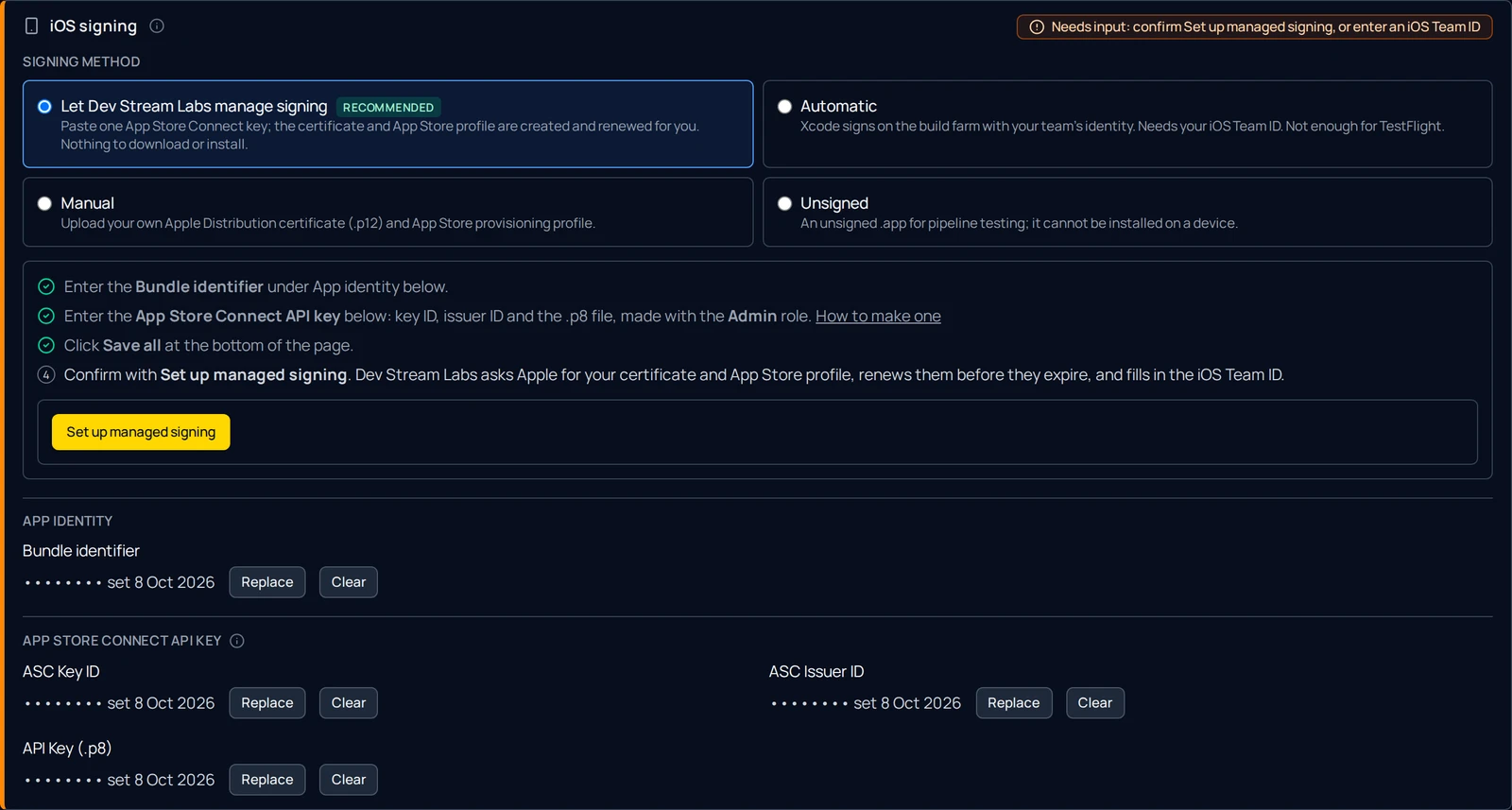
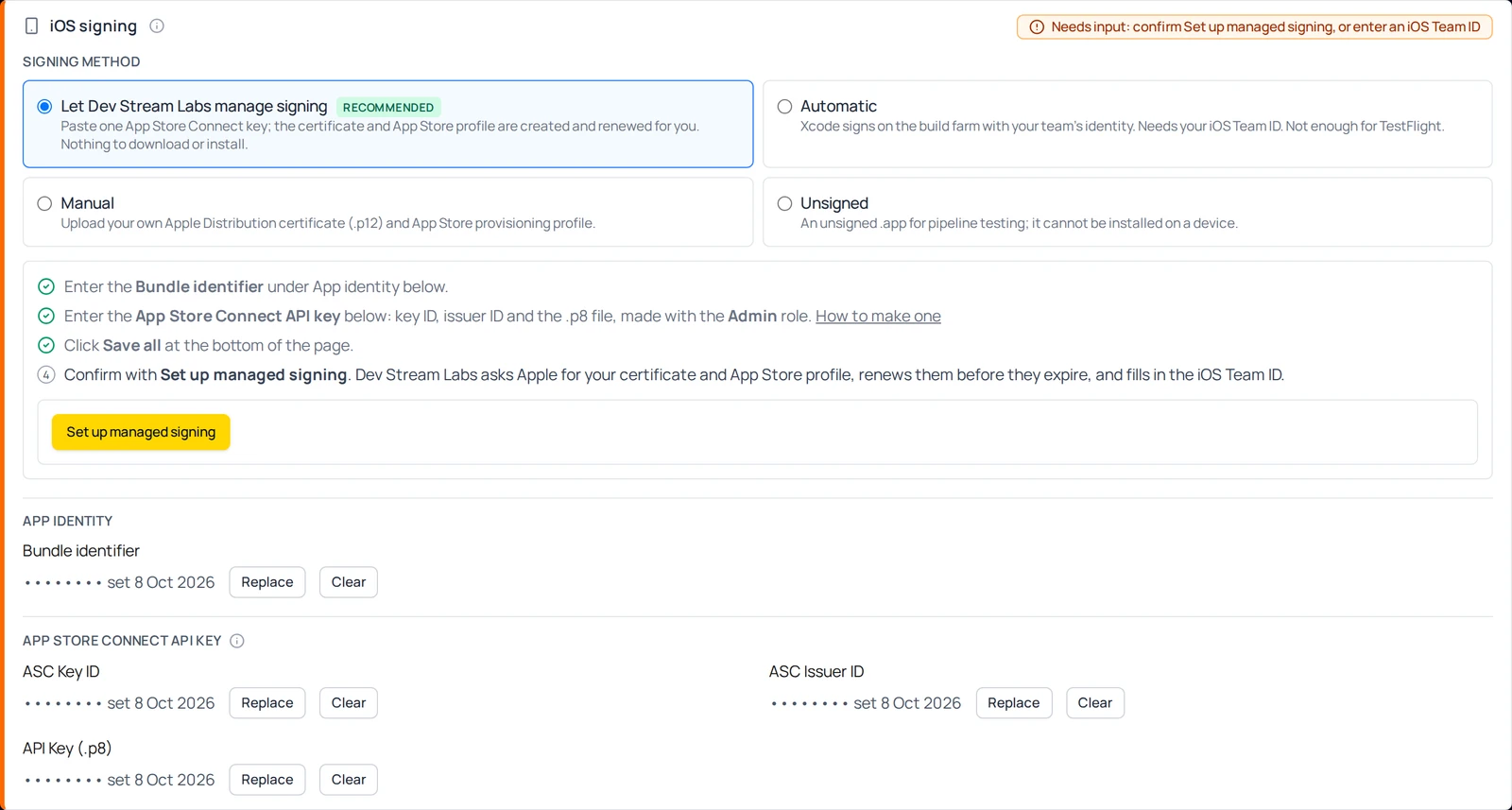
In iOS signing, under App identity, enter the Bundle identifier. Under App Store Connect API key, enter the ASC Key ID, ASC Issuer ID and the API Key (.p8) file. Leave Signing style and the certificate and profile rows alone — managed signing fills them in the next section. Click Save all.
Until managed signing runs, the section header and the branch list say the branch still needs an iOS Team ID or managed signing: that is the default (automatic) signing style asking for a team. The next section fills it in.
Let Dev Stream Labs manage signing
Signing an iOS build needs an Apple Distribution certificate and an App Store provisioning profile. Making them by hand means a CSR, a download, a .p12 export and an annual renewal. With the Admin key stored, Dev Stream Labs does all of that through Apple's API instead: it generates a private key on the build controller, asks Apple for the certificate, registers the App ID if needed, creates the App Store profile, and stores the result sealed on your branch exactly as a hand upload would be. Nothing to download or install.
Confirm it
In iOS signing, under Signing method, Let Dev Stream Labs manage signing is the first choice and is already selected on a new branch. The step list under it ticks off the bundle identifier, the key and the save as you go; once all three are ticked the Set up managed signing button lights up. Click it. It reads Asking Apple… for a few seconds while the certificate and profile are made.
What the section shows afterwards
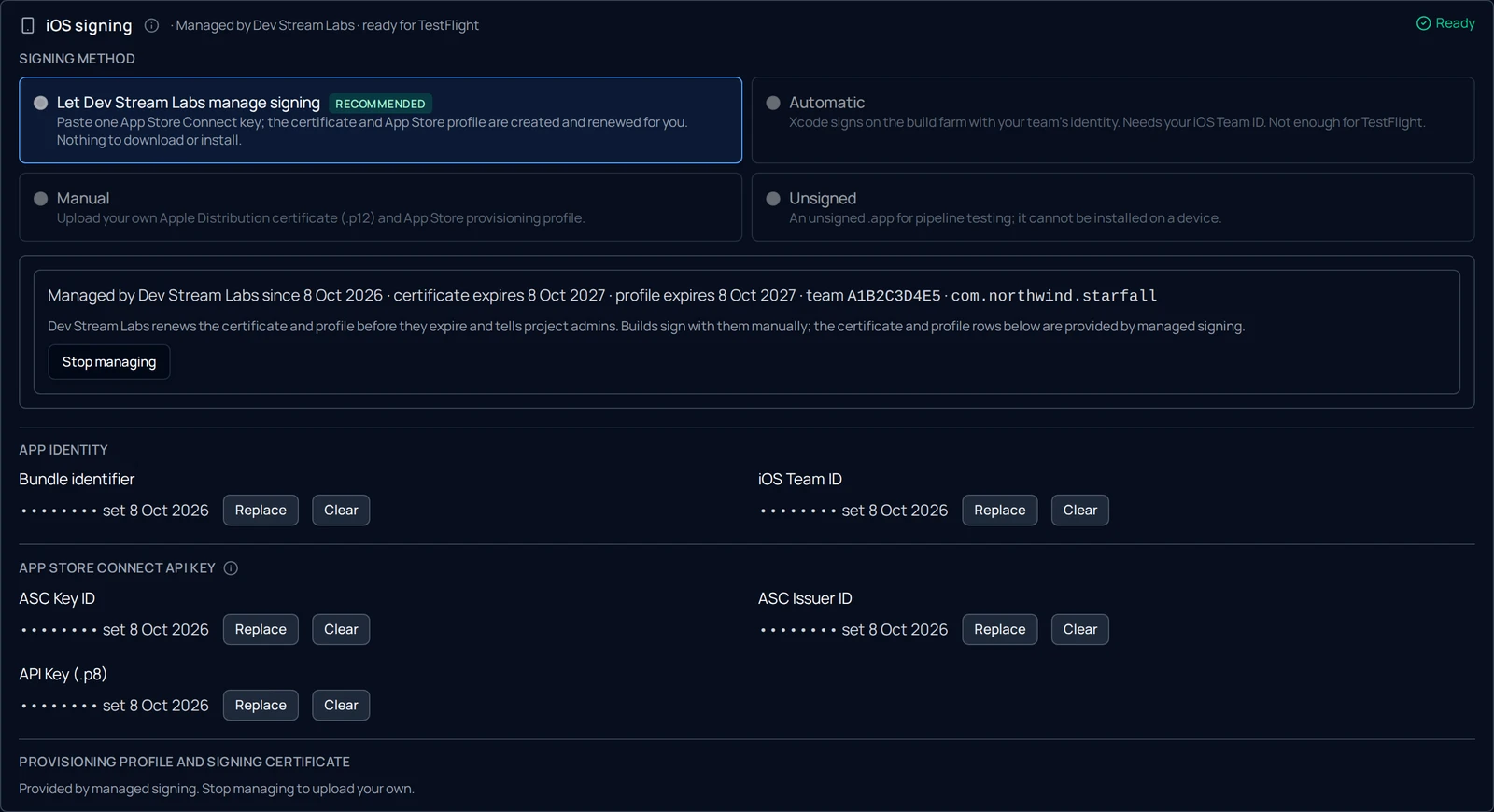
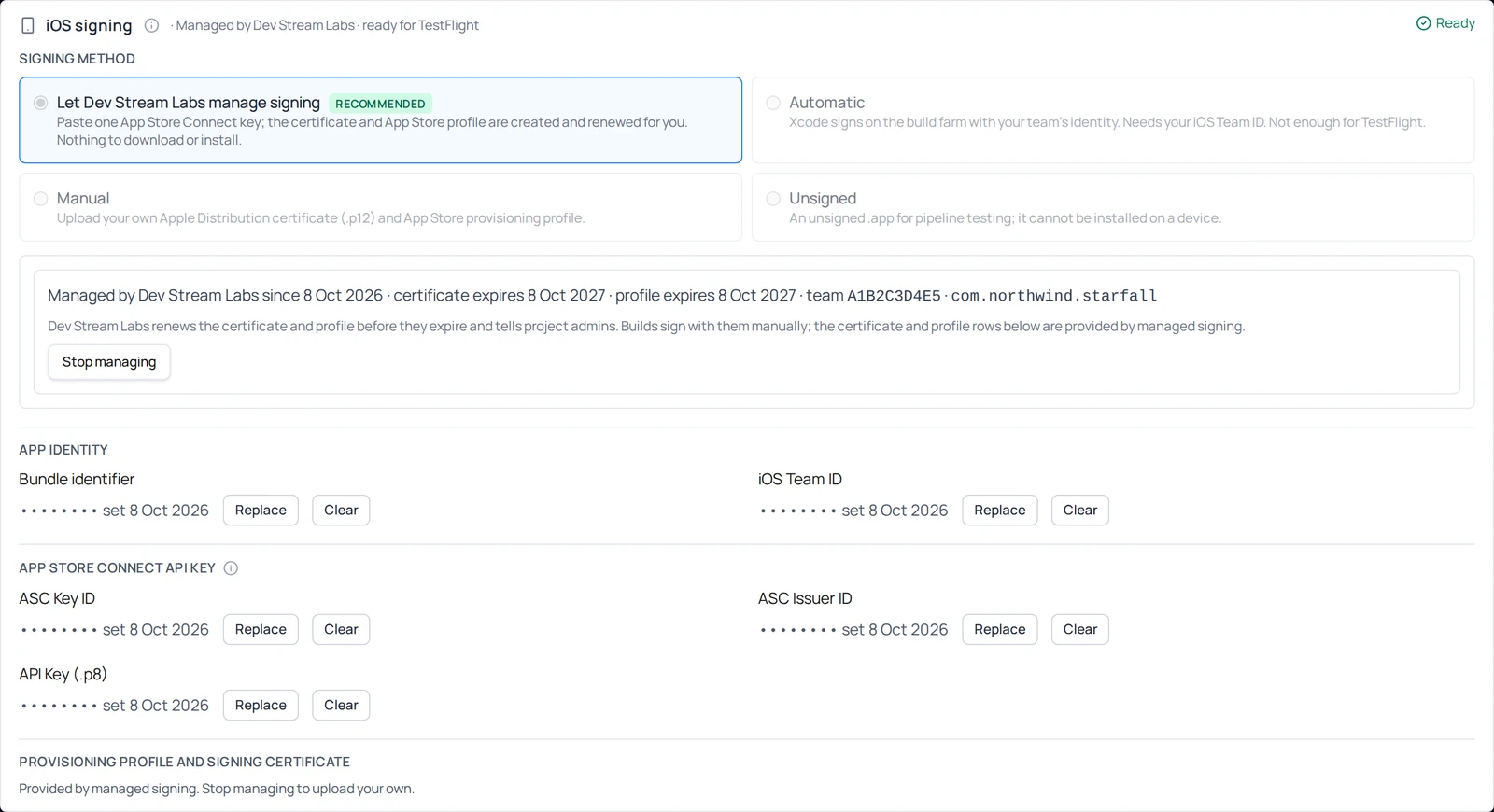
The box now reads Managed by Dev Stream Labs since <date> · certificate expires <date> · profile expires <date> · team <ID> · <bundle id>. The Signing style is set to manual and locked, the iOS Team ID is filled in, and the certificate and profile rows read Provided by managed signing. The section header says Managed by Dev Stream Labs · ready for TestFlight · Ready. Managed signing is per branch, but the certificate belongs to your Apple team, not to an app: when a second branch in the project starts managed signing — the same app or another app on the same team — it reuses that certificate and mints only its own profile. A branch whose key belongs to a different Apple team gets a certificate of its own.
Renewal is automatic
A certificate is valid for a year and a profile for a year. About a month before the earlier of the two expires, Dev Stream Labs mints replacements and tells the project admins. If a renewal cannot be completed — the key was revoked, say — the admins get a reminder instead, with the date it will stop working, so a build never fails on an expiry nobody saw coming.
Stop managing, if you ever want to
Stop managing removes the certificate, its password and the profile Dev Stream Labs stored for the branch; your App Store Connect key and bundle identifier stay. iOS builds on the branch will not sign until you upload your own certificate and profile or start managed signing again. The certificate itself stays valid at Apple (another branch may share it); revoke it in the developer portal if you want it gone.
Release or shipping: what each configuration guarantees
Your branch builds the iOS configurations you select on the Connections page; the flavor in each name (debug, release, shipping) decides what Dev Stream Labs sets when it builds, and which of them may publish. Everything else — scripting define symbols, managed stripping, Burst, scenes, debug menus in your content — is your project's and is neither changed nor checked. Unity's own DEVELOPMENT_BUILD define is what projects gate debug UI on; it is off in release and shipping builds.
| Configuration | Unity build options | Xcode configuration | IL2CPP compiler configuration | Meant for |
|---|---|---|---|---|
| ios-debug | Development + Allow Debugging | Debug | Debug | debugging on a device |
| ios-release | none | Release | Release — your project's | TestFlight; the same binary Apple accepts for the store |
| ios-shipping | none | ReleaseForRunning | Master — Unity's maximum optimisation (longer compile) | the App Store candidate: Submit to App Store appears on its job row for project admins once TestFlight reports Ready to Test |
Each iOS job's log carries one line naming the decision, for example Unity iOS build options: flavor=shipping developmentBuild=false allowDebugging=false il2cppConfiguration=Master xcodeConfiguration=ReleaseForRunning. On iOS the level is set in the Xcode project Unity exports (its IL2CPP compile step), and the archive is built with the matching Xcode configuration; nothing is written into your Unity project.
Submit to TestFlight
Switch it on for the configuration that publishes
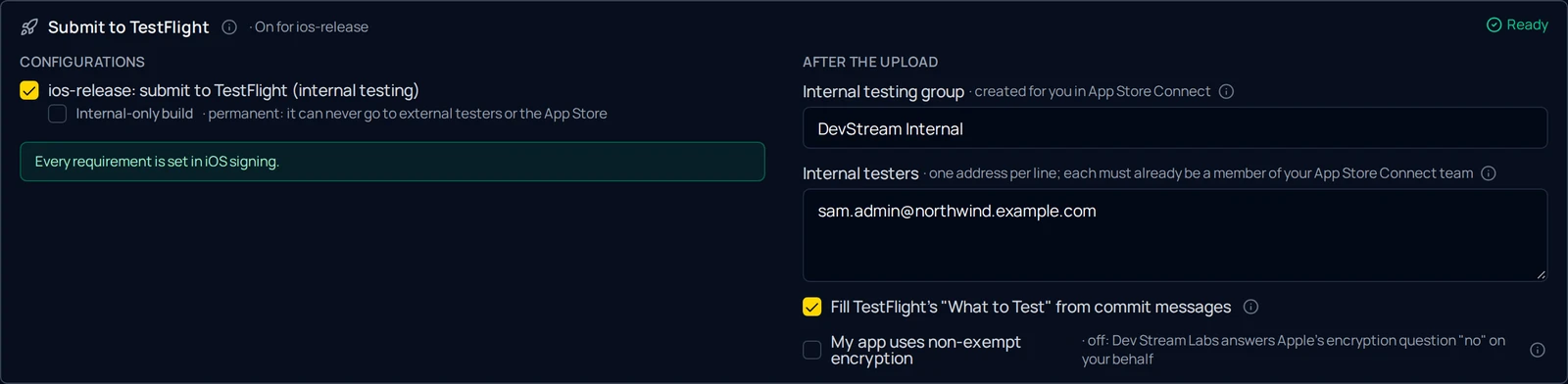
In Submit to TestFlight, under Configurations, tick <configuration>: submit to TestFlight (internal testing) for your iOS release configuration. The line beneath the list says Every requirement is set in iOS signing once it is, or names what is still missing — each item links back to the section of this guide that provides it.
Internal-only build is off by default and permanent once a build is uploaded with it: an internal-only build can never go to external testers or the App Store. Leave it off unless you specifically want builds that cannot leave the team; it is not offered for a shipping configuration. Tick one iOS configuration only — see which one to pick above.
Testers: nothing to create in App Store Connect
Under After the upload, leave Internal testing group as Dev Stream Labs Internal unless you have a group of your own. Dev Stream Labs creates that group in App Store Connect with automatic distribution the first time it tracks one of your builds and reuses it by name after that, so you never tick Enable automatic distribution yourself. Leave the name empty to manage groups in App Store Connect on your own.
List your Internal testers, one address per line. Each must already be a member of your App Store Connect team (any role) — TestFlight internal testing cannot invite outsiders — and the list holds up to 100 addresses. Dev Stream Labs invites each one to the group once; after that every build that finishes Apple's processing reaches them with no further clicks, and internal testing needs no review.
Test notes and the encryption question
Keep Fill TestFlight's "What to Test" from commit messages on if you want each build's test notes written from the push's commits. My app uses non-exempt encryption is off by default, and off means Dev Stream Labs answers Apple's encryption question "no" on your behalf, so testers are never held up on a compliance prompt. See export compliance below before turning it on.
Click Save all. The section header now reads On for <configuration> · Ready.
Build and watch it land
Build
Push a commit (or use Build Now). The job row shows a → TestFlight chip while it runs. On success it reads Uploaded to App Store Connect · build 1.0 (42) with a link straight to the app's TestFlight tab — and the Download button still offers the
.ipa, which keeps working even if Apple's processing later rejects the build.Apple processes it; Dev Stream Labs follows
Apple then processes the upload — typically two to ten minutes, occasionally longer. Dev Stream Labs follows it for you: the job's badge moves from Processing to Ready to Test (Apple's own words), the build's test notes are filled in, the build is added to the internal group, and your testers get it without anyone touching App Store Connect. The project admins get a notification — on the home page feed it reads <app> 1.0 (42) is ready in TestFlight. Nothing on the page needs a refresh; the row and the feed update by themselves.
If Apple rejects the build the badge says Invalid Binary and the notification carries Apple's reason.
Submit to the App Store
A build that is not internal-only is the same binary Apple accepts for external testing and App Store review. For a shipping configuration, Dev Stream Labs takes it the rest of the way: no second upload, no store-listing work done for you.
Finish the store listing first
Apple accepts a submission only when the listing is complete, and its answer to the build farm is one generic sentence ("This resource cannot be reviewed, please check associated errors"). Once per app, in App Store Connect: publish App Privacy (policy URL and the data questionnaire, then Publish, not just Save); fill the App Review Information contact; set age rating, category and pricing; and upload screenshots for iPhone and, because Unity builds also target iPad, for iPad. Apple counts the iPad set labelled iPad Pro (2nd Gen) 12.9-inch in Media Manager (listed under Optional; 2732 × 2048 or 2048 × 2732), not only the slot labelled 13-inch.
Press Submit to App Store on the shipping job
Once TestFlight reports Ready to Test, project admins see Submit to App Store on the job row. The dialog shows the app, the version and build number, and a What's New box prefilled from your commit messages. On Submit for review Dev Stream Labs names your version in App Store Connect, attaches the build and submits it. If Apple refuses, the dialog shows Apple's words with a link to the listing, and nothing is recorded as submitted.
Follow Apple's review, then release
The badge follows Apple: Waiting for Review, In Review, approved or rejected, and the project is told at each step. Cancel App Store submission withdraws it while Apple still has it. Release stays manual: once Apple approves, you release the version in App Store Connect.
Versions, build numbers and export compliance
1.2 (42) reads as: marketing version 1.2, build number 42. Both come from the branch, so the number in App Store Connect is the number on the job row.
- Marketing version (
CFBundleShortVersionString) is the branch's Version on the Connections page — 1.2.0 uploads as 1.2.0; with Auto-increment patch on, each build advances it (1.2.1, 1.2.2, …). Leave the branch version empty and the build keeps the version set in your Unity project (Player Settings → Version) instead. - Build number (
CFBundleVersion) is the branch's own build counter, stamped by Dev Stream Labs so every upload is unique per marketing version — the property Apple requires — without you managing it. A new branch starts at 0; if another branch or an earlier pipeline already used low numbers on the same app, give the branch its own Version so the two trains do not share build numbers.
Apple refuses a build number that was already uploaded for the same marketing version. Dev Stream Labs checks for that after the build and before uploading, and fails the job with a message naming the collision, so nothing is uploaded twice.
My app uses non-exempt encryption answers Apple's export-compliance question at build time, so testers are not blocked on a manual answer after every upload. Off matches an app that uses no cryptography beyond the operating system's (Unity's base engine adds none; HTTPS and the OS's own encryption are exempt and do not count). If a plug-in of yours ships its own encryption, turn it on; Apple then asks its follow-up questions in App Store Connect before testers can install the build, and Dev Stream Labs tells the admins the build is waiting on them.
Bring your own certificate and profile
You do not need this chapter if Dev Stream Labs manages signing. It is here for teams that keep their own certificate — because another pipeline shares it, or because the only key you can get has the App Manager role. OpenSSL makes the certificate on Windows or Linux; it ships with Git for Windows (Git Bash) and with every mainstream Linux distribution.
Make the distribution certificate on a PC
Apple's own tooling (and most CI guides) make the signing certificate through Keychain Access on a Mac. OpenSSL produces the same thing anywhere. You will end up with three files; only the .p12 is uploaded to Dev Stream Labs.
Create a private key and signing request
In any terminal (Git Bash on Windows), with your own name and email:
bashopenssl req -new -newkey rsa:2048 -nodes -keyout ios_dist.key -out ios_dist.csr -subj "/CN=Your Name/emailAddress=you@example.com"This writes
ios_dist.key(your private key — keep it, never share it) andios_dist.csr(the request you give to Apple).Trade the CSR for a certificate at Apple
In Apple Developer → Certificates, Identifiers & Profiles → Certificates, add a certificate of type Apple Distribution, upload
ios_dist.csrwhen asked, and download the resultingdistribution.cer.Bundle key and certificate into a .p12
bashopenssl x509 -inform DER -in distribution.cer -out distribution.pem openssl pkcs12 -export -inkey ios_dist.key -in distribution.pem -out distribution.p12
The second command asks you to choose an export password — you will enter that same password in Dev Stream Labs next to the
.p12. A certificate is valid for a year; when it expires, repeat this section and replace the file.
Create the App ID and App Store provisioning profile
Register the App ID
In Certificates, Identifiers & Profiles, open Identifiers and register an App ID of type App with your explicit bundle identifier.
Create the profile
Open Profiles, create a new profile of type App Store Connect (under Distribution), select your App ID and the distribution certificate from above, name it, and download the
.mobileprovisionfile.Enter them on Dev Stream Labs
In iOS signing, set Signing style to manual, then under Provisioning profile and signing certificate upload the
.p12with its password and the.mobileprovisionfile, and enter your iOS Team ID under App identity. An App Store export refuses theApple Developmentidentity and a development certificate, even though both are fine for device debug builds. Save all, then continue at Submit to TestFlight.
Troubleshooting
| Message on the page or the job | What it means | Fix |
|---|---|---|
| Set up managed signing stays greyed out | A step in the list above it is still open: the bundle identifier or the App Store Connect key is not stored yet, or there are unsaved edits. | Enter what the open step names, Save all, then click the button once it lights up. |
| creating certificates, bundle ids and profiles needs the Admin role (an App Manager key can still upload builds) | The key was created with the App Manager role or below. It can upload builds but cannot mint certificates or profiles. | Generate a new team key with the Admin role, Replace the key ID, issuer ID and .p8, Save all, and click Set up managed signing again. |
| <configuration> is set to submit to TestFlight, but its iOS signing configuration is missing: <keys> | Refused at submit, before any build machine is used: the branch's iOS signing section lacks the named items — the App Store Connect key (ID, issuer ID, .p8), the certificate or its password, the provisioning profile file, or the bundle identifier. | Let Dev Stream Labs manage signing, or add the named items in the iOS signing section — the line under the TestFlight toggle shows the same list — then rebuild. |
| <configuration> is a shipping (App Store) configuration, but its build could never be submitted to the App Store: <reasons> | Refused at submit, before any build machine is used: the shipping build is unsigned, signs automatically without an iOS Team ID, or has Internal-only build on — none of which Apple accepts for the store. The build agent repeats the check before Unity starts. | Set the branch's iOS signing style to manual (or add the iOS Team ID), turn Internal-only build off for that configuration, then rebuild — or build the release configuration instead. |
| Only one iOS configuration per branch can publish to App Store Connect: <configurations> are all switched on | Refused when saving Submit to TestFlight, or at submit of a shipping job for an older mapping: every configuration of a push shares one build number, so two uploads would collide in App Store Connect. | Switch all but one of the named configurations off, Save all, then rebuild. |
| TestFlight publishing is not enabled for this project yet (in the job log, or Not enabled for this project in the section header) | The configuration is mapped, but the TestFlight feature is switched off for your project, so the build went to storage only. | Email support to have it enabled for the project; nothing else changes on your side. |
| No App Store Connect app record for <bundle id> | The app was never created in App Store Connect, or its bundle ID differs from the one in your signing section. | Create the app record (section above) with the exact bundle ID, then rebuild. |
| The profile is not an App Store profile | The uploaded .mobileprovision is Ad Hoc or Development. | Let Dev Stream Labs manage signing, or create an App Store Connect distribution profile and replace the file. |
| The App Store Connect key's role cannot upload builds | The API key was created with a role below App Manager. | Generate a new team key with the Admin role (App Manager is the minimum to upload) and replace key ID, issuer ID and .p8. |
| Build N of version X already exists in App Store Connect | Another branch (or an earlier upload) already used that build number for this marketing version. | Change the branch's Version on the Connections page so the two trains stop overlapping, then rebuild. |
| App Store Connect would refuse this build after processing (error 91111): Missing app icon | The Unity project has no App Store icon — a 1024×1024 PNG — so Apple would reject the build after upload. The job is refused before the build instead, so no build time or Apple round trip is spent on it. | In Unity: Player Settings → iOS → Icon → set the App Store icon (a 1024×1024 PNG with no transparency), commit and push. |
| Processing for longer than ten minutes | Apple's processing is usually two to ten minutes but can take longer; nothing is wrong on your side. | Wait. The job row and the home feed update by themselves when Apple finishes; Dev Stream Labs keeps checking for three hours before it stops and tells the admins where to look. |
| Missing Compliance (in App Store Connect) / <app> needs export compliance answered in App Store Connect | The branch says the app uses non-exempt encryption, so Apple wants its follow-up questions answered before testers can install the build. | Answer them once in App Store Connect, or if the toggle was on by mistake, turn it off and rebuild. |
| Invalid Binary (in App Store Connect) / App Store Connect rejected <app> | Apple's processing rejected the build after upload — the reason is in the notification, by email from Apple and in App Store Connect. | Fix what the message names and push again; the .ipa download of the rejected build stays available for inspection. |
| App Store Connect refused the submission … This resource cannot be reviewed, please check associated errors | Apple's one sentence for any incomplete listing: App Privacy not published, review contact missing, a required screenshot set empty (iPad counts the 12.9-inch 2nd Gen set), age rating, category or pricing unset. Nothing was submitted. | In App Store Connect, press Add for Review on the version page to see the itemised list, fix each item, remove the version from that draft, then press Submit to App Store again. |
| Managed iOS signing for branch '<branch>' expires in N days and could not be renewed | Dev Stream Labs tried to renew the certificate or profile ahead of expiry and Apple refused — most often the key was revoked or its role was lowered. | Check the App Store Connect key (Replace it if it was revoked) and the renewal will be retried on the next pass; or stop managed signing and upload your own certificate and profile. |
Stuck on something this page does not cover? Email support@devstreamlabs.com — include the job's log link. For build failures unrelated to publishing, start at Troubleshooting and FAQ.
Something out of date or unclear? Email support@devstreamlabs.com.