
Connect a Bitbucket Cloud repository
A Bitbucket Cloud connection takes a workspace, an API token and a repository. The form checks the token against Bitbucket before you save, and lists the repositories it can see so you pick one rather than type its name. You also choose how Build Stream hears about commits: a webhook you create in Bitbucket, a scheduled check Build Stream runs itself, or both.
| GitHub App | GitHub (token) | Bitbucket Cloud | Diversion (beta) | Hosted Perforce | |
|---|---|---|---|---|---|
| You provide | An App install, then you pick a repository. | Username, repository and a Personal Access Token. | Workspace and an API token. | Server URL, API token and the repository name. | A depot path on the server you already host with us. |
| Repositories you can pick | Any the App can see. | One you name. | Listed after Load repositories. | One you name. | One depot path you type. |
| How commits arrive | Webhook, a scheduled check, or both. The webhook is created for you. | Webhook, a scheduled check, or both. You create the webhook from Manage Webhook. | Webhook, a scheduled check, or both. You create the webhook from Manage Webhook. | Webhook. You create it. | Every submit, once Build on check-in is on. Nothing to create. |
| Delivery is verified | Yes. Each delivery is signature-checked; a bad signature is refused. | No. Deliveries to a token connection are accepted unsigned and recorded as unverified. | No signature check. | No signature check. | Yes. Every submit is signed by the platform. |
| Branch list in the app | Yes. | Yes. | Yes. | No. You type the name. | No. You type the stream or directory. |
| Pushes to a branch you have not added | Recorded as a notice. | Recorded as a notice. | Acknowledged and dropped. Nothing is shown in the app. | Rejected, not recorded. | Recorded as a notice. |
| Version from releases | Yes. | No. | No. | No. | No. |
If the form has a Personal Access Token field, you also create the webhook, and its deliveries are not signature-checked. The GitHub App path has neither a token nor a webhook to create, and every delivery is checked.
Choose a credential
Bitbucket Cloud offers several kinds of credential, and the form accepts two of them. The hint at the top of the form says which to prefer: Bitbucket Cloud (bitbucket.org) only. Recommended credential: a repository or workspace access token minted from a shared machine account, so the connection does not break when a person leaves. Leave Username empty for access tokens; set it only when using an app password / user API token.
| Credential | Username field | Why choose it |
|---|---|---|
| Repository or workspace access token | Leave Username (optional) empty. | Belongs to the repository or workspace, not to a person, so it keeps working when someone leaves the team. This is the recommended choice. |
| App password or user API token | Set Username (optional) to the Bitbucket username the credential belongs to. | Tied to one account. Works, but the connection breaks when that account loses access or the credential is revoked. |
Whichever you mint, it needs read access to the repository: the form uses it to list repositories and branches, the scheduled check uses it to ask for new commits, and the build machine uses it to clone. Self-hosted Bitbucket Server and Data Center are not supported; the form talks to bitbucket.org only. A repository anyone can read needs no credential at all; tick Public repository on the form instead, as described in the next section.
How Build Stream learns about commits
The form opens with a box headed How should we learn about new commits? and three options. The choice is made when you connect and is not a setting on the card afterwards; to change it, delete the repository and connect again.
| Option | The form says | What happens |
|---|---|---|
| Tell us instantly (webhook) | Builds start the second a commit lands. Needs admin access to the repository to add the webhook. | The default. You create a webhook in Bitbucket from the card's Webhook URL; each push starts the branch's schedule at once. Nothing happens for a commit until the webhook exists. |
| Check for changes on a schedule | No admin access to the repository required. Builds start within a few minutes of a commit rather than instantly. | Build Stream asks Bitbucket, about once a minute per branch, whether the branch head moved, and when it did it reads the newest commits and records them exactly as a webhook delivery would. There is no webhook to create and the card shows no Manage Webhook block. |
| Both | The webhook starts builds instantly; the scheduled check catches any delivery the host dropped. | The webhook is the trigger and the scheduled check is the backstop. A commit seen by both is recorded once. The card shows the Manage Webhook block and the scheduled-check badge. |
Under the options, Public repository reads Anyone can read it, so no username or token is needed. Ticking it hides API Token and Username (optional), leaves Repository as a text box (there is no credential to list repositories with), and connects the repository with no credential. When the chosen method includes the scheduled check, a second checkbox, Build the current commit now, appears with the line Otherwise the first check only fills in the commit history, and the first build is the next commit or Build Now.
On a repository that is checked on a schedule, the card carries a Checked on a schedule badge with the line New commits are picked up within a few minutes. No webhook or admin access to the repository is needed. (or, for Both, The webhook starts builds; the scheduled check catches any delivery the host dropped.) and, under it, Each branch below shows when it was last checked. The first check records the commit history without building it; use Build Now for the first build. Each confirmed branch row then reads Waiting for the first check for changes… until the first check completes, then Checked 5m ago · a3f9c21 with a relative time and the branch head it saw, or Could not check for changes. followed by the cause when the credential was rejected, the repository or branch was not found, or the network was down. The line refreshes every 30 seconds or so while the page is open.
Fill in the form
Open Connections and choose Bitbucket
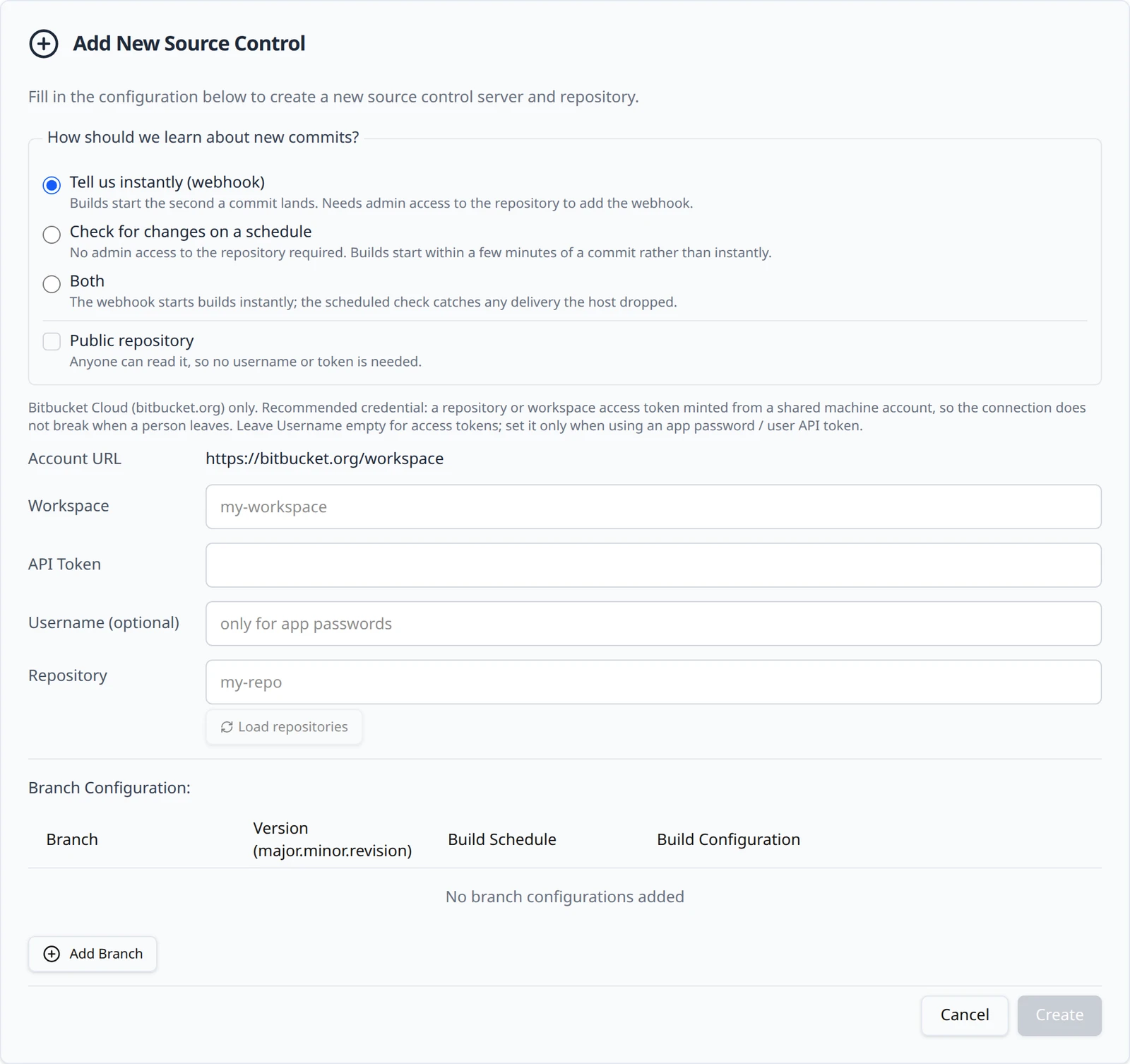
In the project sidebar open Build Stream and then the Connections page. Click Add and choose Bitbucket. A new card expands with the connection-method box, the form and an empty Branch Configuration: table beneath it.
Enter the workspace and the token
Workspace is the workspace slug from your repository URL, for example
northwind-gamesfromhttps://bitbucket.org/northwind-games/starfall. Paste the token into API Token; it is masked as you type. Fill in Username (optional) only for an app password or user API token, as described above; its placeholder readsonly for app passwords. The Account URL line above the fields updates as you type, so you can check the workspace and repository against the address you see in Bitbucket.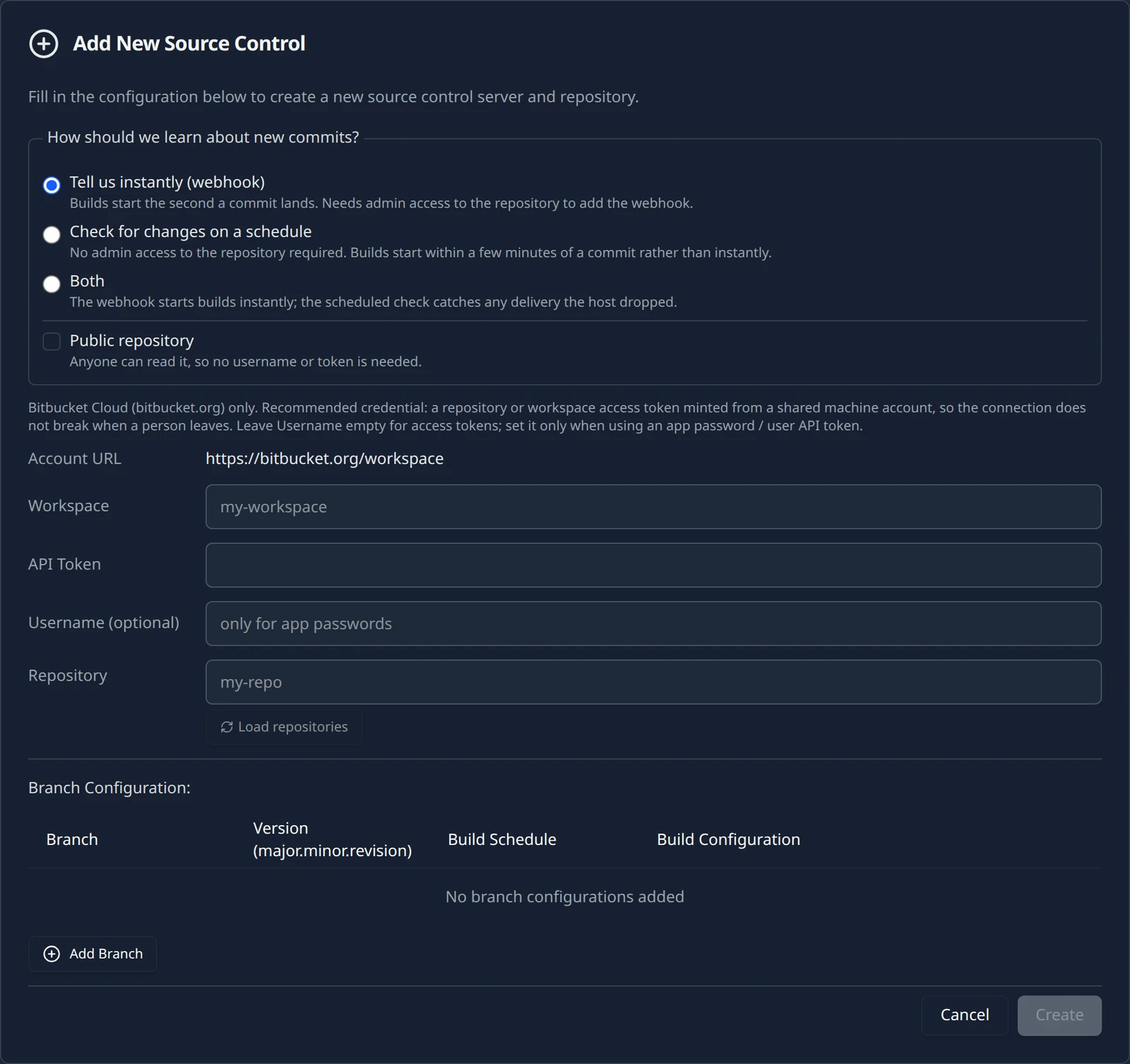
Load repositories
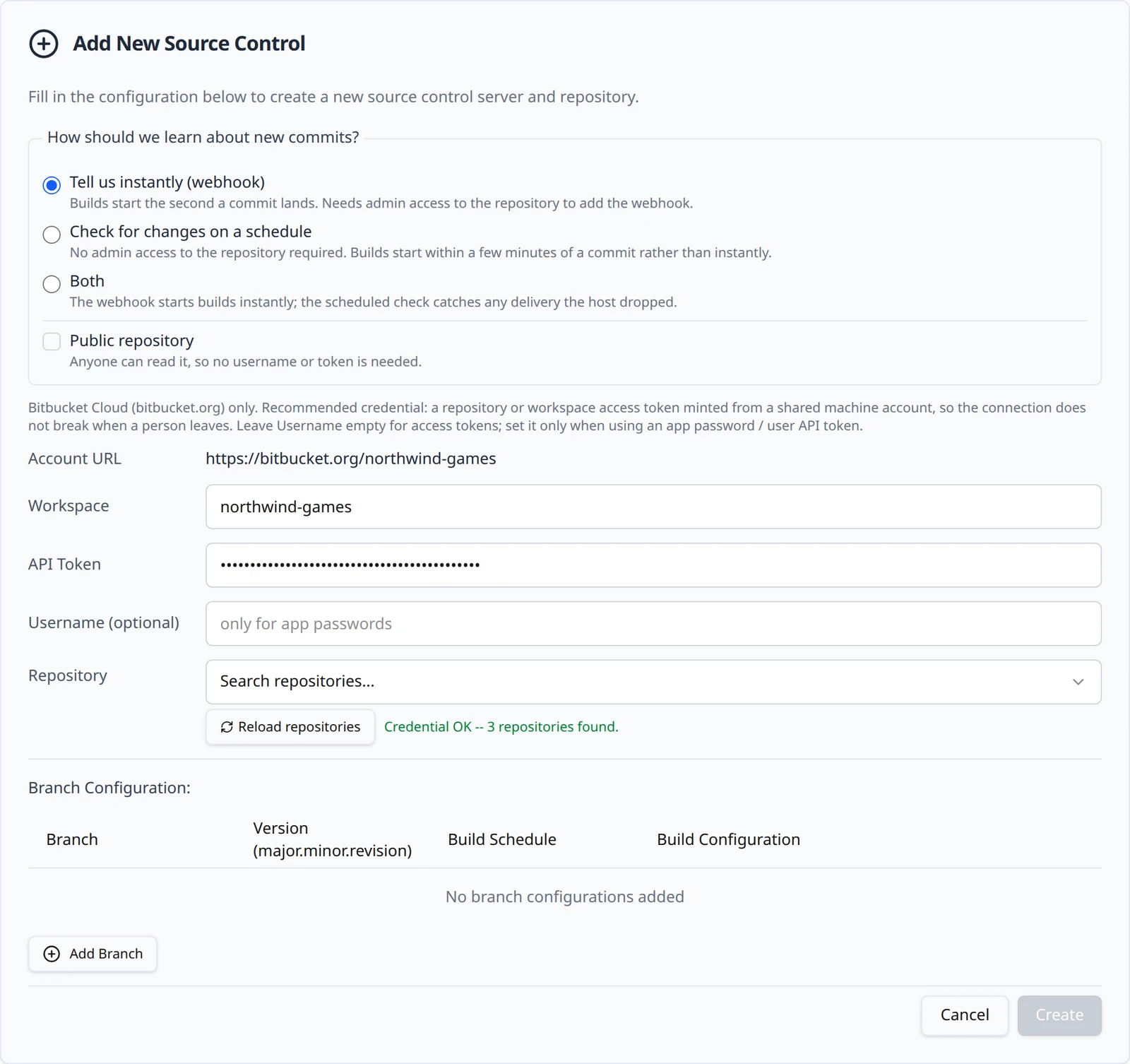
Click Load repositories. The button is disabled until the token field has something in it. The app asks Bitbucket which repositories the credential can see, scoped to the workspace you typed, and reports the result on the same line, for example Credential OK -- 3 repositories found. This is also your credential check: a rejected token is reported here, before anything is saved.
What the Load repositories line can say You see Why Do this Bitbucket rejected the API token. Bitbucket answered 401 or 403. The token is wrong, expired, revoked, or it is an app password used without a username. Paste the token again. For an app password or user API token, fill in Username (optional). Could not reach the Bitbucket API. Bitbucket did not answer, or answered with a server error. Wait a minute and click Reload repositories. If it persists, check Bitbucket's status page. The credential is valid but has access to no repositories. The token authenticated, but it cannot see any repository in that workspace. Grant the token (or the account it belongs to) read access to the repository, then reload. Pick the repository
Once the list loads, the Repository field turns into a searchable picker with the placeholder Search repositories.... Choose
northwind-games/starfall. If the list could not be loaded, the field stays a plain text box where you type the repository slug; a typo there only shows up as a failed clone on the first build, so loading the list is worth it. The button reads Reload repositories after the first successful load.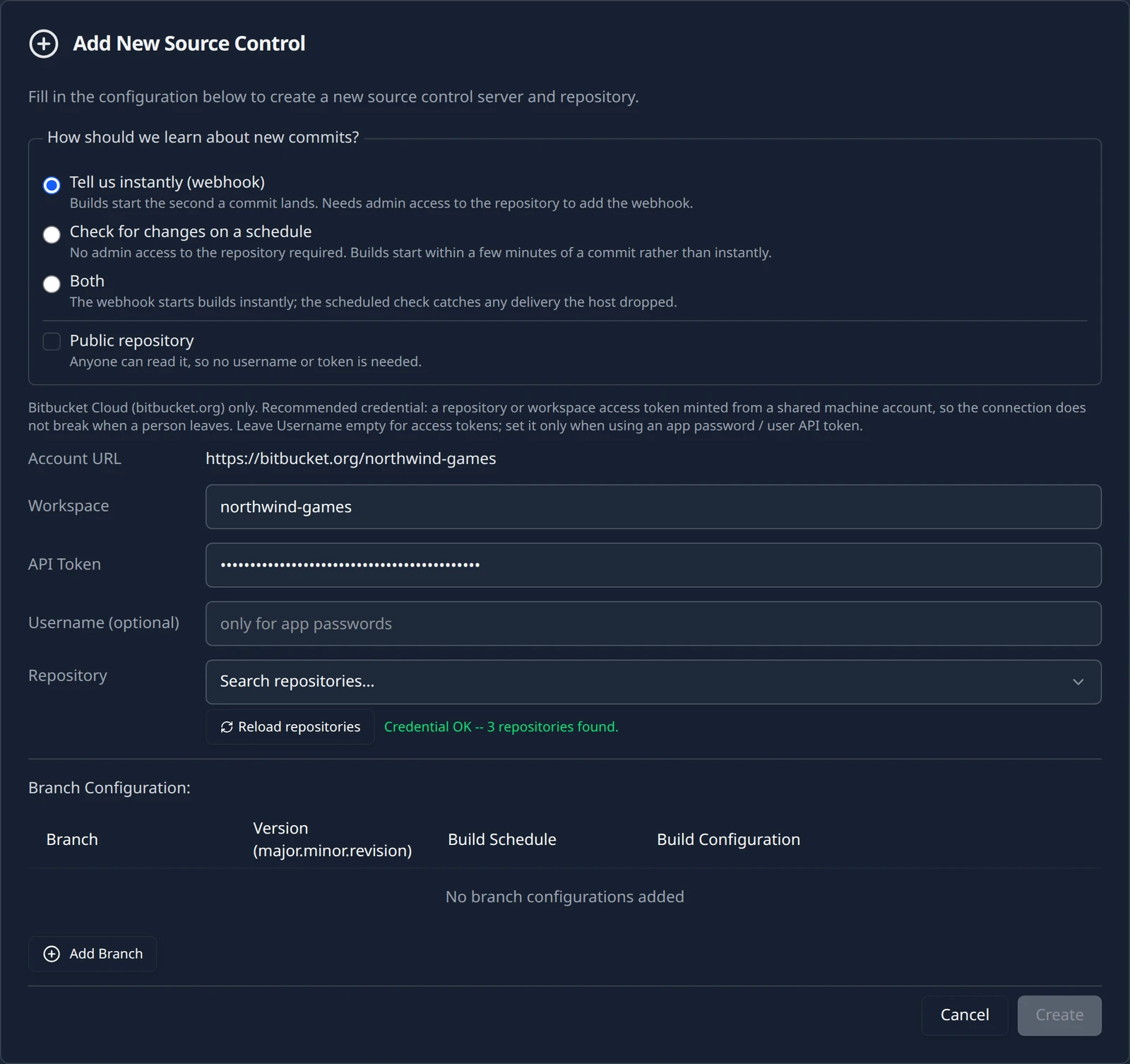
Create the connection
You can add branch rows now with Add Branch or leave the table empty and come back to it; the branch table is covered on Branches and build configurations. Create stays disabled until the workspace, the repository and, unless the repository is public, the token are filled. Click it. The toast Source Control Added confirms it, and the form is replaced by a card titled
northwind-games/starfall.
Create the webhook
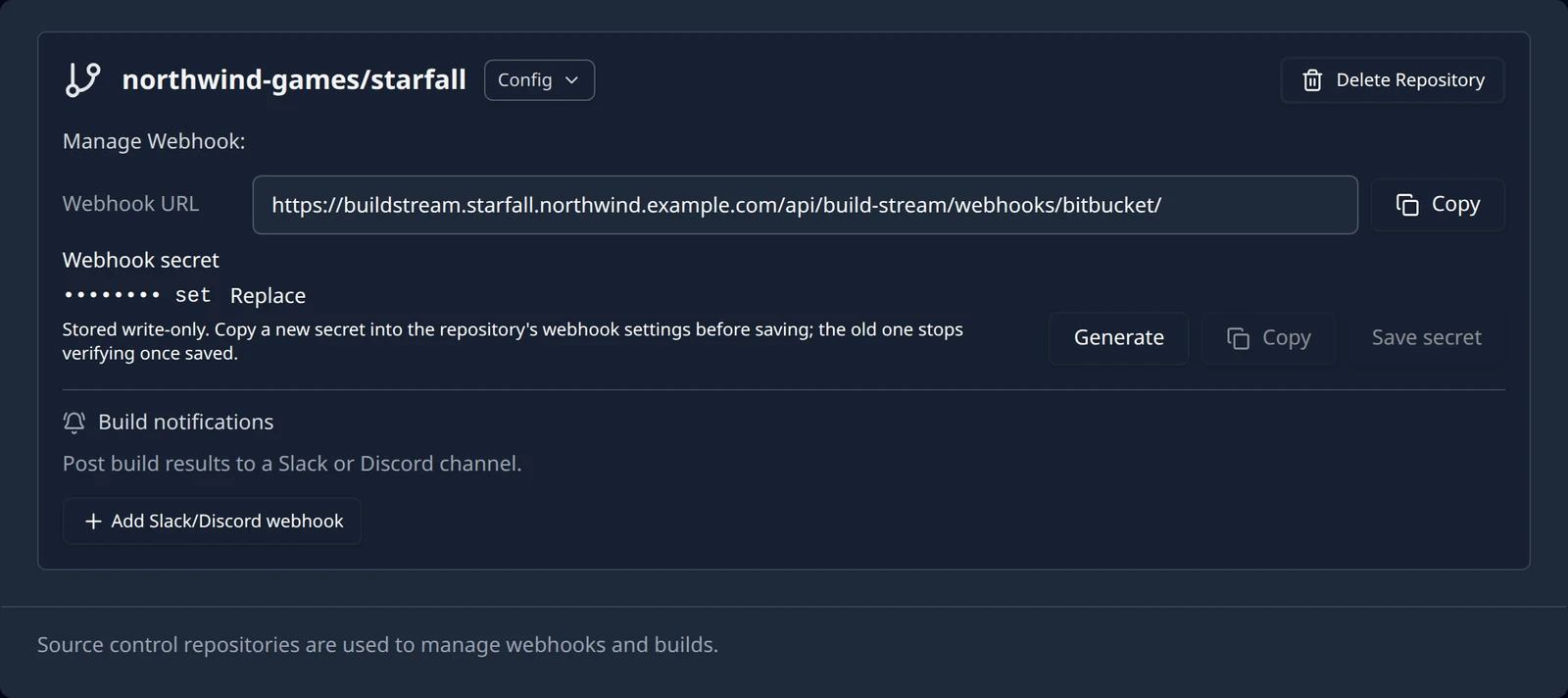
Skip this section if you chose Check for changes on a schedule; that card has no webhook block. Otherwise the card's Manage Webhook: block shows a Webhook URL with a Copy button, and under it a Webhook secret field with Generate, Copy and Save secret buttons. For this project the URL is:
https://buildstream.starfall.northwind.example.com/api/build-stream/webhooks/bitbucket/
On each delivery Build Stream reads the event type and ignores anything that is not a push. A push that touches several branches at once is handled branch by branch; tag pushes and branch deletions are ignored. A push to a branch you have not added to the Branch Configuration table is acknowledged and dropped, and nothing appears in the app for it, so add the branch before you expect a build from it.
Bitbucket lists each delivery with the response it received. A 200 with Processed in the body means the push was recorded; ignored with a reason means Build Stream saw it and chose not to act, and the reason names the event or says that no branch in the delivery is configured. A 400 names the workspace or repository it could not match, which almost always means the repository was connected under a different workspace slug.
What to do next
The connection on its own builds nothing. Open the card with Config and add at least one branch with a build configuration; the branch picker lists the repository's branches from Bitbucket, so you choose main rather than type it. That page also covers versions, schedules and the farm warnings: Add a branch.
Two things differ from the GitHub paths. The version field is a plain text box, because release-based versions come from GitHub Releases only. And the card has no credential editor for Bitbucket today: the stored token is never shown, and to rotate it you use Delete Repository and connect again. The delete dialog is explicit about what goes with it: This permanently deletes "starfall" and all of its branch configuration from this project. It cannot be undone. The repository on your source control provider is not affected. Note your branch rows before you delete so you can re-create them.
Then push to the branch you added and follow Your first build. If a push arrives in Bitbucket's delivery log but no build appears, work through Troubleshooting: webhooks or email support@devstreamlabs.com with the project name and the commit hash.
Something out of date or unclear? Email support@devstreamlabs.com.