
Add Build Stream to your project
Build Stream is a service you add to a project, either in the same dialog that creates the project or later, from the project itself. Both paths end the same way: a few minutes of provisioning, an email, and a Build Stream section in the project sidebar. The one decision that matters at this stage is the engine, because Build Stream needs one and it decides which build machines your project can use.
On a new project
Open Add Project
From your organization's projects page, press Add Project. The dialog is titled Add Project with the subtitle Add a project to your organization, and a numbered stepper across the top shows its two steps: Project Details first, then Services. The project comes first because it exists on its own; services are attached to it.
Fill in Project Details
The first step asks for Code Name *, the short name used in URLs and hostnames (for example
starfall); Product Name *, the display name (for exampleStarfall); URL *, which shows the address suffix after the field and keeps only lower-case letters, digits and hyphens; and an optional Description.Below those, a line reads Engine (optional). Build Stream needs one; set it here if you plan to add Build Stream on the next step. followed by a Toolchain select, covered in the next section. Last comes TEAMS, the teams that will have access, or No teams found if the organization has none yet.
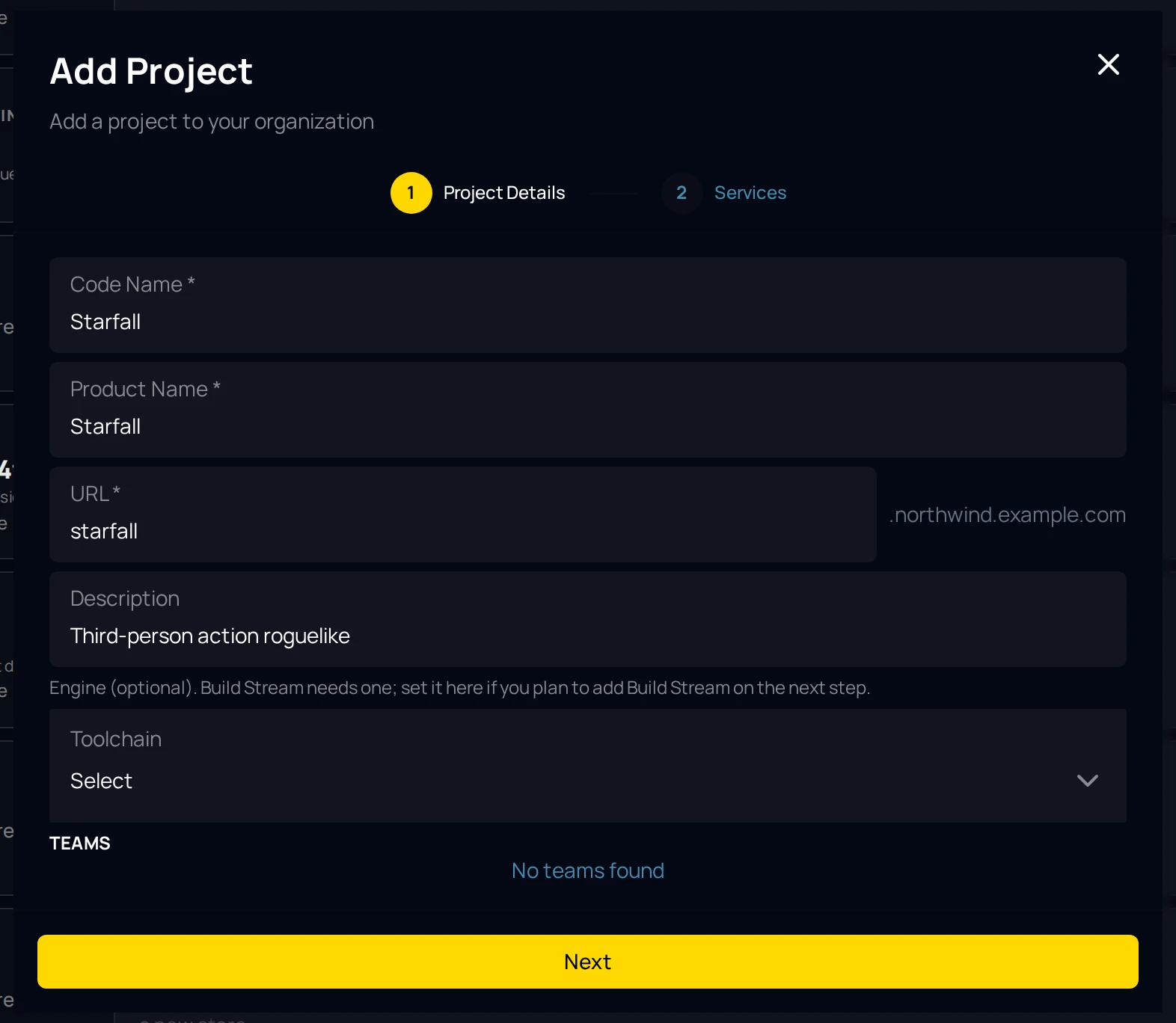
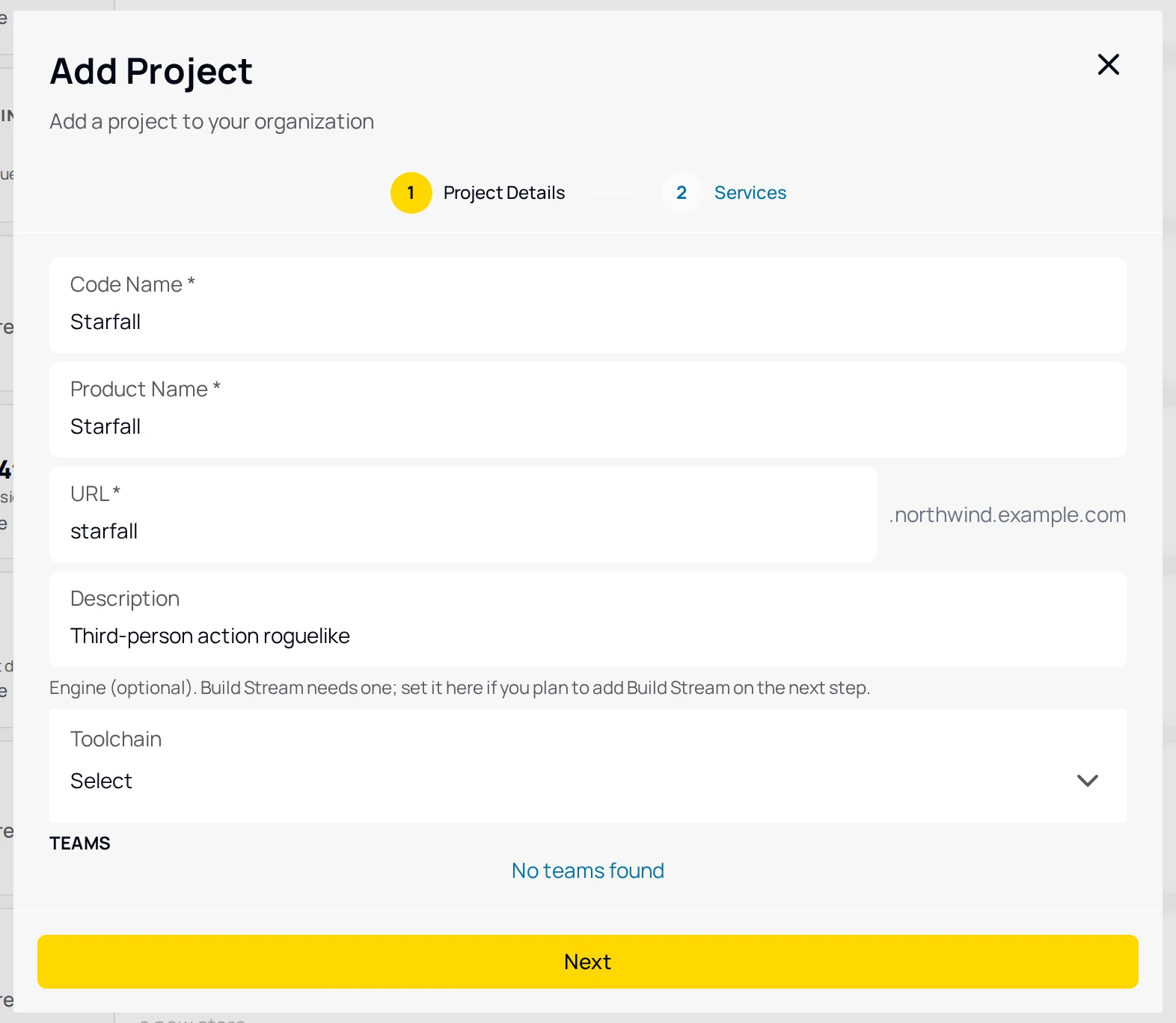
Step one of the Add Project dialog, with Unity chosen as the engine. Next moves to the second step once the three required fields are filled; if one is empty the dialog stays on this step and marks it.
Tick Build Stream under Add services
The second step is headed Add services with the line Optional. Anything you skip here can be added later from inside the project. Tick the Build Stream card, whose description reads Automate your build pipeline and get builds whenever you commit code. The other card, Source Control Hosting, reads Adds Source Control → Hosting to your project. You'll create your Perforce server there, free or paid, once the project is ready. You can take both.
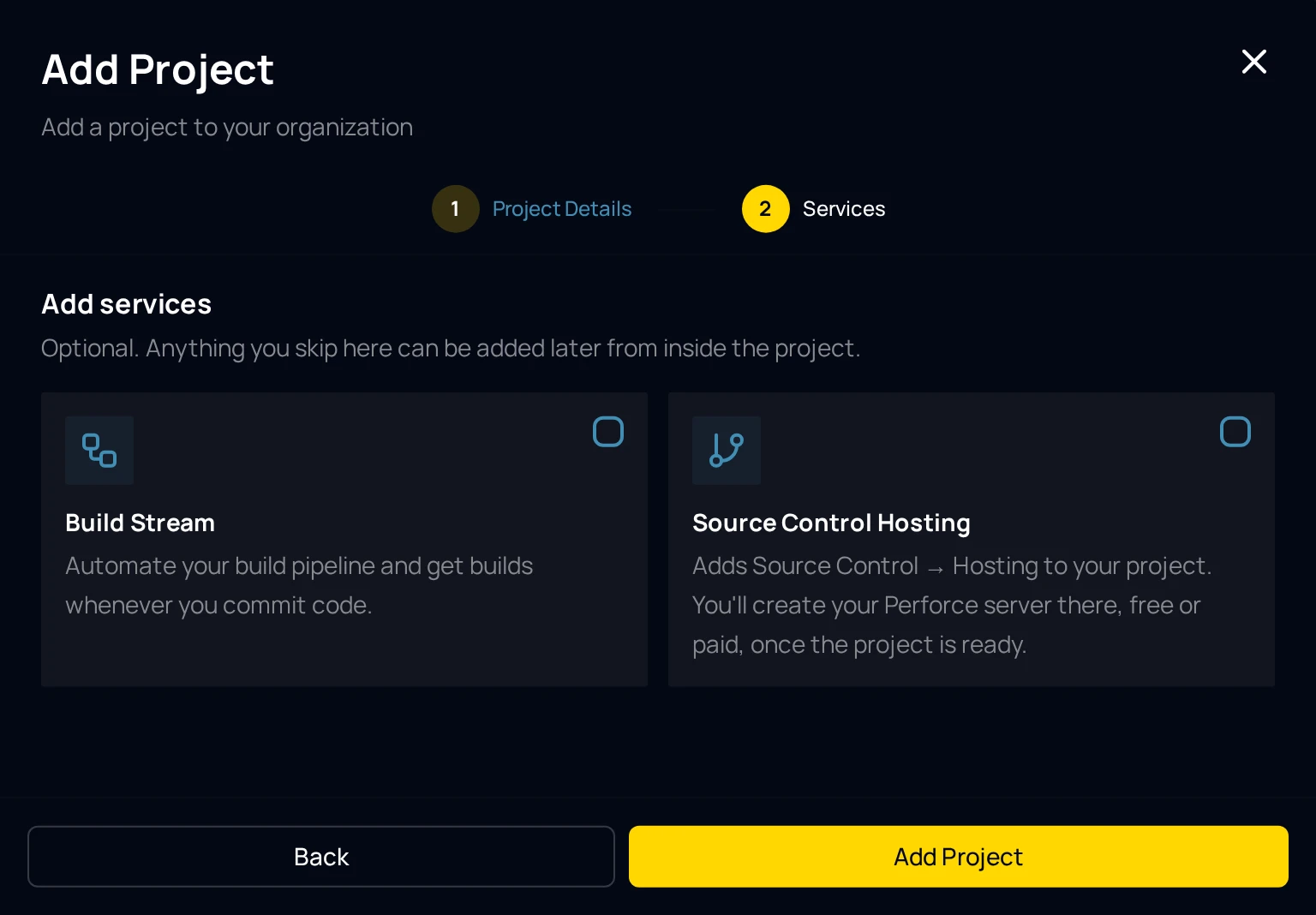
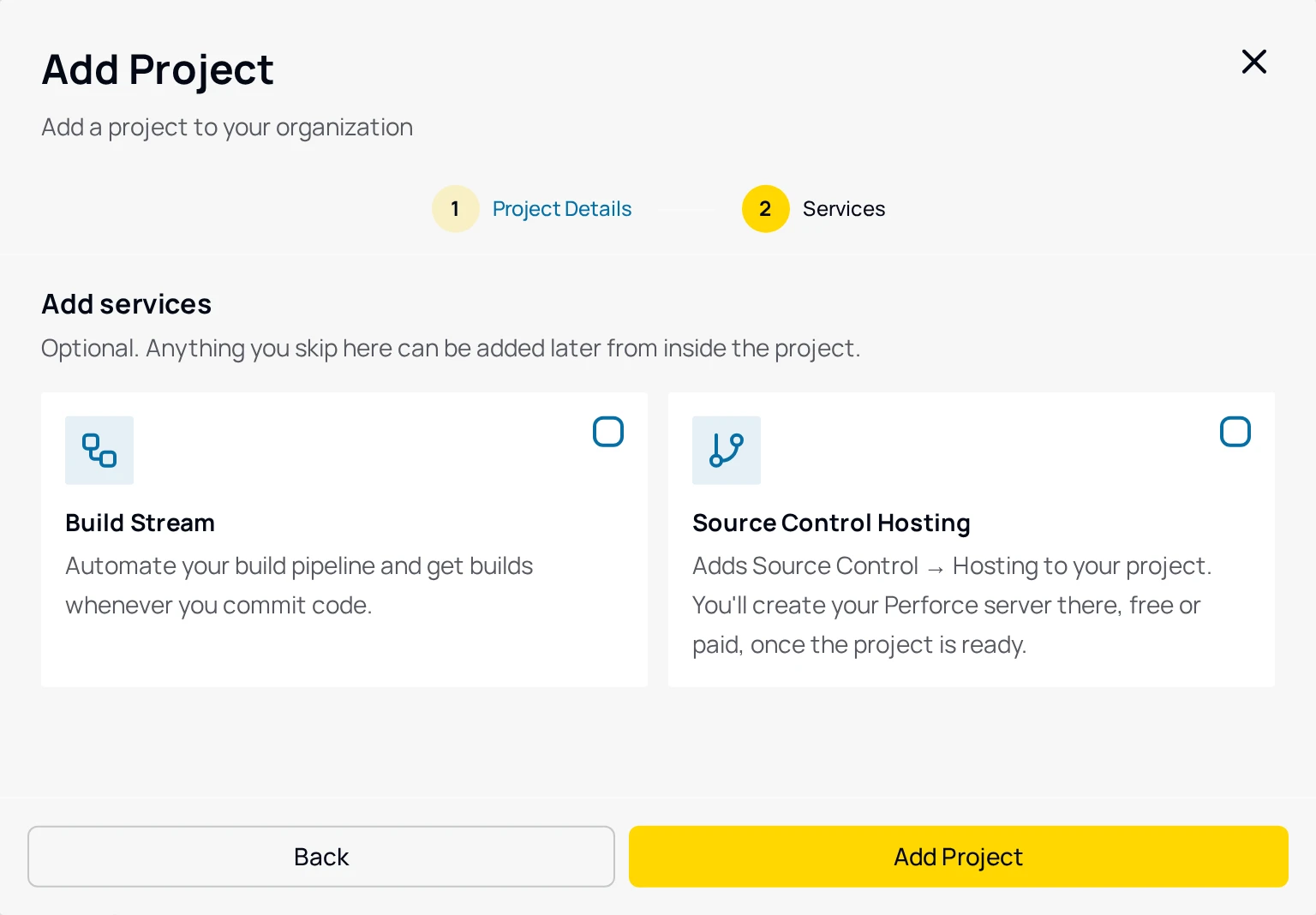
Step two of the Add Project dialog. If you tick Build Stream without having chosen an engine, the card adds Build Stream needs an engine. Go back to Project Details to choose one. and pressing Add Project returns you to the first step with the Toolchain field marked.
Press Add Project
Back returns to Project Details without losing anything. Add Project creates the project and starts provisioning every service you ticked. A confirmation dialog headed Setting up your project reads We're provisioning your project resources and securing its custom subdomain with SSL. This takes a few minutes. You'll get an email as soon as it's ready, so feel free to close this window. Build Stream and hosted Perforce can be added any time from inside the project. Dismiss closes it.
Choose the engine
The Toolchain select tells the farm what kind of project this is. It is optional for a project on its own and required the moment Build Stream is added, because it decides which build machines can take your jobs and which build configurations you are offered later. Pick the engine or build system your repository actually uses. The list comes from the build farm, so it shows what the farm can build today; the entries below are the ones it offers.
| Option | Pick it when |
|---|---|
| Unity | The repository is a Unity project. Two more fields appear, below. |
| Unreal Engine | The repository contains a .uproject. A version field appears; the exact engine version is read from the project once it is connected. |
| CMake | A CMake project, built from its CMakeLists.txt. A version field appears. |
| Godot | The repository is a Godot project with export presets. A version field appears. |
| Visual Studio (MSBuild) | A Visual Studio solution built with MSBuild, including C++ solutions. |
| Xcode | An Xcode project or workspace, built on the farm's Macs. |
| SCons | A project built with SCons. A version field appears. |
For Unity, Unreal Engine, Godot, CMake and SCons a Toolchain Version select appears and is required once Build Stream is on the project; the dialog says Toolchain version is required for Unreal, Unity, Godot, CMake and SCons if you leave it empty. For Unity and Unreal Engine it lists the streams the farm has installed, such as 6000.3 or 5.6, rather than every patch release; pick the stream your project is on, and the exact patch is read from the repository once it is connected. A stream no machine has installed is flagged under the field. For Godot, CMake and SCons the value is an exact release.
Choosing Unity also adds License Type, offering Personal/Indie, Professional and Industrial; the farm may narrow the list to the licences it holds for the stream you picked. It is required for a Unity project once Build Stream is on it, with the message License type is required for Unity.
On a project you already have
There are two doors, and both lead to the same provisioning. Use whichever app you happen to be in.
From the home app: Edit Project
On the project card, press Edit Project. The dialog is titled Edit Project with the subtitle Update project details and has the same two steps. If the project has no engine yet, choose one on Project Details first, then press Next. On Services, tick Build Stream and press Save Changes. A confirmation headed Adding Build Stream reads We're provisioning Build Stream for this project. This takes a few minutes — the project card will show its progress, so feel free to close this window. Dismiss closes it.
Services the project already has are shown ticked and locked with an Active tag; nothing can be removed here. Build Stream is the only service that can be added to an existing project from this dialog. The Source Control Hosting card is locked and tells you Add this from the project's sidebar → Add a Service. If the app cannot reach the platform to learn which services the project has, the step shows Live service status is unavailable — service changes are disabled for this edit. Project details can still be saved. and every card is locked.
From the project: Add a Service
Inside the project, the sidebar has an Add a Service button with a plus icon. It opens a menu headed Available services that lists what the project does not have yet; choose Build Stream. The menu item shows a spinner while the request is in flight. If every service is already on the project, the menu says All available services are already active on this project.
When the service comes up, a toast titled Service ready reads Build Stream is now available in the sidebar. If the app stops waiting first, the toast is Provisioning timed out with Build Stream is still being set up. Check again shortly. That is the app giving up on watching, not the provisioning failing; reload the page a little later.
While it provisions
Saving is a request. The platform then creates the project's Build Stream instance, gives it its own hostname (buildstream.starfall.northwind.example.com for the example project) and registers it with the build farm. On the home app's project card the status chip reads Provisioning Resources for a new project until it is done and Ready afterwards; a project with no services yet shows Not Provisioned. When you add Build Stream to a project that is already Ready, the card gains a second chip, Build Stream · Provisioning, that clears itself when the service is up.
The dialogs say a few minutes, and nothing you do in the meantime speeds it up. If a project card has read Provisioning Resources for well past that, email support@devstreamlabs.com with the organization and project code name.
Reading the project card
Every project on the home app's projects page is one row. The plate on its left edge is the engine, and it is worth reading before you connect a repository, because it tells you what the farm will build the project with.


| Line | What it means |
|---|---|
| Engine name | The Toolchain you chose, in capitals. A project with none reads Engine over Not configured. |
| Version | The version the repository requires, once discovery has read it from the project; until then, the stream you configured. A project with neither reads Version not set. |
| Source line | Where the version came from. from ProjectVersion.txt or from Starfall.uproject names the file discovery read after the repository was connected. Configured · not detected means the headline is your setting and no repository has been read yet. |
| Warning line | settings: 6000.0 (with your stream filled in) appears when the repository requires a different stream from the one configured. The farm refuses to build across streams, so fix the setting from Edit Project or move the project. |
| Licence | For Unity, the License Type you chose, such as Personal/Indie. |
| URL line | The project's address, its code name, and • Perforce hosted when the project has a hosted Perforce server. |
The ready email
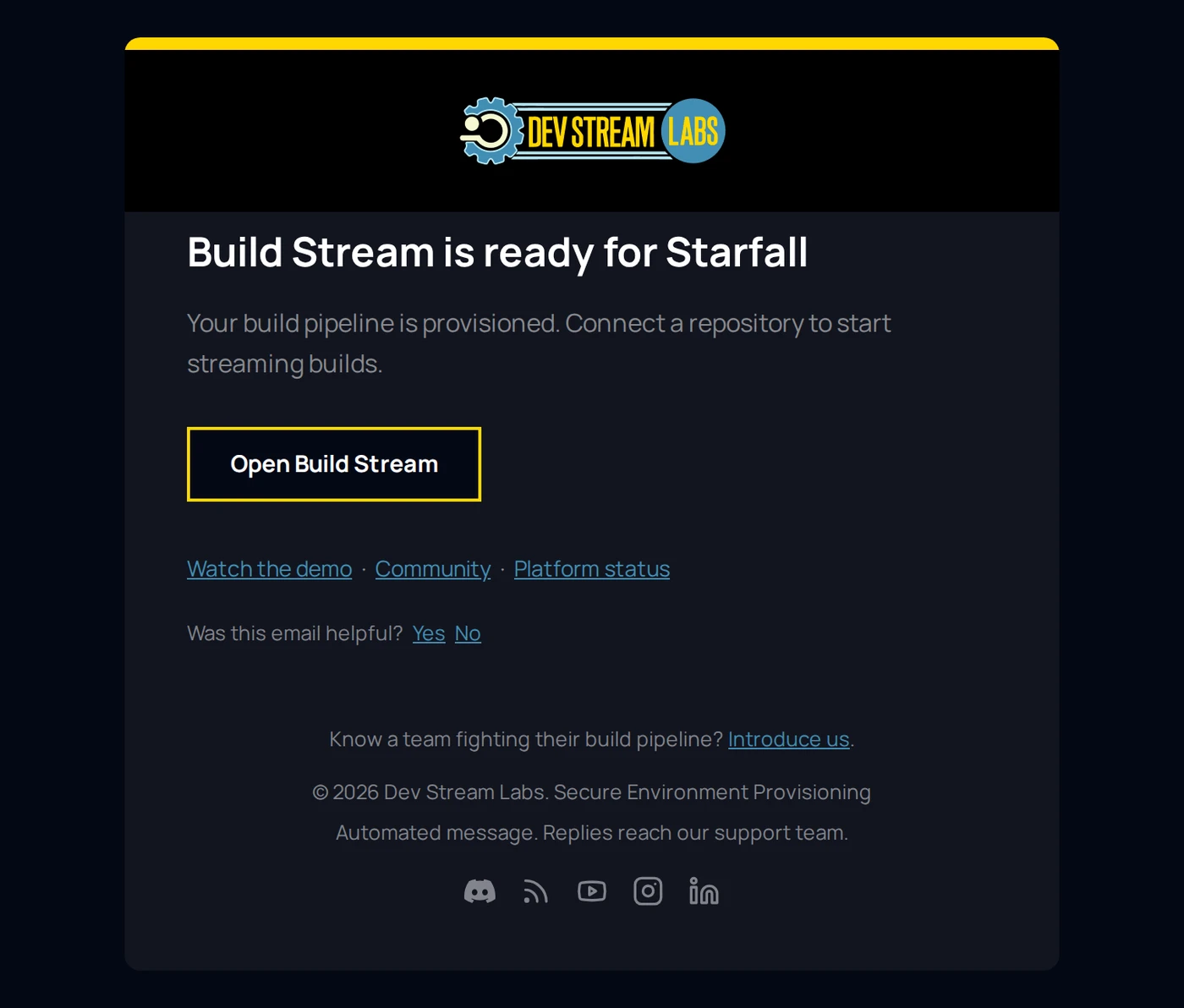
When the service is up, the person who added it receives an email with the subject Build Stream is ready for Starfall, the project's display name filled in. The body is one line, Your build pipeline is provisioned. Connect a repository to start streaming builds., and a button labelled Open Build Stream that takes you to the project. Below it are links to the demo video, the community and the platform status page.
Your first visit
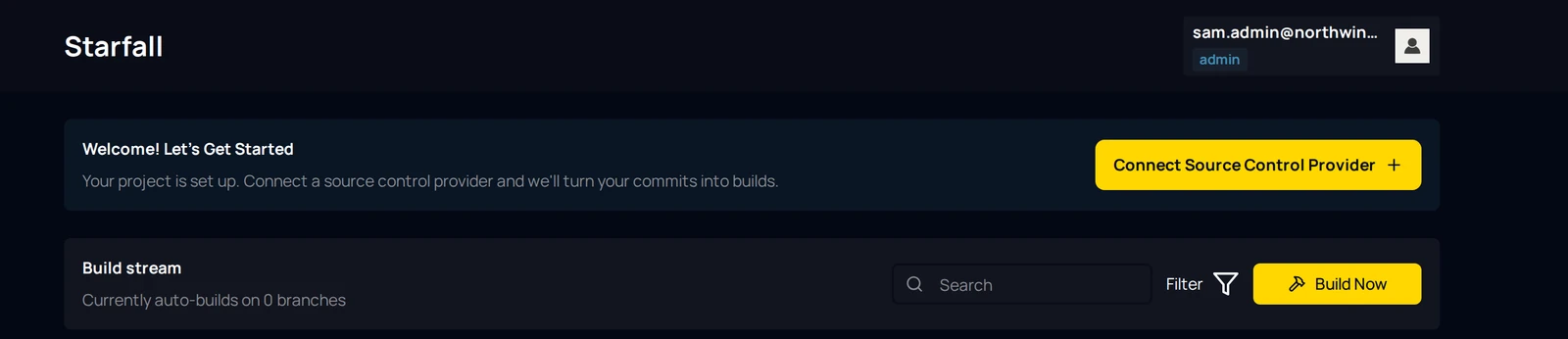
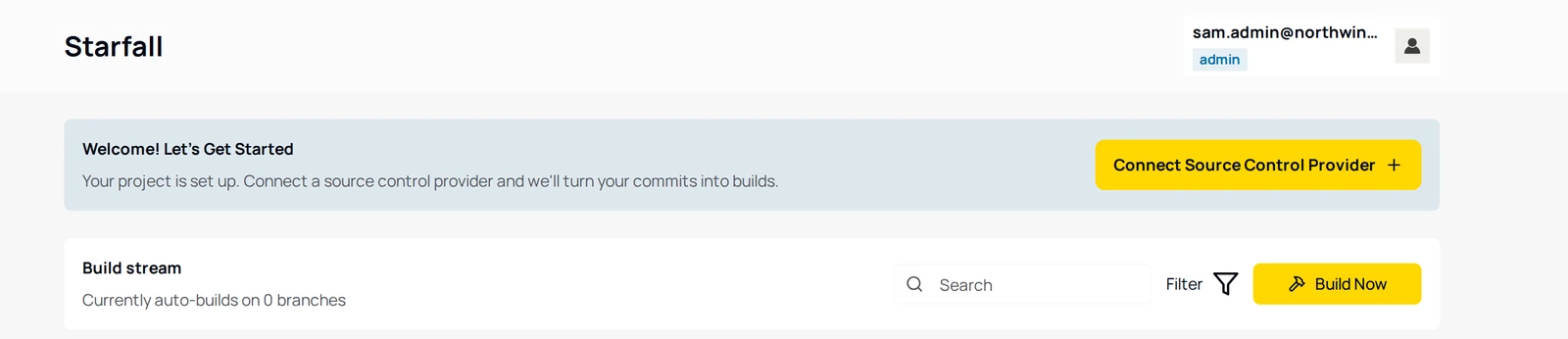
Open Build Stream → Builds. With no repository connected, the page opens on a banner headed Welcome! Let's Get Started with the line Your project is set up. Connect a source control provider and we'll turn your commits into builds. and one button, Connect Source Control Provider, which opens the connections page. Below the banner the Build stream card reads Currently auto-builds on 0 branches; that number counts the branches in your branch table that build on their own, so it stays at zero until you add one, and branches set to build on demand are counted separately after it.
From here, pick the page for your provider: GitHub, Bitbucket Cloud, Diversion or, if the project runs a Perforce server on Dev Stream Labs, hosted Perforce. If you are not sure which GitHub method to use, the comparison at the top of the GitHub page settles it in a minute.
Something out of date or unclear? Email support@devstreamlabs.com.